



For molecular modelers who often switch between 2D sketches and 3D environments, achieving seamless integration can be a challenge. The Interaction Designer in SAMSON addresses this by enabling users to design and manipulate molecules directly in 2D while maintaining synchronization with the 3D viewport. In this post, we’ll explore how to create new molecules in 2D using the Interaction Designer and why it’s such a valuable addition for molecular design workflows.
Simplify Molecular Design with 2D Sketching
The Interaction Designer allows you to start molecule building effortlessly. Whether you’re sketching from scratch or modifying a pre-existing molecular structure, this tool ensures that any changes made in 2D are instantly reflected in the 3D viewport—and vice versa. This dual synchronization offers a comprehensive environment where modelers can intuitively experiment and explore molecular interactions.
To launch the 2D molecular design mode in the Interaction Designer, you’ll need to use the Edit > Design command. This initiates the 2D environment where you can:
- Start building molecules from scratch
- Modify existing molecules in the active document
- Work directly with your current selection
Adding Atoms to Your Structure
With the Carbon atom set as the default building block, users can begin adding atoms simply by clicking anywhere in the sketching window. For connecting atoms, click on the desired atom and continue building. The tool also enables users to select atoms from a Periodic Table in the Assets Browser, ensuring flexibility when working on more complex molecules.
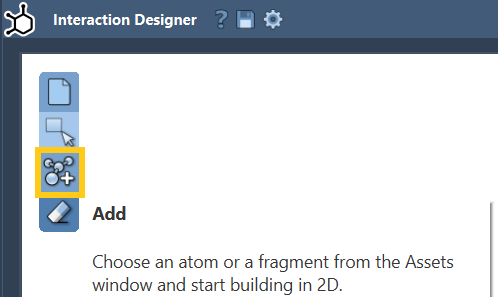
Want to alter the atom type of an existing atom? Just select the desired atom type in the Asset Browser and click on the atom in the sketch to modify its type instantly.
Incorporating Molecular Fragments
Beyond atoms, the Interaction Designer also supports the addition of molecular fragments. Select your fragment from the Assets Browser and add it to your molecule. If needed, you can even shift the pivot atom within a fragment by holding Ctrl/Cmd and clicking the desired pivot point before placement.
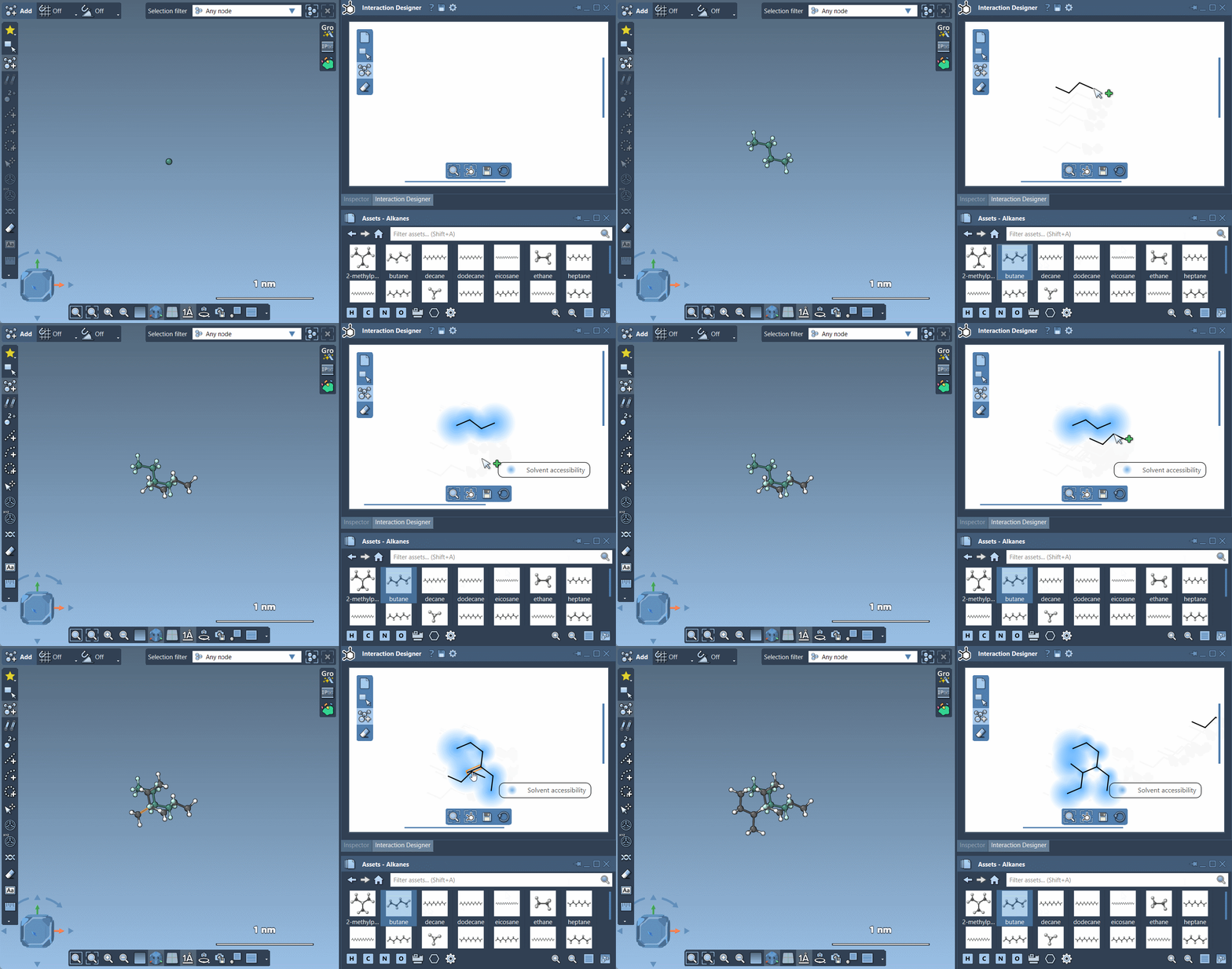
Erasing Atoms
Did something not go as planned? The Erase tool makes it easy to remove unwanted atoms. Simply select the Erase tool in the left panel of the Interaction Designer and click on the atoms you wish to delete. The process is quick and efficient.
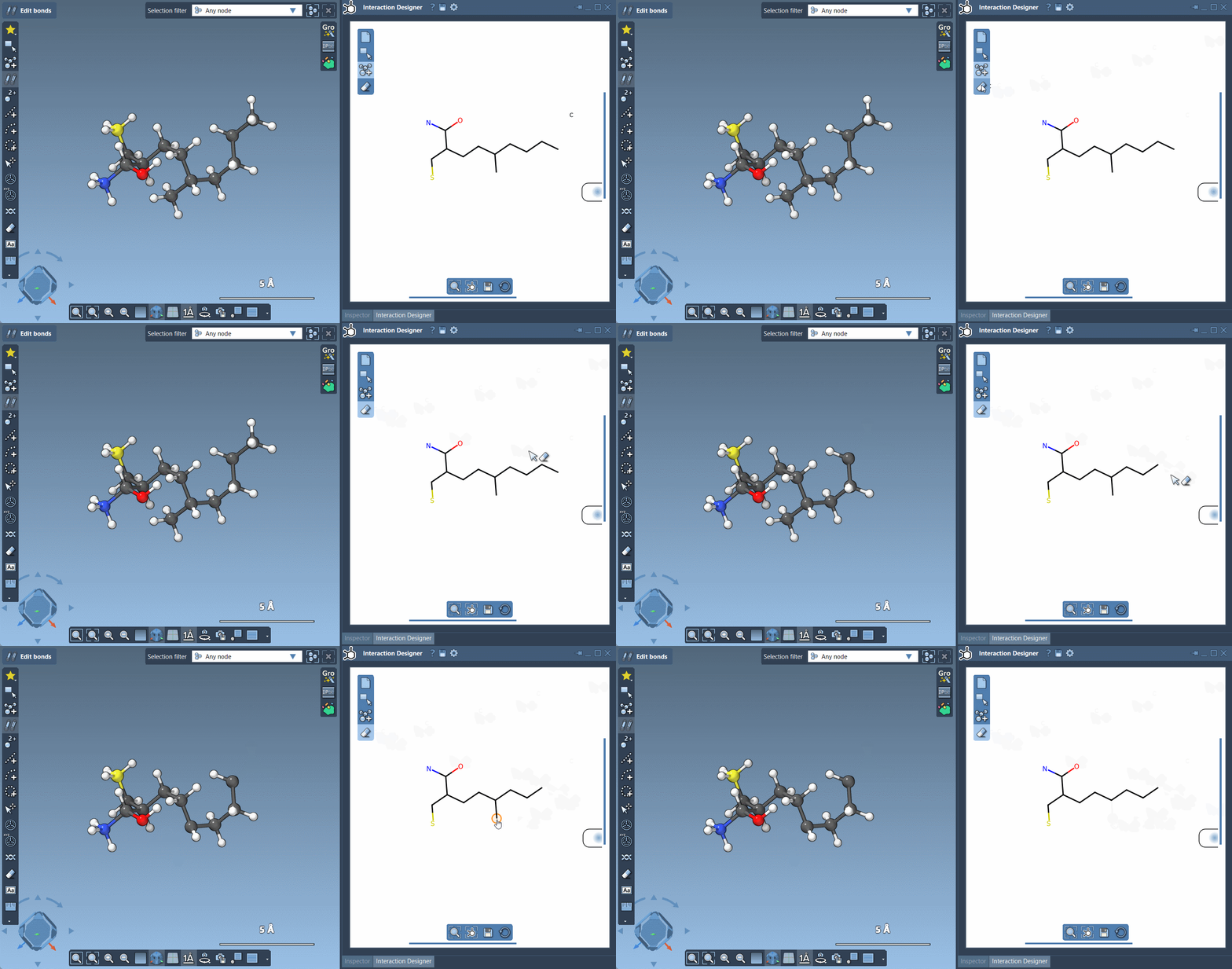
Export Your 2D Designs
Once your molecule is complete, exporting your interaction diagrams and 2D sketches is simple. The Interaction Designer supports various image formats, such as png, jpg, bmp, and svg, providing flexibility in sharing and utilizing your designs in presentations or publications.
To save your molecule, click on the Save icon in the bottom panel of the Interaction Designer, and select your desired format.
Conclusion
The ability to design and modify molecules in 2D with synchronization to a 3D environment makes the Interaction Designer a standout feature for molecular modeling. Whether you’re sketching out initial ideas, building off existing molecules, or exporting publication-ready diagrams, this tool offers a streamlined workflow for molecular creation and exploration.
To explore more about SAMSON’s Interaction Designer, visit the full documentation page.
Note: SAMSON and all SAMSON Extensions are free for non-commercial use. To get your copy of SAMSON, visit https://www.samson-connect.net.