



Molecular modelers often face challenges when studying ligand motion or analyzing paths for reaction coordinate studies. Whether you’re conducting free energy calculations or visualizing ligand exit pathways, precise trajectory data is essential. Fortunately, SAMSON’s Export Along Paths extension offers a seamless solution to export crucial atomic trajectories along defined paths!
Why Export Atomic Trajectories?
Atomic trajectories provide detailed snapshots of molecular movement, crucial for applications such as:
- Generating reaction coordinate files for free energy profiling.
- Visualizing intermediate molecular states.
- Studying ligand extraction paths for drug discovery or molecular simulations.
- Focusing on specific atomic subsets like ligands or binding sites.
Preparing these trajectory datasets manually can be labor-intensive. By using SAMSON’s tool, you can automate this process efficiently.
How to Use Export Along Paths
Step 1: Install the Extension
First, ensure you have the Export Along Paths extension installed. Go to its extension page, click Add, and restart SAMSON to activate the tool.
Step 2: Load the Sample System
If you’re new to this feature, the tutorial offers a sample system providing a structural model of Lactose permease and a ligand (Thiodigalactosid). To access it, follow these steps:
- Click Home > Download in SAMSON.
- Paste this document link: https://www.samson-connect.net/documents/046f1acd-c799-40f6-8185-cb4847eff795.
- Click Download to load the system, which includes ligand paths ready for export and analysis:

Step 3: Open the Export Along Paths App
You can access the app via Home > Apps > All > Export Along Paths. Alternatively, use the quick launcher by pressing Shift + E.
Its user-friendly interface offers two main export options:
Option 1: Export All Atoms Along a Path
This option is perfect if you want to capture complete trajectory data for visualizations or archived studies.
- Select one or more paths in the Document view.
- Choose to export all frames into a single PDB file or create a separate PDB file for each frame.
- Click Export atoms along paths to PDB files, pick a destination folder and file prefix, and the tool generates your files!
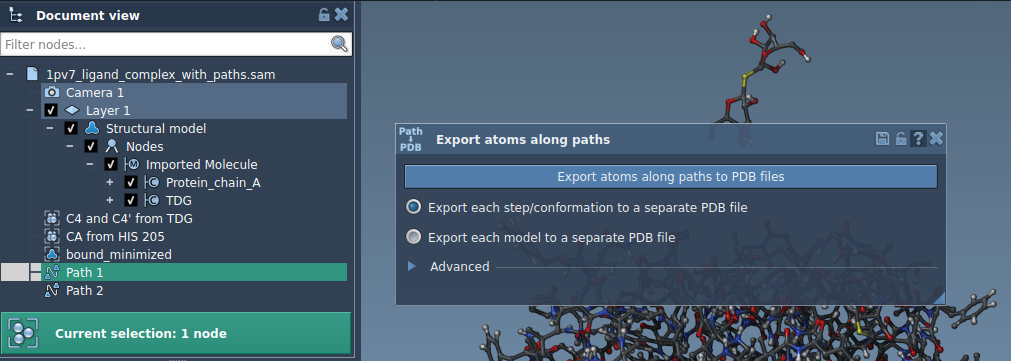
Tip: Use the Advanced section to change the export interval for frames.
Option 2: Export a Subset of Atoms
For applications requiring a focused analysis, such as tracking a ligand, the advanced mode lets you select specific atom groups.
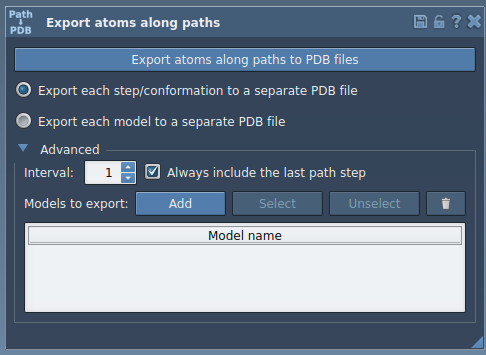
- Expand the Advanced panel.
- Use the Document view to select a subset like the ligand
TDG. - Click Add to define and name your atom group. You can also include multiple groups for comparison.
- Choose export preferences (single/multiple PDB files), select paths, and export!
Enhance Your Molecular Modeling Today
By effortlessly exporting specific atomic trajectories with SAMSON, you can save time, boost accuracy, and customize data for various tasks. From examining ligand motion to generating reaction coordinates, this tool simplifies once-tedious workflows.
To explore the full potential and detailed step-by-step process, visit the complete documentation here.
SAMSON and all SAMSON Extensions are free for non-commercial use. Discover SAMSON by visiting SAMSON Connect.