



Molecular modelers often face the challenge of understanding the interactions of molecules over reaction coordinates. One powerful technique to quantify these interactions is calculating the Potential of Mean Force (PMF). Yet, setting up such calculations can be complex and time-consuming without the right tools. Fortunately, the GROMACS Wizard extension in the SAMSON platform streamlines this process. This blog post walks you through how to effectively compute the PMF using the Weighted Histogram Analysis Method (WHAM) in GROMACS Wizard.
Why PMF Matters
PMF is a key concept in molecular modeling, enabling researchers to quantify the free energy profile along reaction coordinates. Understanding this profile helps predict molecular behavior, find energy barriers, and optimize molecular systems. However, managing the data, tools, and steps for PMF computations is often a daunting task.
Step-by-Step Guide to PMF Calculations
The GROMACS Wizard in SAMSON provides a user-friendly yet robust way to perform PMF analysis. Here’s how:
1. Initial Setup
First, ensure that the necessary simulation data is available. If you’ve previously conducted an Umbrella Sampling simulation, you can save time by using the project folder from that step.
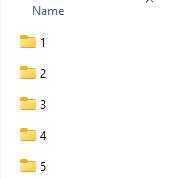
For convenience, the GROMACS Wizard offers an auto-fill button ( ) to quickly load relevant data like reaction coordinates, time, and temperature. This is particularly useful if your project folder contains subfolders organized by simulation results, as shown below:
2. Selecting a Reaction Coordinate
Once the necessary information is loaded, simply select the desired reaction coordinate from the list. The intuitive interface allows you to modify options such as:
- Custom bounds: Define specific reaction coordinate limits.
- Custom time: Set a particular simulation timeframe for the analysis.
- Energy units: Select the energy scale you prefer.
3. Running the Calculation
After configuring your settings, clicking Compute starts the WHAM-based PMF calculation. Thanks to its efficient algorithms, the GROMACS Wizard handles even large trajectories with ease, though longer simulations might still take a few minutes to process. The result? Two essential graphs:
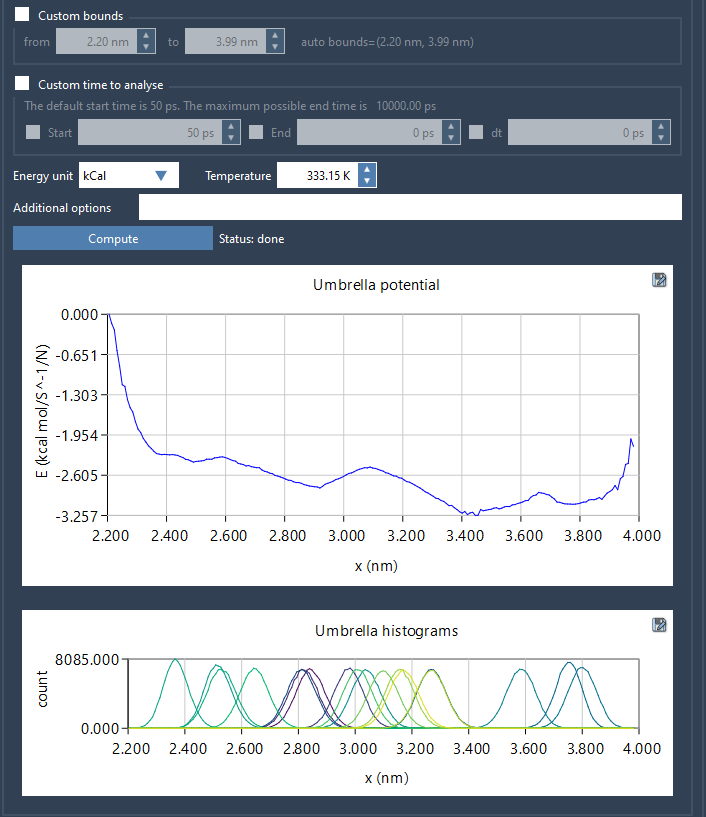
- PMF Plot: Displays the computed energy profile along the reaction coordinate.
- Histogram: Shows how well the reaction coordinate space is covered.
The histogram is especially valuable as it highlights areas where additional calculations may be necessary to improve accuracy.
4. Automatic Saving of Results
Once the computation is complete, the results are automatically saved in a wham_results subfolder within your project folder. This automatic saving ensures that you can effortlessly switch between reaction coordinates or tweak parameters without losing previous results. This feature makes iterative analysis much more manageable.
Conclusion
Thanks to the GROMACS Wizard’s intuitive interface and automated features, conducting PMF analysis is now more accessible than ever. Whether you’re optimizing molecular systems or investigating energy barriers, this tool simplifies complex workflows. To dive deeper into the PMF analysis process, visit the official documentation page for comprehensive guidance.
SAMSON and all SAMSON Extensions are free for non-commercial use. You can get SAMSON at https://www.samson-connect.net.