



For molecular modelers and nanoscientists, constructing precise carbon nanotube (CNT) models can be a daunting task. Whether you’re designing CNT-based sensors, exploring electronic properties, or conducting molecular simulations, having the right tools can make all the difference.
Enter SAMSON’s Nanotube Creator Extension, a user-friendly tool for generating single-walled and multi-walled CNT models. This extension offers both interactive and graphical interface options to help you build nanotubes with precision while simplifying what could otherwise be a time-consuming process.
Why Use SAMSON’s Nanotube Creator?
The Nanotube Creator Extension is tailored for tasks such as:
- Designing advanced nanodevices and nanostructures.
- Simulating mechanical and electronic behavior of CNTs.
- Developing nanostructures for molecular transport, drug delivery, or materials research.
- Integrating CNTs into hybrid systems and simulations.
Let’s explore how you can start building nanotubes in a few simple steps and customize every parameter to suit your project needs.
Getting Started in Minutes
First, make sure you’ve added the Nanotube Creator Extension to your SAMSON workspace. Installation is straightforward:
- Log into SAMSON Connect.
- Add the Nanotube Creator Extension from its page.
- Restart SAMSON to activate the extension.
Once installed, activate the tool from the main menu or search for it using the Find everything… shortcut (Shift + E).
Two Approaches to Building Nanotubes
The Nanotube Creator gives you two options to design CNTs:
- Interactive mode: Build directly in the viewport using your mouse for precise control.
- Graphical Interface mode: Utilize a dedicated editor window to input parameters such as dimensions and alignment.
Interactive Creation
Here’s how to build a nanotube interactively:
- Define the CNT axis and length: Click and drag the left mouse button to set these parameters. Feedback on the orientation and length is displayed in the status bar for precision.
- Adjust the radius: Release the mouse button, move the mouse to set the radius, and click again to confirm.

The real-time feedback ensures you get your n and m chiral vector parameters just right.
Graphical Interface Mode
For those who prefer precision, the graphical user interface (GUI) allows you to enter exact parameters:
- Start / End Position: The tube’s axis in 3D.
- n / m values: Defining the nanotube’s chiral vector, structure, and radius.
Click the Build button, and the nanotube will be generated instantly. The GUI also makes it simple to build multi-walled structures.
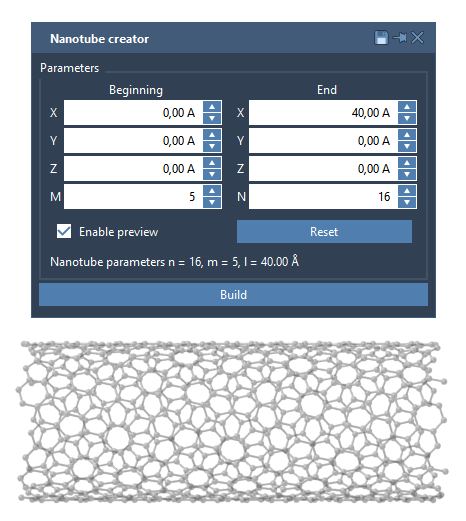
Example: Building a Multi-Walled Nanotube
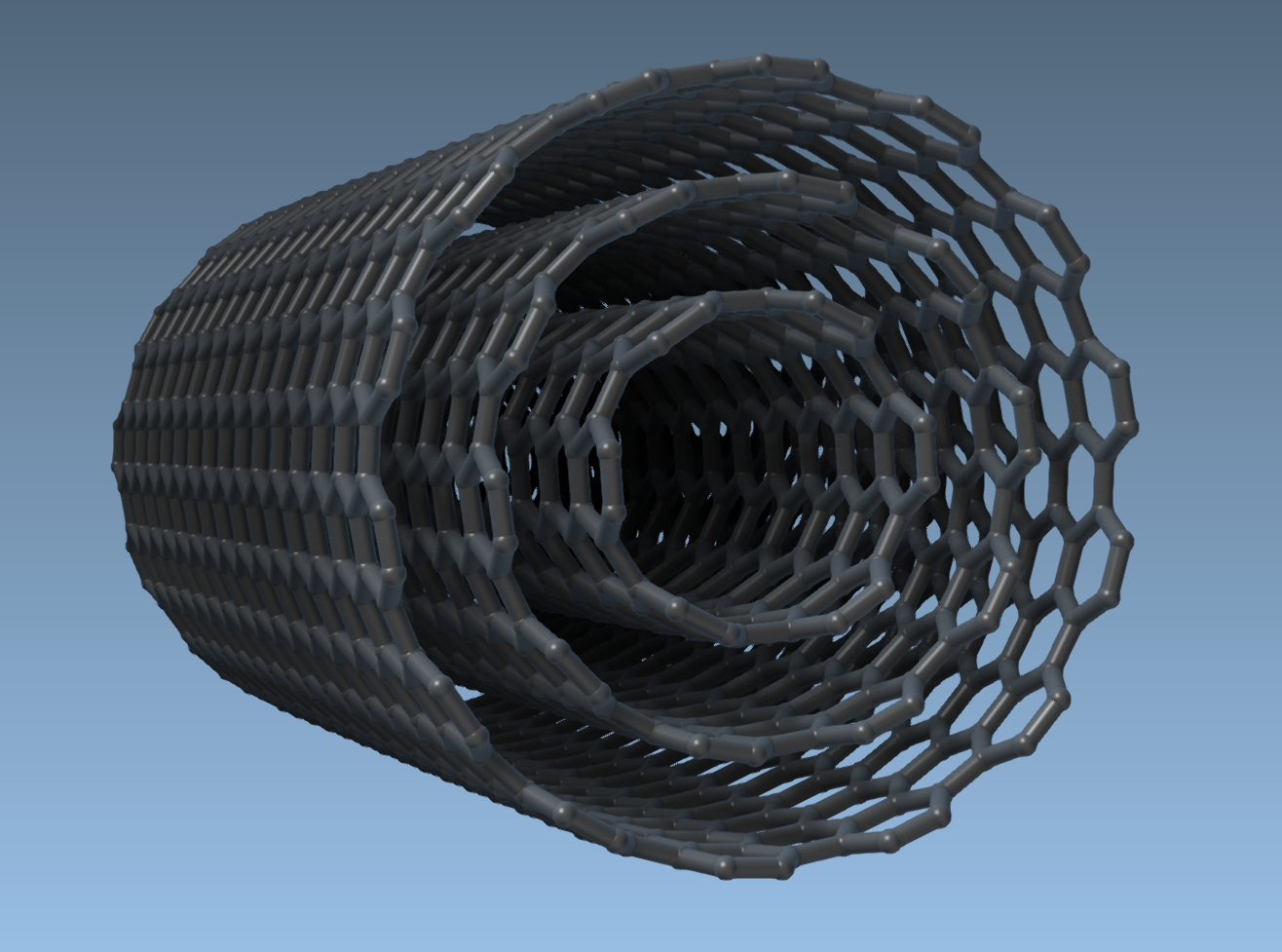
For a quick demonstration, try building a multi-walled CNT with three layers:
- Set start and end positions to
(0, 0, 0)and(40, 0, 0)for a length of 40 Å along the x-axis. - Create CNT 1 with
n = 6,m = 6, and click Build. - Add CNT 2 with
n = 10,m = 10, and click Build. - Finish with CNT 3 using
n = 14,m = 14, and click Build.
This produces a clean multi-walled nanotube structure, as shown:
What’s Next?
Once your model is ready, you can:
- Export high-quality images.
- Simulate CNTs in real time.
- Combine them with other molecules for hybrid applications.
For step-by-step guidance, visit the full documentation at Building Carbon Nanotube Models.
Note: SAMSON and all SAMSON Extensions are free for non-commercial use. Get SAMSON for free at samson-connect.net.