



Whether you are designing new materials or studying molecular structures, effective manipulation of crystals is essential for molecular modeling. One common frustration for modelers is understanding how to visualize, modify, and analyze the internal structure of crystals seamlessly. With SAMSON’s Crystal Creator Extension, you can take your crystal handling skills to the next level, thanks to tools that allow you to inspect and fine-tune crystal properties effectively. Let’s dive into how to manipulate crystals with this robust platform.
Visualizing and Accessing Crystal Properties
After importing your crystal into SAMSON with the Crystal Creator App, your crystal’s structure and property model will appear in the data graph. Want to explore the crystal in depth? Simply right-click on the property model of the loaded crystal and navigate to “properties.” This brings up a property window equipped with essential tools for visualization and manipulation.
The Toolkit for Crystal Manipulation
The first tab in the property window gives you four powerful tools to work with:
- Locate Your Crystal: A simple button re-centers your crystal in case it drifts out of view.
- View Its Mesh: Enabling this option reveals the crystal’s mesh, aiding visualization of its unit cell structure.
- Cutting Your Crystal: This toolbox allows you to slice the crystal according to your needs. Input three Miller indices for the cutting direction and set the distance from position 0 where the cut should occur. Want to see something remarkable? Try cutting a diamond crystal in the
[111]direction and observe its compact hexagonal structure. A preview of this operation is showcased below: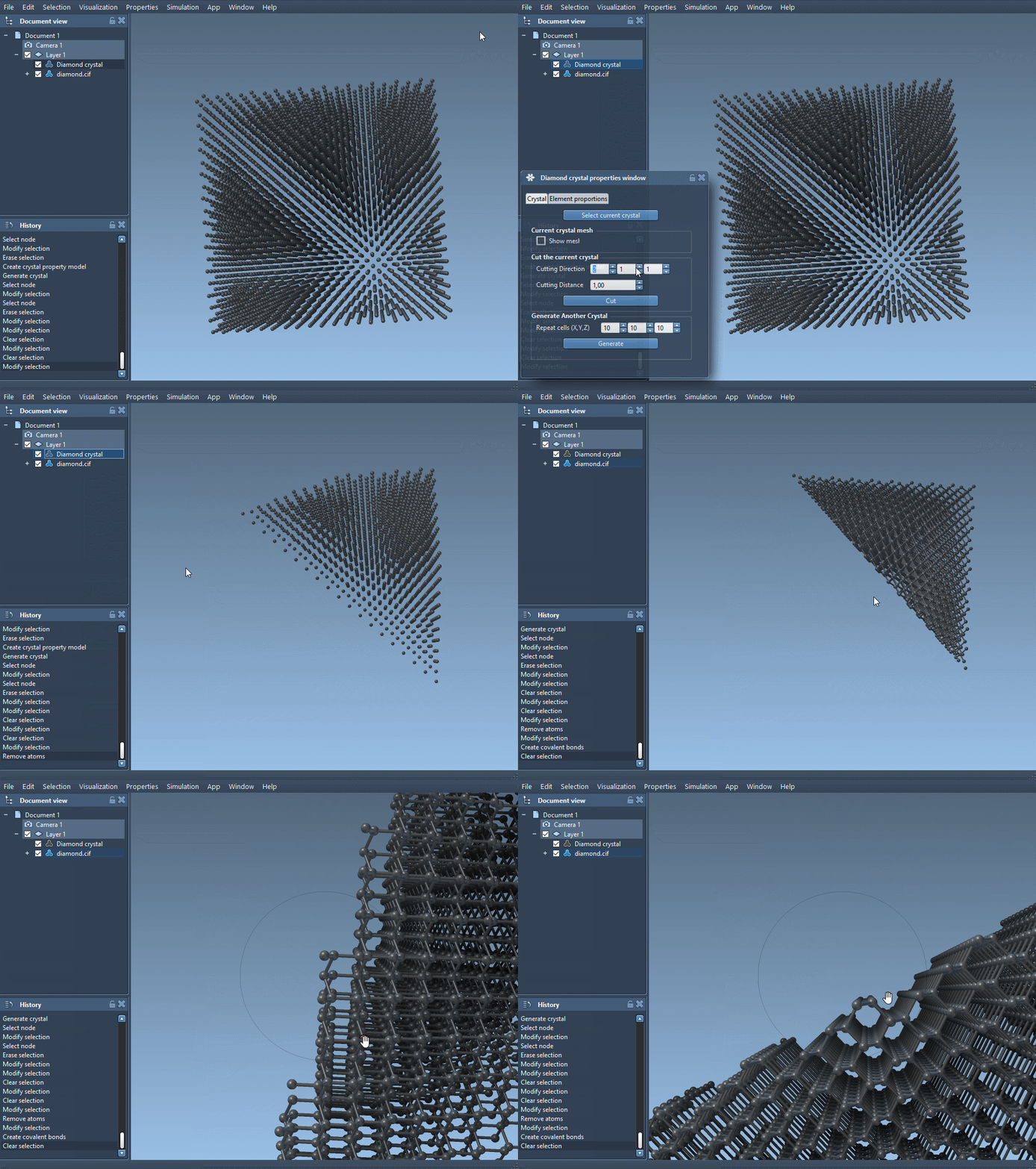
- Generate a New Crystal: This option allows you to create a new crystal structure based on your specific parameters.
Checking Defects and Substitutions
Crystals often feature naturally occurring defects or substitutions, which can influence their material properties. Ensuring that these are accurately represented in your models is crucial.
The second tab in the property window is designed for precisely this purpose. Use the “check atoms ratio” button to confirm whether the proportion of atomic defects and substitutions matches the intended configuration of your model. With detailed insights into atomic sites and their occupancy ratios, you can be confident that your simulations are as realistic as possible.
Experiment with a Diamond Crystal
Here’s a practical exercise to better understand these features. Download a diamond CIF file and load it into SAMSON. After creating bonds for the structure, use the cutting tool as mentioned earlier to highlight the hexagonal structural motif along the [111] direction. You can also check the occupancy rates of carbon atoms to see whether simulated defects align with real-world scenarios.
Why Manipulation Matters
Crystal manipulation isn’t just about inspection; it plays a vital role in material design, defect analysis, and much more. With SAMSON’s Crystal Creator, you can gain better insights and have more control over the crystal structures you are working with, making tasks like cutting, defect analysis, and substitutions straightforward and accessible.
Learn more about working with crystals and all the tools available in the SAMSON Crystal Creator Extension by visiting the full documentation: https://documentation.samson-connect.net/tutorials/crystal-creator/generating-crystal-models/.
Note: SAMSON and all SAMSON Extensions are free for non-commercial use. Download SAMSON today at https://www.samson-connect.net.