



For molecular modelers, achieving stable and realistic molecular structures is often a critical step in any project. Geometry optimization ensures that molecules settle into configurations that minimize energy and align with physical realism. However, as scales increase or molecular movements grow complex, traditional approaches like steepest descent can become time-consuming or inefficient.
Enter the FIRE (Fast Inertial Relaxation Engine) Minimizer – an efficient alternative designed to handle large-scale molecular motions with speed and accuracy. In this post, we’ll explore why FIRE is a game-changer in molecular modeling workflows and how to integrate it effectively into your processes.
Why Choose FIRE for Geometry Optimization?
The FIRE minimizer offers several compelling advantages:
- Speed: FIRE outperforms the steepest descent method, especially when collective motions dominate the molecular dynamics. Its algorithm is specifically designed to accelerate convergence when traditional methods might struggle.
- Universality: FIRE works seamlessly with any SAMSON interaction model, making it a versatile choice for all your molecular design tasks.
- Pre-Simulation Preparation: It’s ideal for cleaning up structures and ensuring they are relaxed before diving into more intensive simulations.
Getting Started
Integrating the FIRE Minimizer into your SAMSON platform is designed to be straightforward:
- Log into SAMSON Connect.
- Find the FIRE Minimizer Extension and click Add.
- Restart SAMSON – the FIRE Minimizer will be ready to use!
Using the FIRE Minimizer
Once the FIRE Minimizer is added to your SAMSON environment, here’s how you can leverage it for geometry optimization:
1. Load Your Molecular System
Start by loading the molecular structure you want to optimize. SAMSON supports various formats, including PDB and MOL2. For more on file compatibility, check out the list of supported formats.
Tip
If you’re unfamiliar with loading molecules in SAMSON, consult the Loading Molecules Guide.
2. Add a Simulator
Once your molecular system is ready, you’ll need to add a simulator to apply the FIRE Minimizer:
- Go to Edit > Add Simulator.
- Select the interaction model that best suits your molecular system.
- In the State Updaters list, choose FIRE. This step activates the minimizer for your workflow.
Tip
For an overview of simulators in SAMSON, visit the Simulators Overview.
FIRE Minimizer Settings
FIRE allows fine-tuning of key optimization parameters:
| Setting | Description |
|---|---|
| Step Size | Defines the initial integration step size for the minimization process. Adjust this based on the scale of your molecular system. |
| Steps | Controls the number of optimization steps taken before the viewport updates. Increasing this value can offer a clearer view of progress at each step. |
| Fixed | Optional setting to maintain a constant step size during the optimization process. |
If you manually move atoms during optimization and notice inconsistencies, you can clear the history by clicking Reset, which reinitializes the minimizer’s internal parameters.
FIRE vs. Steepest Descent in Action
The FIRE minimizer can significantly accelerate convergence compared to the steepest descent algorithm, especially when the system’s potential energy changes minimally, but large-scale geometry changes occur. For example:
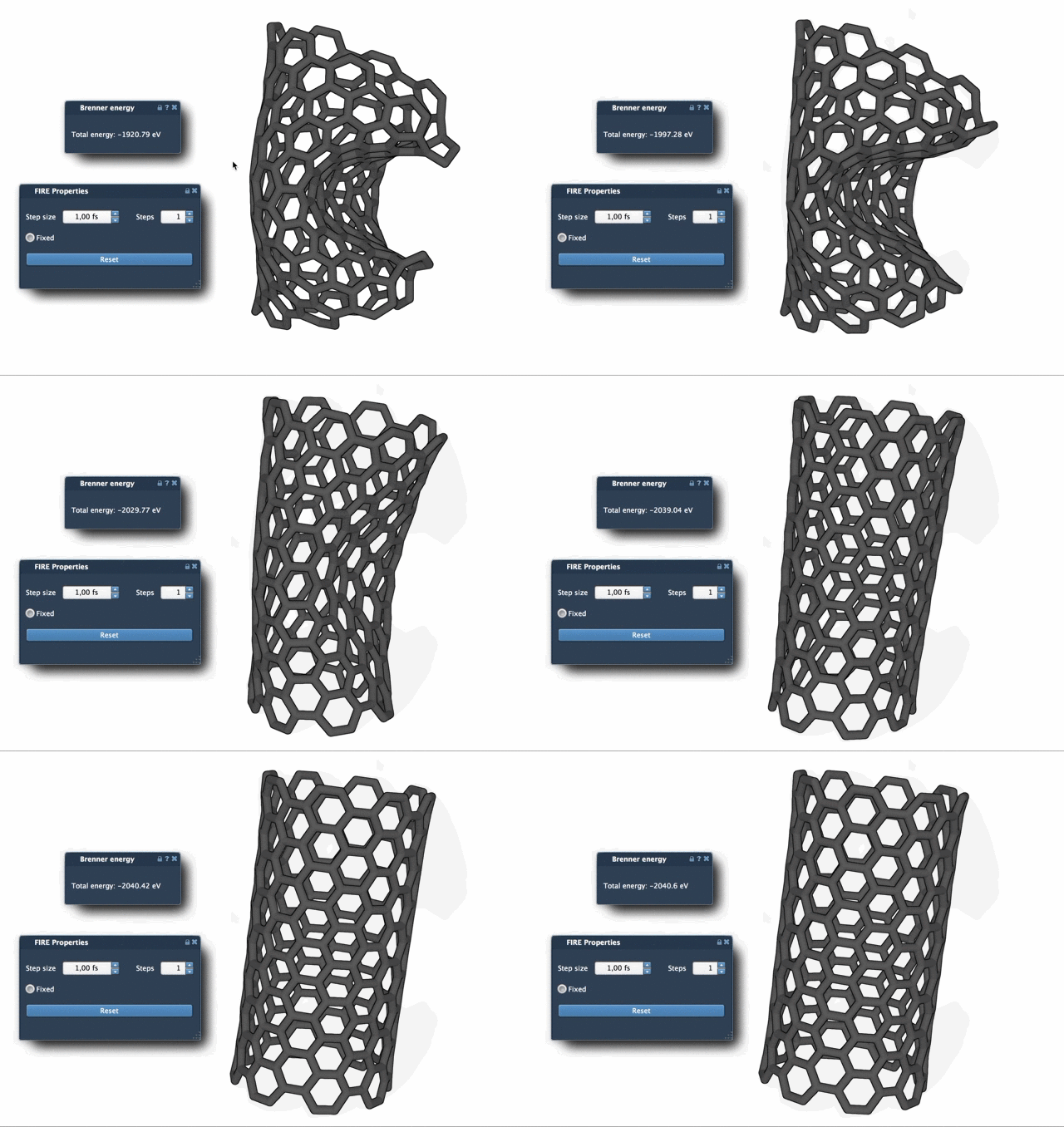
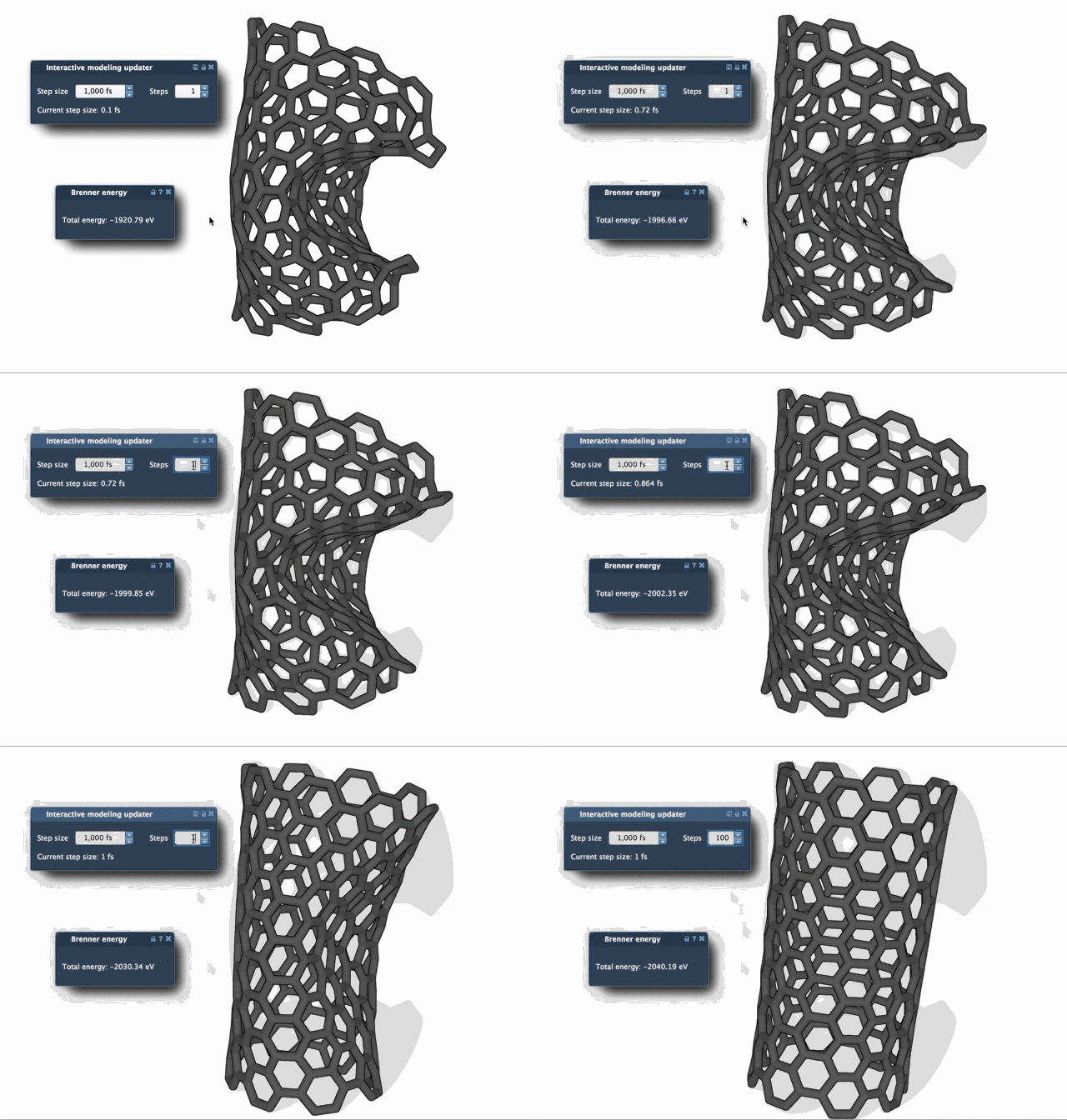
The comparison highlights FIRE’s efficiency in achieving faster and more stable results, saving crucial time in complex molecular designs.
Learn more about the FIRE minimizer and its integration into SAMSON workflows by visiting the official documentation page: https://documentation.samson-connect.net/tutorials/fire/ready-set-fire/.
SAMSON and all SAMSON Extensions are free for non-commercial use. You can download SAMSON from https://www.samson-connect.net.