



When working with molecular simulations, comprehending the motion of key atomic groups can be a challenging task. Whether you’re examining ligand unbinding pathways or studying complex protein conformational changes, it is often difficult to visualize the exact trajectory of atoms in your system. This is where SAMSON’s Pathlines feature can make a difference, allowing you to effectively track and analyze atomic motion.
Why Pathlines Matter
Understanding the motion of a molecule or its parts is crucial in areas such as drug discovery, protein conformational studies, and material science. For example, if you’re simulating how a ligand detaches from a protein, or you want to study collective domain movements in a protein complex, visualizing the trajectory of your molecules can simplify decision-making and provide actionable insights.
The Pathlines visual model in SAMSON enables you to display the center-of-mass (COM) motion of selected atoms along predefined paths. This tool empowers researchers to explore unbinding routes, diffusion pathways, and other complex movements across molecular simulations with great clarity.
How to Begin
To start using Pathlines, you need to ensure you have the appropriate SAMSON extension installed. Here are the steps to get started:
- Log into your account on SAMSON Connect.
- Visit the Pathlines Extension page and click Add.
- Restart SAMSON to activate the extension.
With the extension ready, you can begin analyzing your atomic systems.
Step-by-Step: Visualizing Motion with Pathlines
1. Load a Sample System
To try out the Pathlines tool, you can load a pre-prepared sample system. Open SAMSON, navigate to Home > Download, and add the provided sample document link:
https://www.samson-connect.net/documents/046f1acd-c799-40f6-8185-cb4847eff795
Click Download to load a sample structure, featuring Lactose permease (1PV7) with its ligand Thiodigalactosid (TDG) and associated paths.

2. Select Atoms and Paths
In the Document view, select the atoms or groups of atoms whose center-of-mass motion you want to analyze. Also, select one or more paths to visualize their trajectories. SAMSON makes it easy to select multiple nodes by holding down the Ctrl key (or Cmd on Mac).
Pro-tip: If no atoms or paths are selected, SAMSON will automatically use the entire system and all paths available in the document by default.

3. Create a Visual Model
To visualize this trajectory data, create a pathline visual model:
- Go to Visualization > Visual model > More….
- Select Pathline of the center of mass in the dialog and click OK.
The pathline will now appear, clearly indicating the trajectory of the selected atoms along the selected paths.
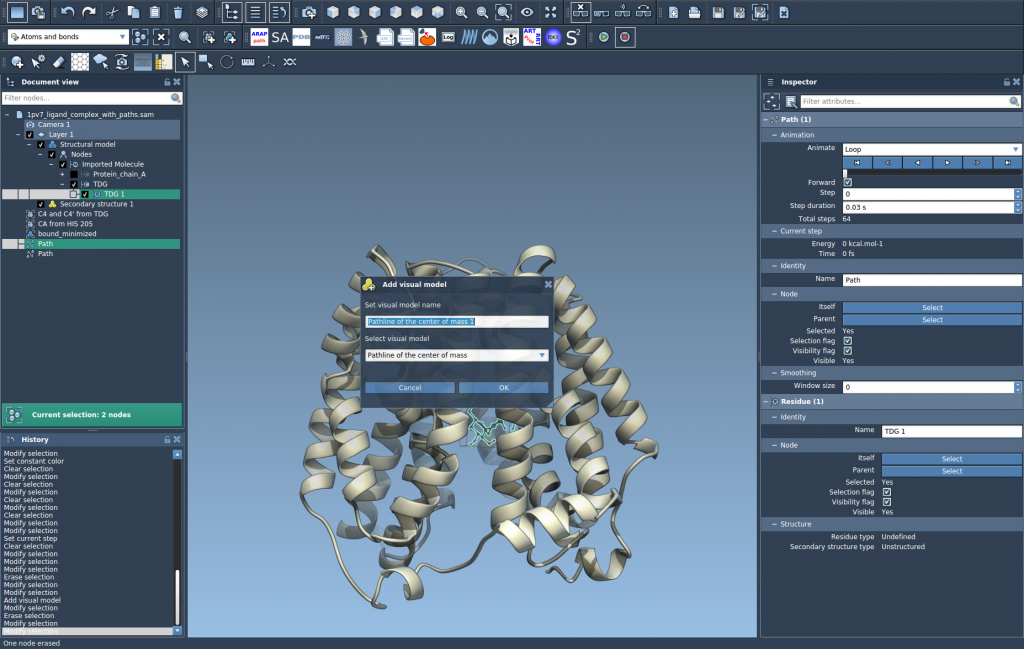
4. Explore and Customize
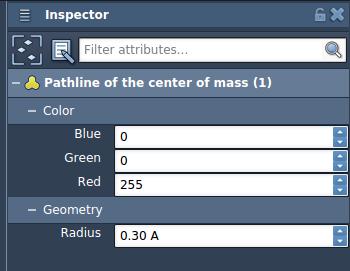
You can further refine and explore your visualization by interacting with the paths directly in SAMSON’s interface. For example, double-click a path in the Document view to toggle it on or off or adjust its properties (like color or thickness) in the Inspector.
Applications and Value
The Pathlines feature is versatile, allowing for a variety of scientific applications, such as:
- Visualizing ligand binding or unbinding routes.
- Tracing domain movements in macromolecular assemblies.
- Studying diffusion or reaction pathways in molecular dynamics workflows.
With its ability to visualize motion and provide quantitative insight, Pathlines is a practical solution for researchers who need to interpret complex molecular behavior.
To learn more about this powerful feature, explore the detailed documentation on Pathlines here.
Note: SAMSON and all SAMSON Extensions are free for non-commercial use. Get started today and download SAMSON at https://www.samson-connect.net.