



One of the most critical challenges in molecular modeling is ensuring that your molecular structures are perceived correctly. While automated perception systems, like those in UFF, are powerful, advanced users often need more control to refine typization for non-standard cases or specific research needs. In this blog post, we’ll explore how SAMSON’s UFF interaction model provides options for customizing typization, enabling users to tailor molecular parameters for better accuracy and simulation results.
Why Customize Typization?
By default, UFF automatically perceives atom types, bond orders, and other parameters. This automatic workflow is highly efficient but might not handle unusual cases or specific modeling requirements. Customizing typization allows you to:
- Accurately reflect the molecular structure for advanced molecules or unusual compounds.
- Avoid errors in bond perception that could distort your simulation results.
- Fine-tune atom typization and bond characteristics for high-precision modeling.
Let’s dive into the steps available for refining typization in UFF.
Customizing Atom Coordination and Valence
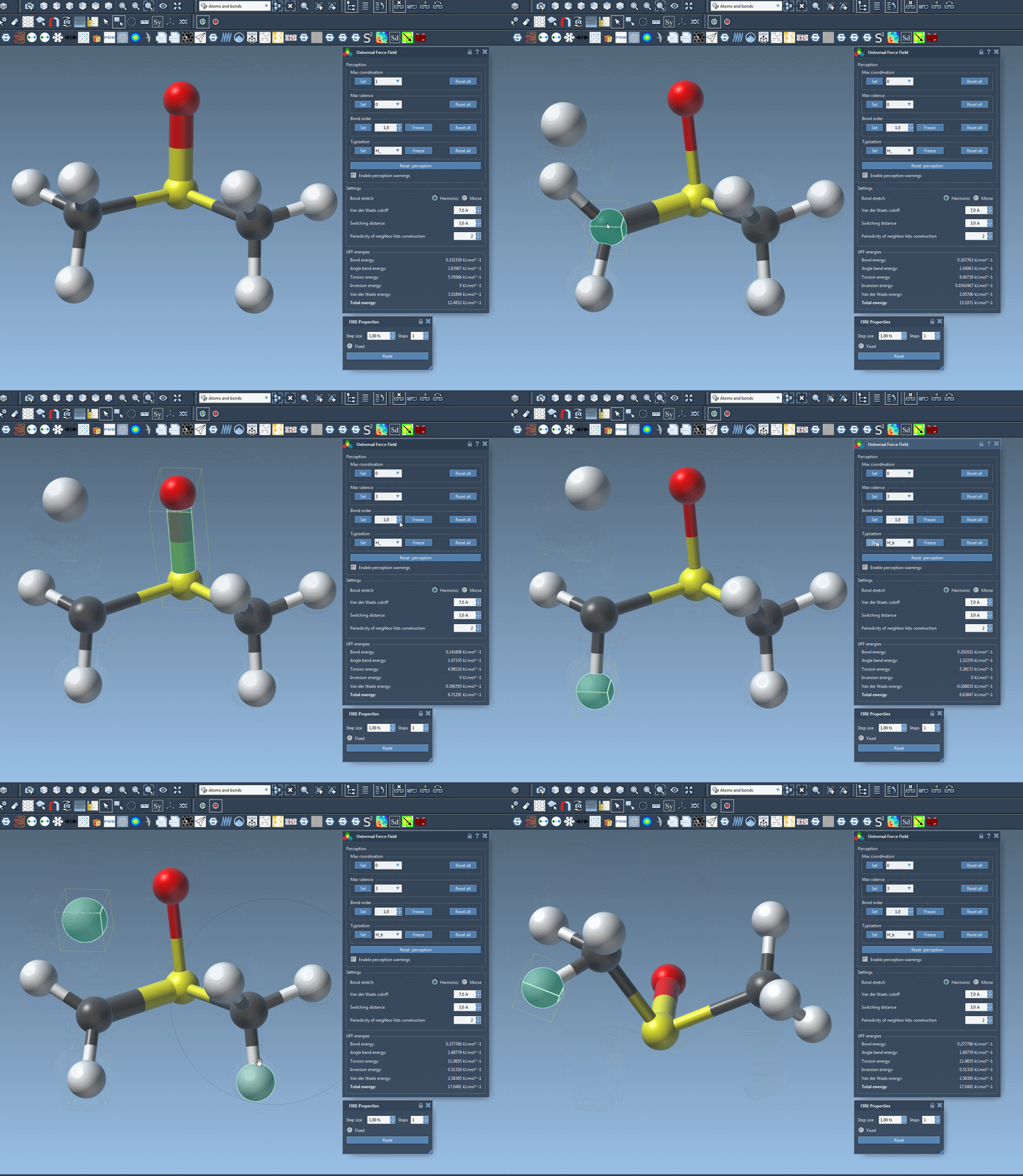
UFF sets default values for the maximum coordination (number of neighbors) and valence (the weighted number of neighbors based on bond orders) of atoms. These values can be customized with a few clicks:
- Select the atom of interest.
- Use the combo box in the UFF parameter window to choose new coordination or valence values.
- Click the Set button to apply the changes.
These adjustments ensure the atomic properties align better with experimental or theoretical data. However, note that reducing the maximum coordination or valence values below default settings is recommended to avoid inconsistencies.
Forcing Bond Orders
Modifying bond orders can significantly impact simulation accuracy, especially for non-standard bonds or complex structures:
- First, select the bond(s) requiring adjustment.
- Choose a bond order value between 0.1 and 3.9 in the UFF parameter window.
- Click the Set button to enforce the selected value.
You can even freeze bond orders, ensuring they remain fixed during subsequent perception rounds. This feature is particularly useful when working on reactive modeling or unusual bonding arrangements.
Forcing Atom Types
UFF allows users to override atom type assignments for maximum flexibility:
- Select the atom(s) for which you wish to change the type.
- Assign the desired UFF type through the parameter window.
- Click the Set button to apply the new type.
- Optionally, freeze the type to lock it during future perceptions.
Freezing ensures stability when the molecular structure undergoes iterative updates or dynamic changes.
Reset and Recalculate
If your adjustments result in inconsistencies, don’t worry. SAMSON provides tools to reset customizations:
- Use the Reset all buttons to remove all forced customizations for coordination, bond orders, and atom types.
- Recompute a new perception round by pressing the Reset perception button. The new calculation will factor in the current positions and distances between atoms.
This iterative flexibility ensures a smooth workflow while preserving precision and adaptability.
What to Keep in Mind
While these customization tools are powerful, they come with responsibility. Misuse can lead to inaccurate molecular models, potentially invalidating simulation results. Therefore, it’s recommended that only advanced users undertake such modifications and validate changes carefully.
Learn More
Customizing typization can dramatically improve your modeling results when used effectively. For a more in-depth guide and tangible examples, check out the official documentation page at https://documentation.samson-connect.net/tutorials/uff/uff/.
Note: SAMSON and all SAMSON Extensions are free for non-commercial use. You can download SAMSON from https://www.samson-connect.net.