



One of the recurring challenges for molecular modelers is efficiently juggling multiple selections in a complex molecular system. Have you ever wished for a quick way to toggle, save, and revisit specific selections during a workflow? SAMSON’s Quick Groups feature offers a solution designed to bring speed and precision to your molecular modeling experience.
What are Quick Groups?
Quick Groups in SAMSON allow you to temporarily save and switch between different regions or nodes of interest in your molecular documents. This feature is perfect for structural analysis, comparisons, or simulation preparation. Quick Groups operate with numbered shortcuts (1–10), making them intuitive and fast to use. They are particularly useful when dealing with large, intricate systems—helping you organize and interact with your molecular structures efficiently.
Quick Groups complement SAMSON’s powerful selection tools by enabling rapid toggling and zooming between saved selections. They can be used to retrieve structural elements, compare different regions, or apply visual models and transformations selectively within your projects.
How to Create and Use Quick Groups
Assigning Quick Groups
- Make a selection, such as specific atoms, residues, or molecular regions.
- Assign the selection to a Quick Group using either of these methods:
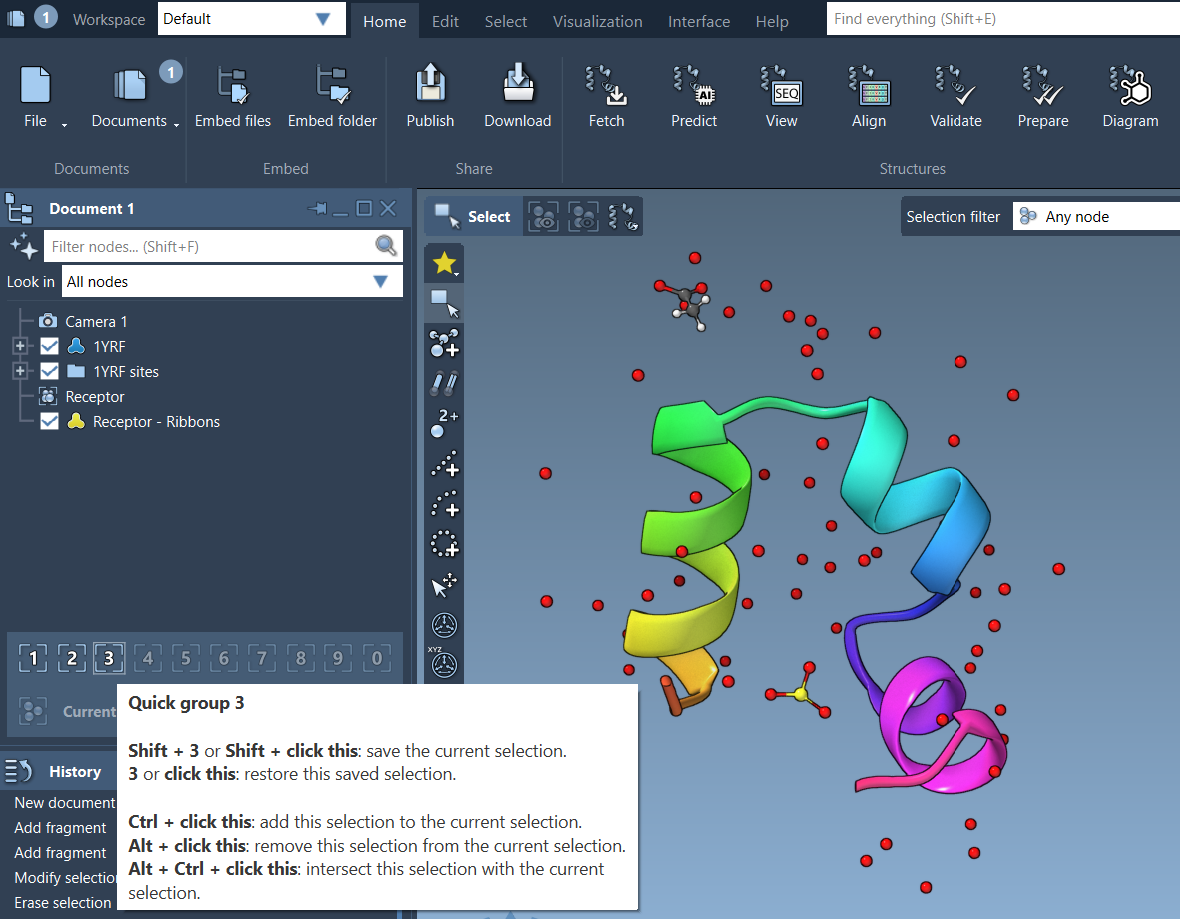
- Mouse method: Hover over a Quick Group slot (visible in the lower section of the Document view) and press Shift + click.
- Keyboard method: Press Shift + the Quick Group number (e.g., Shift + 2 assigns to Quick Group 2).
You can store up to 10 Quick Groups, and they can be updated or cleared at any time. For iterative workflows or quick navigation between selections, they provide unrivaled convenience.
Switching Between Quick Groups
Once your groups are assigned, toggling between them is seamless:
- Press the corresponding number key (e.g., 1, 2, etc.) to switch to a saved Quick Group.
- Double-press a number key (e.g., 1 1) to zoom in on the corresponding group’s selection.
- Alternatively, click directly on Quick Group icons in the Document view for immediate access.
This functionality enables users to effectively manage multiple regions of interest, similar to control groups in real-time strategy games.
Example Workflow with Quick Groups
Here’s how a modeler might use Quick Groups in a typical scenario:
- Select a ligand and assign it to Quick Group 1.
- Select the receptor and assign it to Quick Group 2.
- Select water molecules within the system and assign them to Quick Group 3.
- Toggle between these groups using 1, 2, and 3, depending on the analysis or task.
- Apply specific visualizations or modify properties of each group independently.
This straightforward workflow highlights how Quick Groups simplify frequent operations in molecular modeling.
Interactive Example
The Quick Groups interface is visible in the Document view’s lower section. You can hover over slots and use shortcuts to assign or manage groups within seconds.
Why Use Quick Groups?
With Quick Groups, you can eliminate repetitive selection tasks, improve organizational efficiency, and focus on designing or analyzing your molecular systems. Whether you’re working on drug discovery, structural analysis, or educational projects, this time-saving feature ensures smoother workflows.
Want to implement Quick Groups into your molecular modeling process?
Learn more about Quick Groups and other selection techniques by visiting the official SAMSON documentation page: https://documentation.samson-connect.net/users/latest/selecting/.
SAMSON and all SAMSON Extensions are free for non-commercial use. Get SAMSON at https://www.samson-connect.net.