



Populating a 3D box with molecules for simulation purposes can be a tedious task for molecular modelers. If you’ve ever felt the need for a simple, user-friendly way to prepare solvent boxes, lipid layers, or custom molecular configurations, SAMSON’s Molecular Box Builder might be exactly what you’re looking for. Here’s a quick walkthrough of how this tool can help you create molecular boxes efficiently, saving time and effort.
What is the Molecular Box Builder?
The Molecular Box Builder is a SAMSON Extension designed to automate the process of placing molecules in a 3D box. You can quickly generate solvent boxes, membrane-like environments, or even custom molecular assemblies without diving into complex configurations. It’s an intuitive solution for estimating how many molecule copies fit in a specified box or for preparing environments for molecular dynamics simulations.
Key Features of Molecular Box Builder
Some features that make this extension stand out include:
- Precise control over box dimensions and molecule alignment.
- Automatic prediction of the number of molecules that can fit into a defined space.
- The ability to customize margin adjustments between molecules, ensuring non-overlapping configurations.
- Support for building lipid layers or membranes around structures, like proteins.
How to Get Started
Follow these steps to create a molecular box using the Molecular Box Builder:
1. Choosing Your Molecule
Select a molecule, structural model, or group of molecules in your SAMSON document. You can then set this selection as the base structure to populate the box. The tool allows you to align the molecule along specific axes if orientation matters for your system.
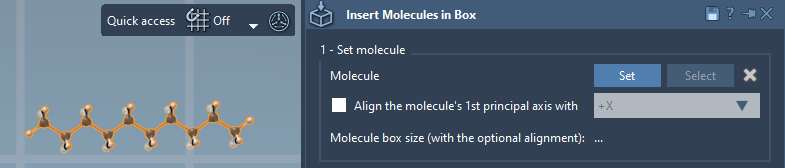
Tip: Use the Select and X buttons in the app to highlight or clear the selected molecule.
2. Defining Your Box
Specify the dimensions of your box (X, Y, Z) and adjust its position if necessary. By enabling the Center option, you can align the box around specific coordinates for more precise placement. Additionally, you can define a margin—positive or negative—between the inserted molecules. The app even predicts how many molecule copies can fit into your box based on these parameters.
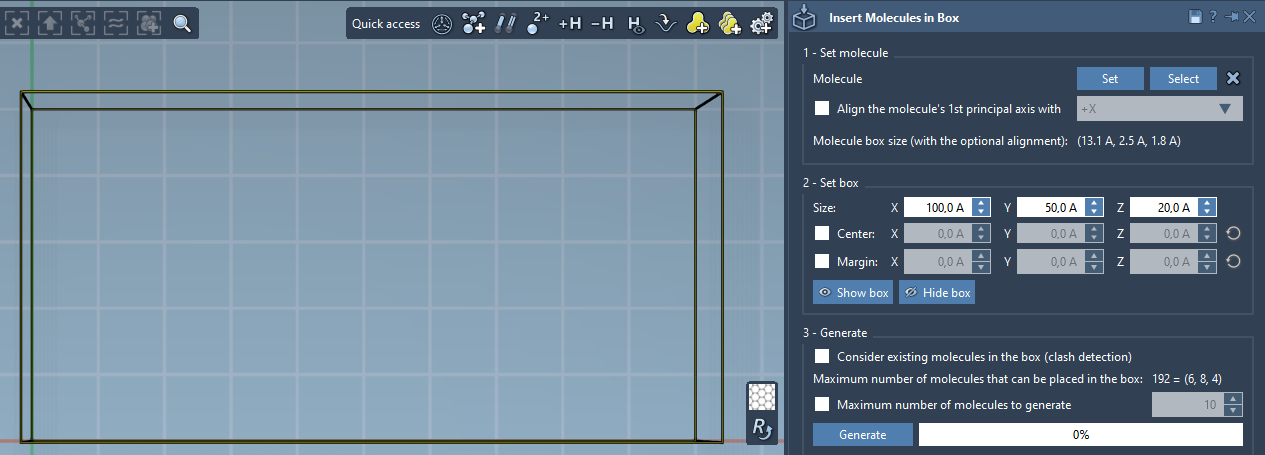
Once your box dimensions are set, you can toggle box visibility in the app for a clearer visual overview.
3. Generating the Molecular System
Click on Generate to fill the box with molecular copies. You can limit the total number of selections or fill the box to its maximum capacity. The result is a neatly packed system, ready for simulations or further manipulation.
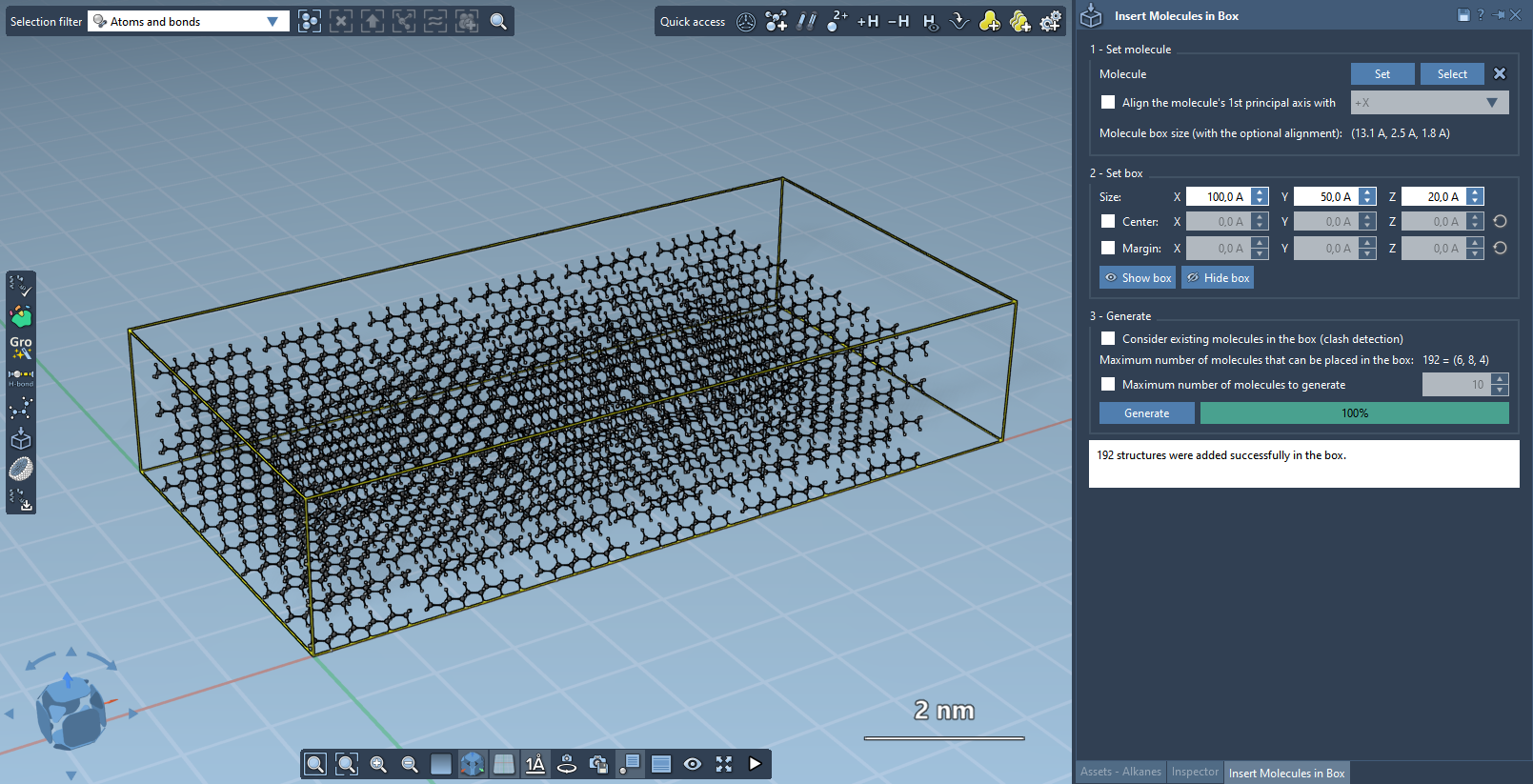
Use Case: Build a Lipid Layer Around a Protein
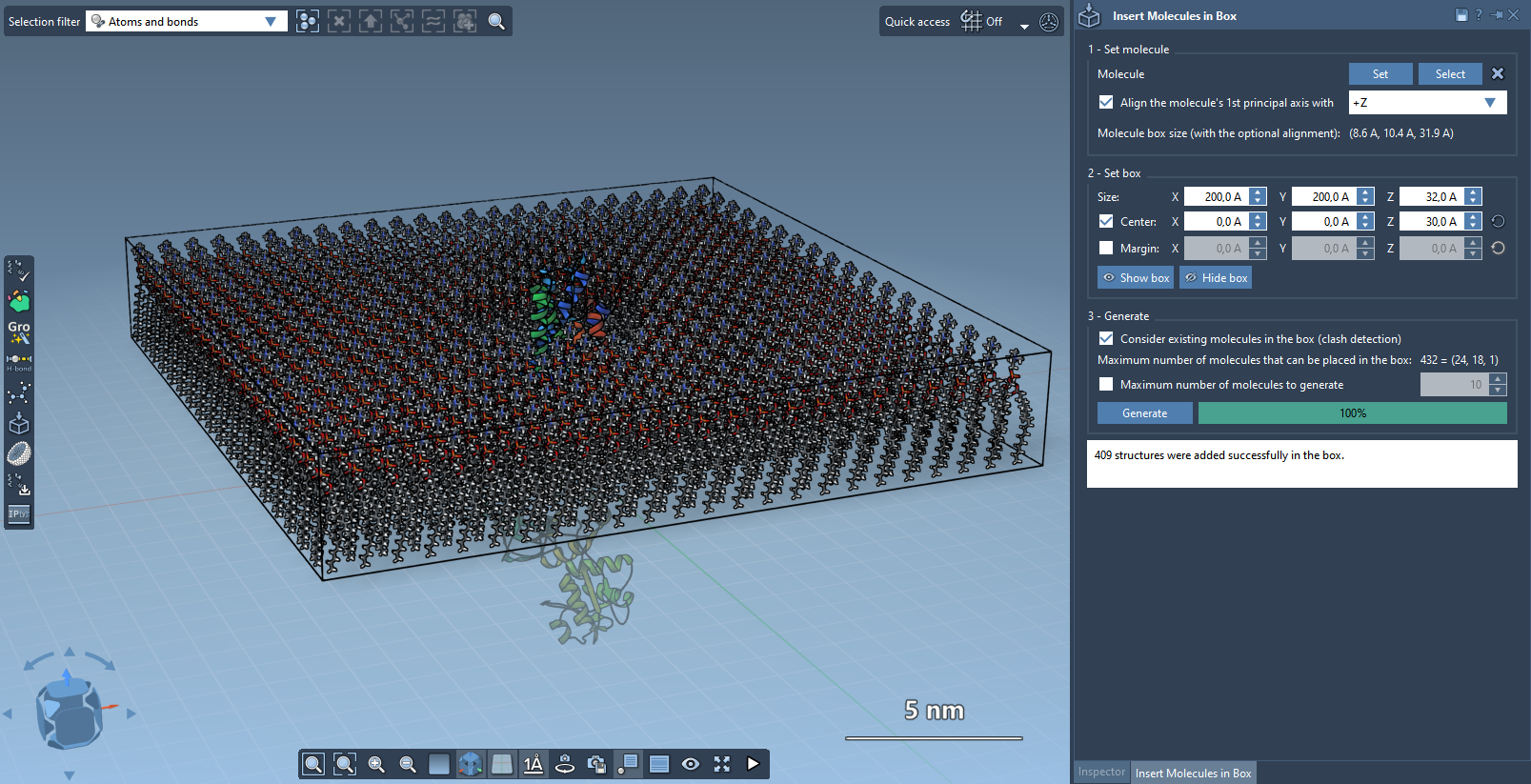
The Molecular Box Builder isn’t just for generic molecular systems—it shines when creating sophisticated environments, like lipid layers. For example, you can generate a single layer or even a lipid bilayer around a protein structure.
To build a lipid layer:
- Align the protein along the Z-axis and center it at the origin.
- Choose a lipid molecule, align it to the Z-axis, and set it in the box.
- Adjust the box size to encapsulate the desired lipid layer around the protein.
- Enable
Consider existing molecules in the boxto avoid overlap and generate the lipid system.
The result is a lipid-protein system that is remarkably easy to configure. If desired, shifting the box center allows you to add a second lipid layer, creating a complete bilayer.
Next Steps
Once your molecular box or lipid layer is created, you can minimize, equilibrate, or simulate the system using complementary tools like the GROMACS Wizard. For full details, tips, and additional options, check the original Molecular Box Builder tutorial documentation here.
Note: SAMSON and all SAMSON Extensions are free for non-commercial use. Download SAMSON today at SAMSON Connect.