



Molecular modelers often encounter challenges when inspecting dense structures like proteins. Traditional clipping methods, while functional, fall short in providing a detailed and intuitive depth perception of complex molecular environments. Whether you’re visualizing intricate binding pockets or preparing presentation-ready structures, smooth visualization transitions can be a game changer. This is where SAMSON’s ‘Progressive Clipping’ feature comes into play.
Why does progressive clipping matter?
Progressive clipping, introduced in SAMSON 2025 R2, facilitates seamless navigation of 3D molecular systems by offering a gradual transition in the visibility of clipped structures. Unlike traditional methods that create an abrupt visual cutoff, progressive clipping combines clipping and fog rendering for a smoother and more informative experience. It is particularly advantageous for:
- Understanding ligand positioning within binding sites.
- Preparing depth-rich visuals for presentations or publications.
- Interactive teaching and demonstrations of molecular features.
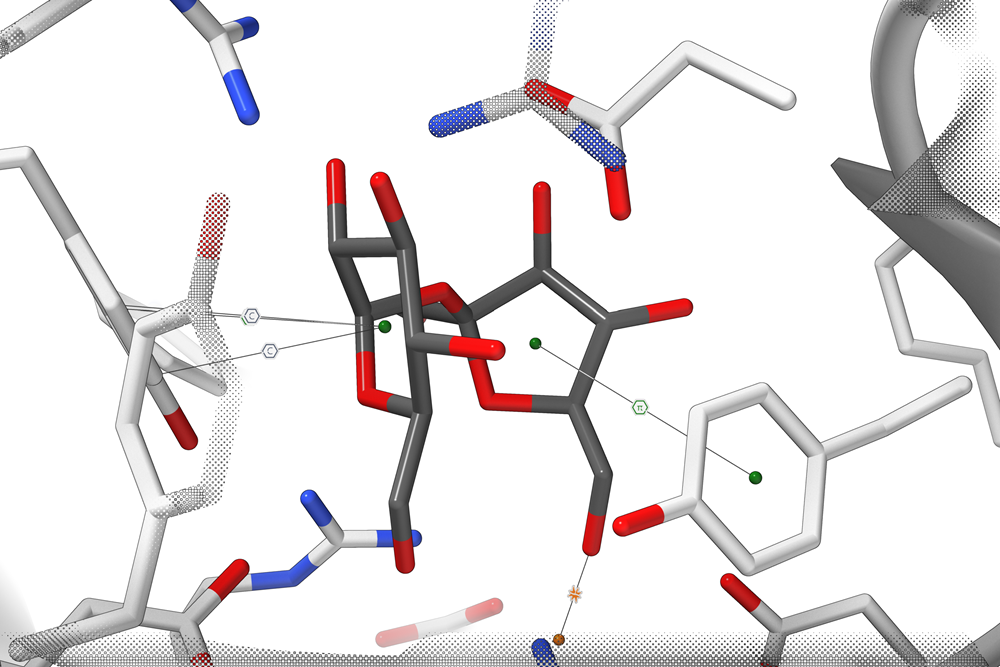
How to activate and control progressive clipping
Progressive clipping is enabled by default in SAMSON. To make the most of it, here’s a quick guide:
1. Load your structure
First, get started by loading a 3D molecular structure into SAMSON. You can use Home > Fetch to quickly access and load a protein of your choice.
2. Control the clipping interaction
You can adjust the clipping range and thickness dynamically with the following controls:
- Mouse + Keyboard Shortcuts:
- Press Ctrl (Windows/Linux) or Cmd (macOS) and scroll your mouse wheel or slide on the trackpad to change the clipping distance.
- Hold Shift + Ctrl (Windows/Linux) or Shift + Cmd (macOS) while scrolling to adjust the thickness of the “viewing slab”.
- Viewport Toolbar: Use the clipping and fog control icon located at the bottom of your SAMSON viewport to open the dedicated clipping control panel.
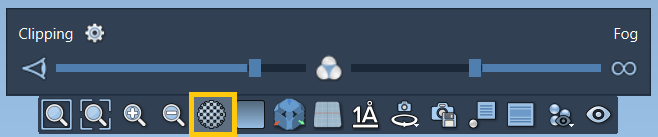
Clipping preferences: Further customize your clipping settings by navigating to Interface > Preferences > Rendering > Clipping. You’ll find options for choosing between different clipping styles (e.g., progressive or traditional), adjusting the border size of clipped regions, and more.
3. Highlight molecular depth
Progressive clipping is not just about clarity—it works beautifully alongside other visualization enhancements available in SAMSON:
- Change the background color to suit your presentation style.
- Enable silhouettes for added depth contrast.
- Apply visual presets and experiment with various colorization techniques.
- Label specific residues or atoms for clarity using the intuitive labeling tools.
SAMSON’s progressive clipping feature allows you to dive deeper into molecular details while enhancing the presentation quality. Give it a try by loading your molecular systems and exploring new ways to visualize complex structures.
To learn more about progressive clipping and related tools, visit the original documentation page.
Note: SAMSON and all SAMSON Extensions are free for non-commercial use. Get SAMSON at samson-connect.net.