



Molecular modeling often involves extracting meaningful insights from simulation data, and one common challenge researchers face is processing umbrella sampling data to compute the Potential of Mean Force (PMF). If your workflows involve GROMACS simulations and you find compiling PMF profiles cumbersome, the GROMACS Wizard simplifies this task dramatically.
PMF computation is key to understanding the interaction landscape along a reaction coordinate, but preparing data manually can be daunting. With GROMACS Wizard’s built-in Weighted Histogram Analysis Method (WHAM), you can automate the process and focus more on interpreting results. Here’s a step-by-step guide to get you started:
Getting Ready
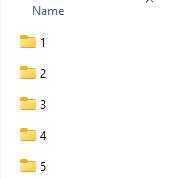
Before diving in, ensure you’ve completed an umbrella sampling workflow. The input folder for PMF analysis should contain organized and numbered subfolders for the same system and reaction-coordinate setup. This organization ensures that the GROMACS Wizard can automatically load the relevant parameters—saving you extra work!
Here’s an example of how your input folder might look:
Using the WHAM Analysis Tool
- Switch to the WHAM Analysis tab in the GROMACS Wizard interface.
- Choose the project path. If you already completed the umbrella sampling step in the same workflow, you can click auto-fill to populate the path automatically:
 .
. - Confirm the input folder contains the required subfolders. GROMACS Wizard should load the reaction coordinate, time range, and temperature data automatically.
- Select your reaction coordinate from the available list. Adjust optional parameters (e.g., custom bounds, custom time range, or energy units) as needed to tailor the analysis.
- Click Compute to let GROMACS Wizard perform the heavy lifting.
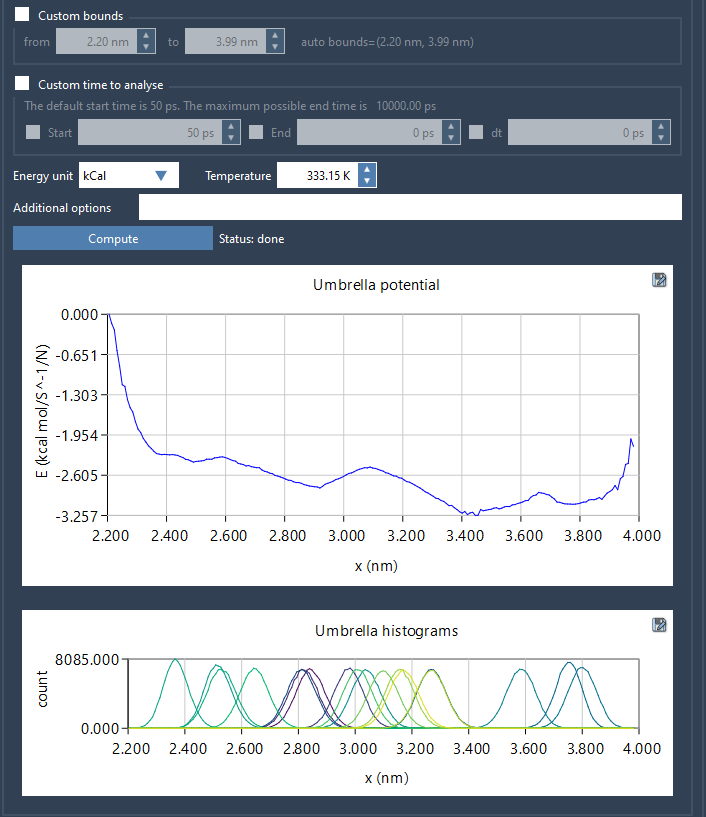
The computation time depends on your project’s size, but once complete, the tool generates two useful visualizations:
- The PMF Profile: This plot captures the free energy landscape along your reaction coordinate.
- The Coordinate Space Histogram: This plot helps you assess whether the reaction-coordinate space is adequately sampled.
Interpreting the Results
The histogram is essential for identifying regions where sampling is insufficient. The PMF profile and associated histogram are saved in the wham_results subfolder of your project, providing you with a persistent record of the analysis. An additional benefit of GROMACS Wizard is that if you later switch between reaction coordinates within the same parameters, previously computed data is reused—saving you even more time!
Next Steps
After reviewing the PMF profiles and histogram coverage, you may find regions where additional sampling is necessary. In such cases, go back to the umbrella sampling workflow to gather data for those undersampled areas and extend your analysis further.
If you’re working on molecular modeling projects, the GROMACS Wizard is a valuable addition to your toolkit. By streamlining the PMF computation process, it provides critical insights into molecular interactions while minimizing manual effort.
For more information on PMF analysis with GROMACS Wizard, visit the full documentation page.
SAMSON and all SAMSON Extensions are free for non-commercial use. Download SAMSON today at samson-connect.net.