



Positional analogue scanning is a powerful method that allows molecular modelers to explore chemical alterations systematically. It addresses a common pain point for researchers: how to efficiently evaluate modifications to a molecule for improved properties or interactions with biological targets. Using the SMILES Manager in SAMSON, this task is not only simplified but also becomes highly intuitive. Let’s explore how.
Why Positional Analogue Scanning Matters
When working on drug discovery or molecular design, manually exploring variations in molecule structures is time-intensive. By automating this process through positional analogue scanning, you can generate series of analogues directly from a starting molecule and a SMARTS pattern. This saves valuable time and ensures a thorough exploration of your chemical space.
Getting Started with the SMILES Manager
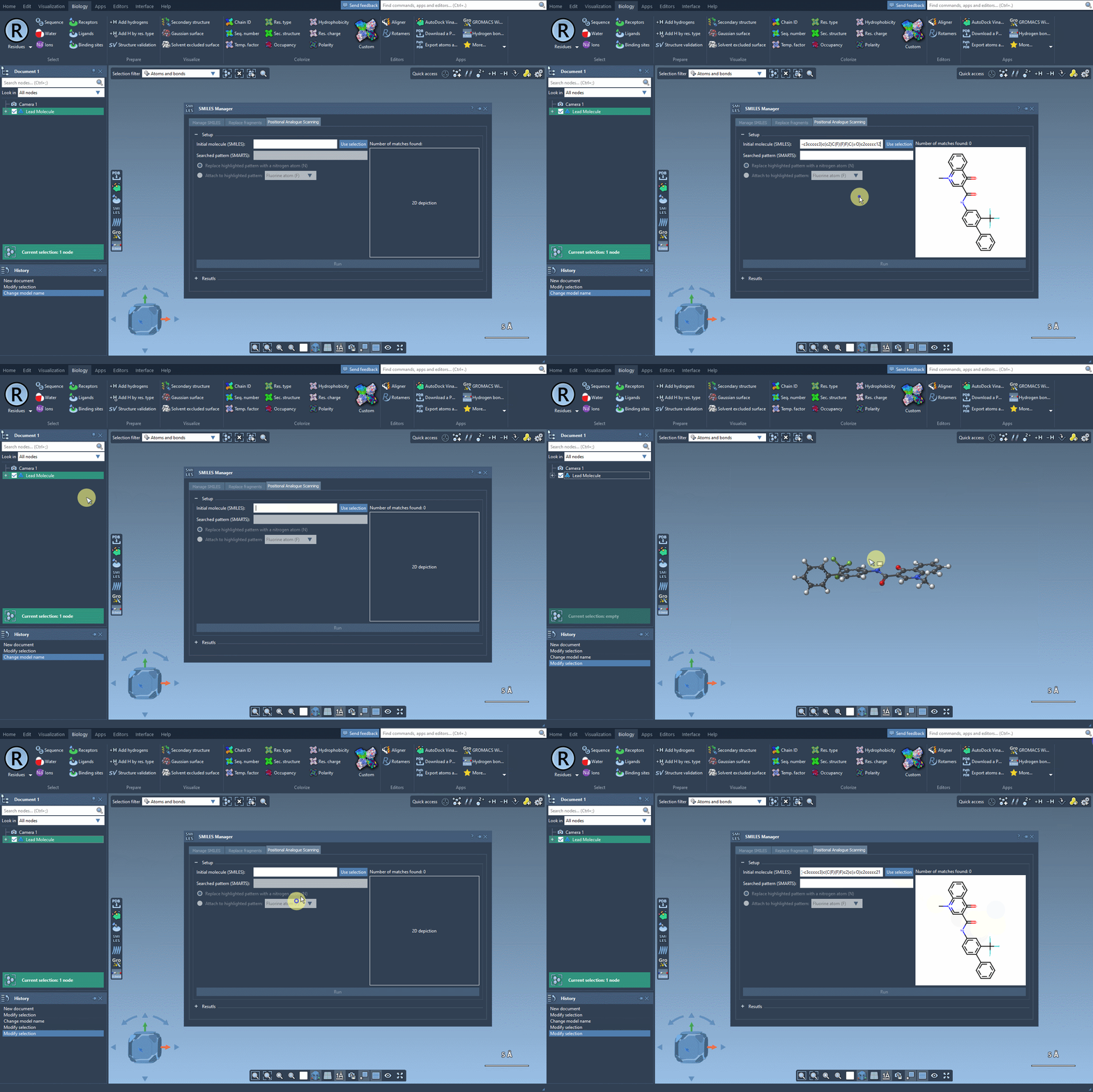
To use this feature in SAMSON, first ensure that the SMILES Manager extension is added to your software. Open the extension and navigate to the Positional Analogue Scanning tab.
You can then specify your initial molecule by either entering its SMILES code directly or selecting the molecule in the SAMSON document and pressing the Use selection button. As shown below, the process is straightforward and visually guided for ease of use:
Define the Pattern to Modify
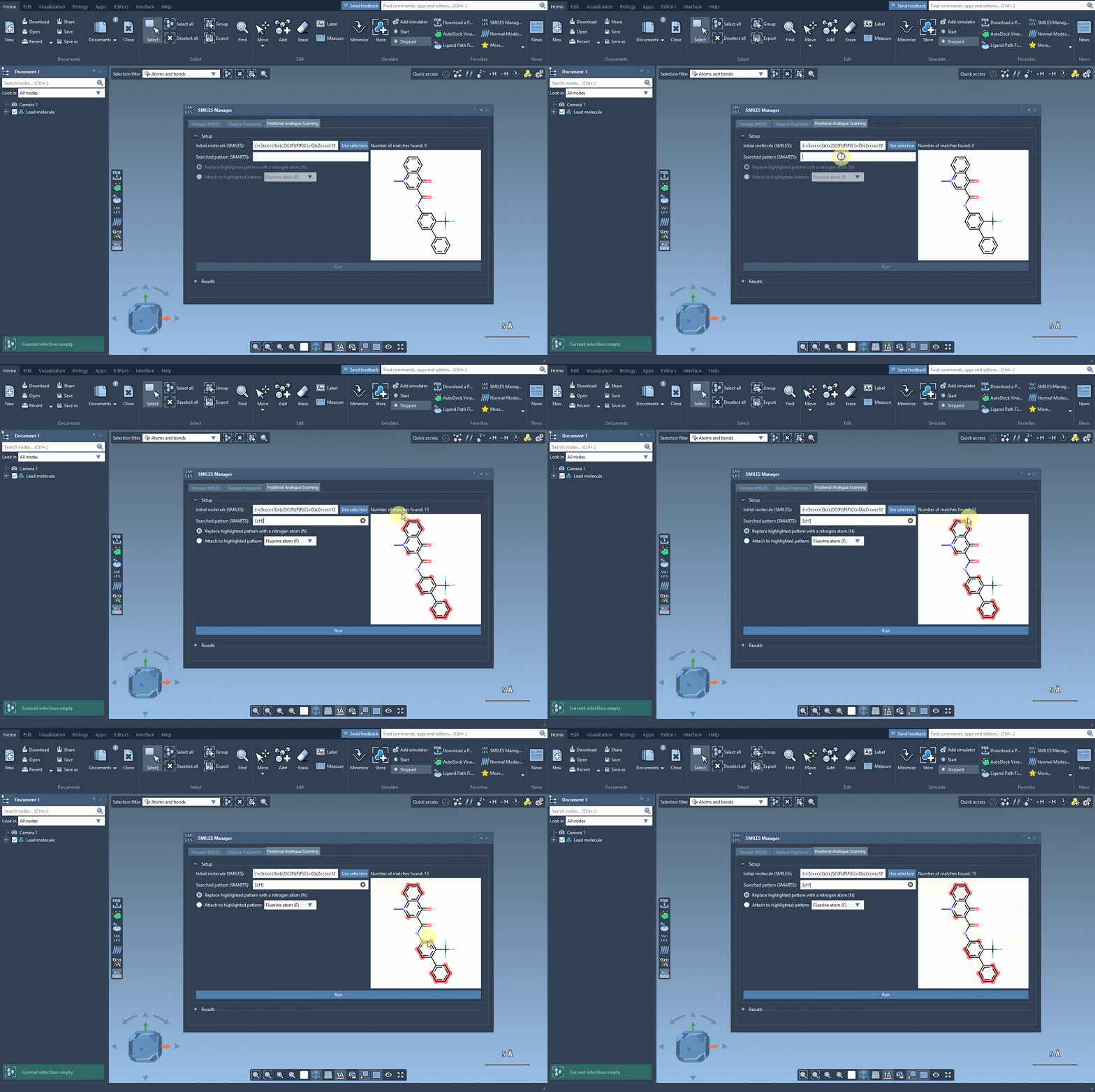
The next step is to define the specific structural pattern in your molecule that you want to replace or expand upon. This is done using SMARTS (a language for specifying substructures in molecules). For instance, entering the SMARTS pattern [cH] (an aromatic carbon with a hydrogen) as in the example highlights all matching atoms in your molecule:
Generate and Explore Analogues
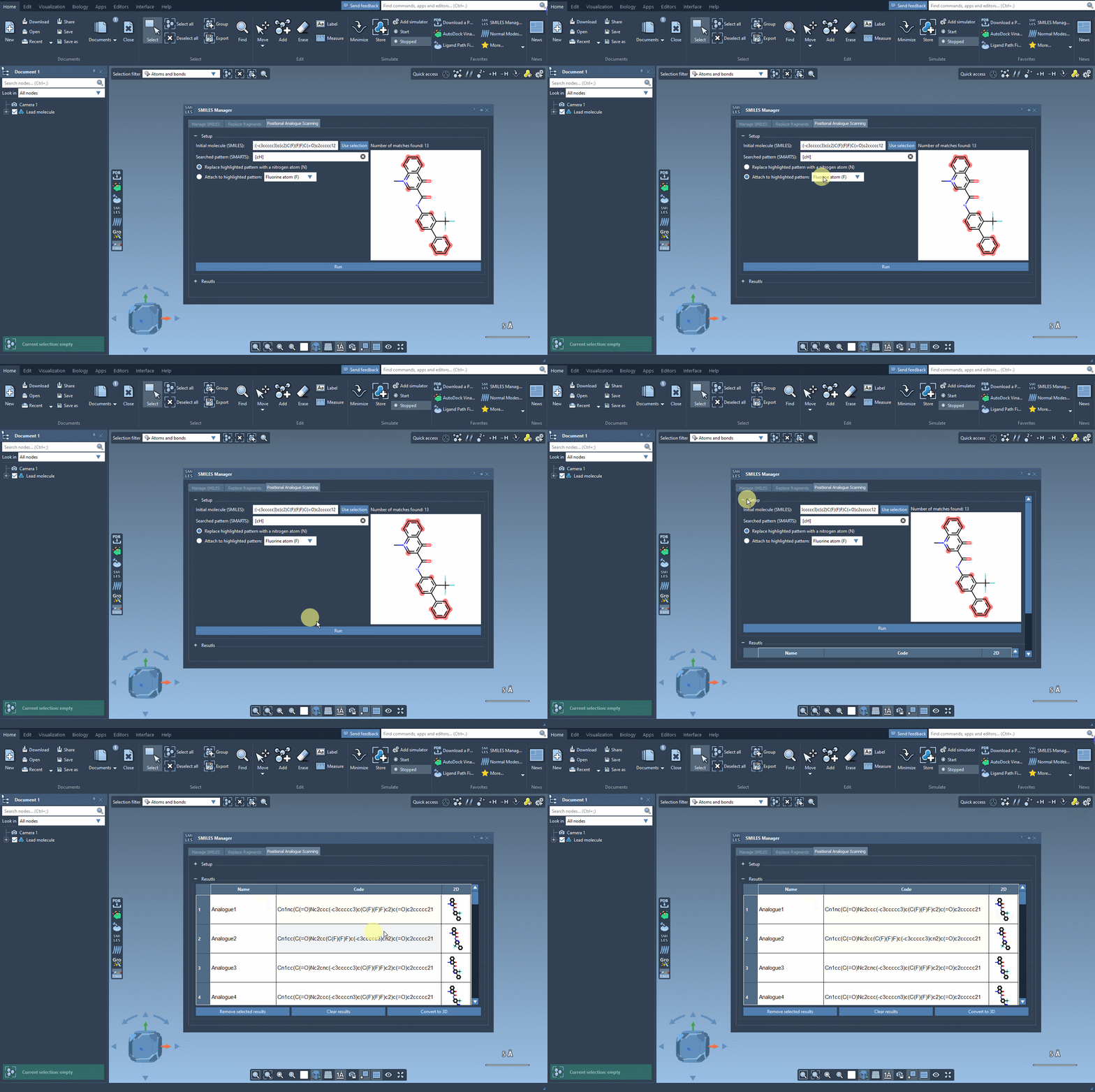
Once the pattern is defined, decide what to replace or attach. Want to replace the aromatic carbon with a nitrogen atom (N), or attach a fluorine atom (F)? The process is as simple as selecting your desired substitution and clicking the Run button. The tool generates SMILES codes and 2D depictions of the resulting analogues in seconds:
Modify and Study Your Results
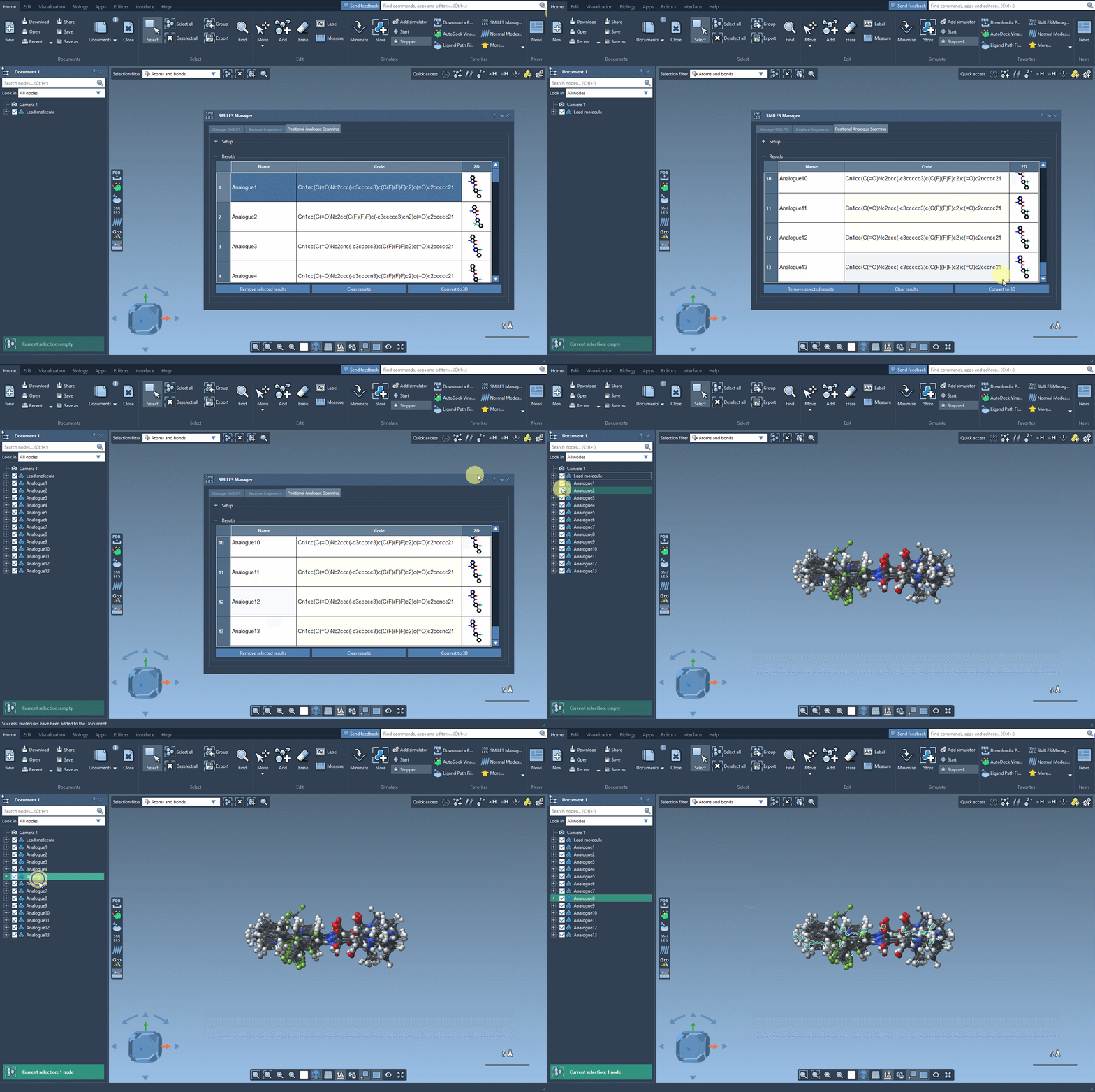
In the results table, you can:
- Modify generated analogues by editing names or SMILES codes directly.
- View larger 2D depictions of analogues and toggle between showing or hiding analogue images in the table.
- Generate a 3D structure of a specific analogue for further study and docking experiments.
Here’s an overview highlighting how results are dynamically managed and visualized:
Next Steps in Molecular Design
The 3D structures of your analogues can be used for docking simulations, such as with the Autodock Vina Extended extension. This enables you to assess how structural modifications impact your molecule’s interaction with its target protein. By generating analogues and studying their behavior, you can identify promising candidates for further exploration.
To dive deeper into positional analogue scanning and learn step-by-step instructions, visit the full documentation at SAMSON’s tutorial page.
SAMSON and all SAMSON Extensions are free for non-commercial use. You can get SAMSON at SAMSON-connect.net.