



Have you ever wondered how to efficiently explore molecule analogs to identify the most promising candidates for your studies? As a molecular modeler, exploring substitutions and understanding their effects can be a tedious and time-consuming task. This is where SAMSON’s Positional Analogue Scanning feature in the SMILES Manager can offer a significant advantage.
Positional Analogue Scanning allows you to use a starting molecule in combination with a SMARTS pattern to generate analogue series in SAMSON. This streamlined workflow helps identify molecule variations quickly and efficiently, which is invaluable for docking studies, interaction analyses, or substituent effect comparisons. Let’s walk through how to make the most of this feature and get started right away.
Defining Your Starting Point
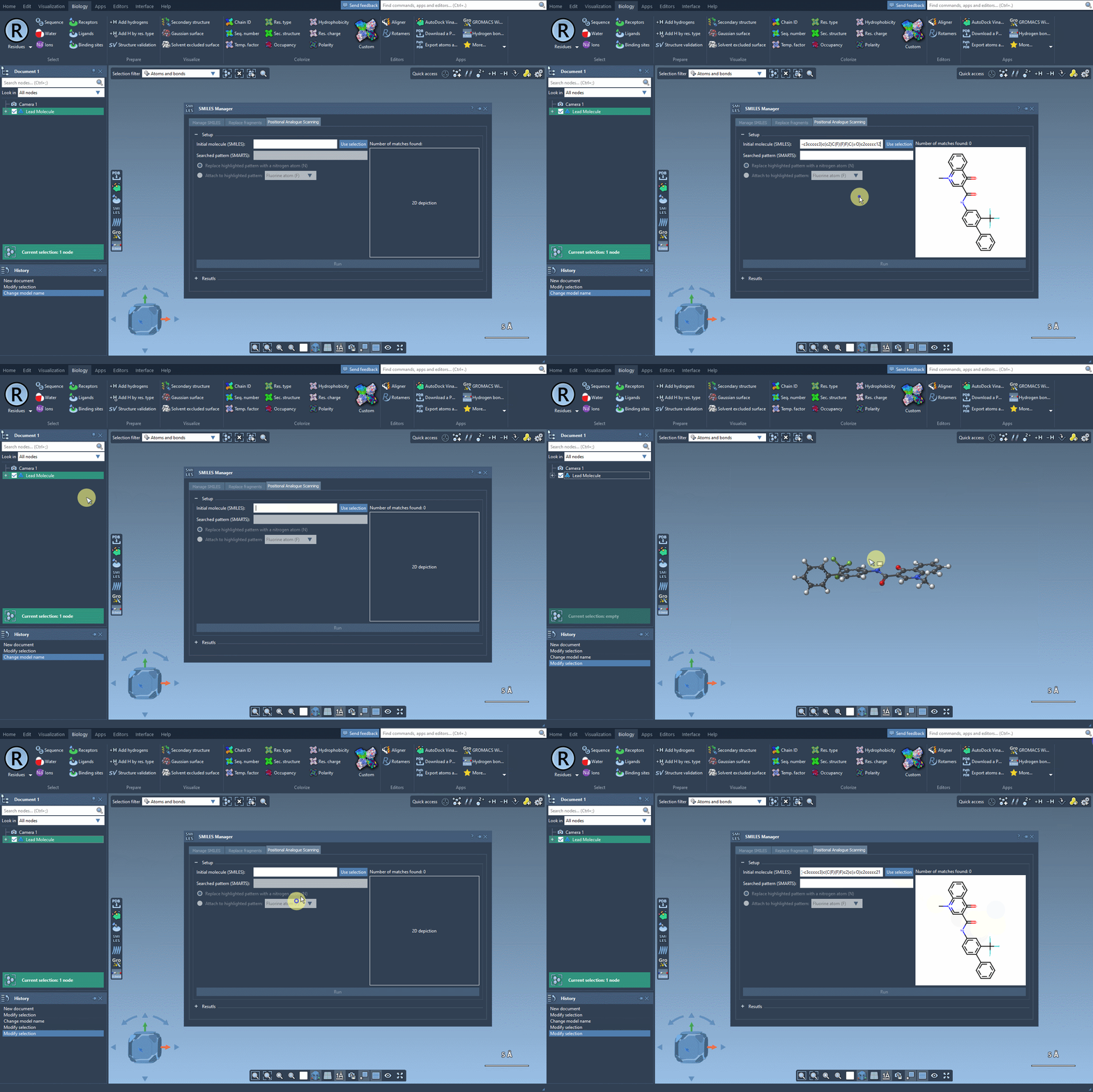
To begin, you will need a single starting molecule. There are two simple ways to specify this:
- Enter the SMILES code of your molecule directly into the interface.
- Select your molecule in the SAMSON document and press the Use selection button.
For example, you might start with the molecule CN1C=C(C(=O)Nc2ccc(-c3ccccc3)c(c2)C(F)(F)F)C(=O)c2ccccc12, used in the tutorial for this feature. Once you define your starting molecule, you can proceed to identify patterns for analogue generation.
Select a Search Pattern
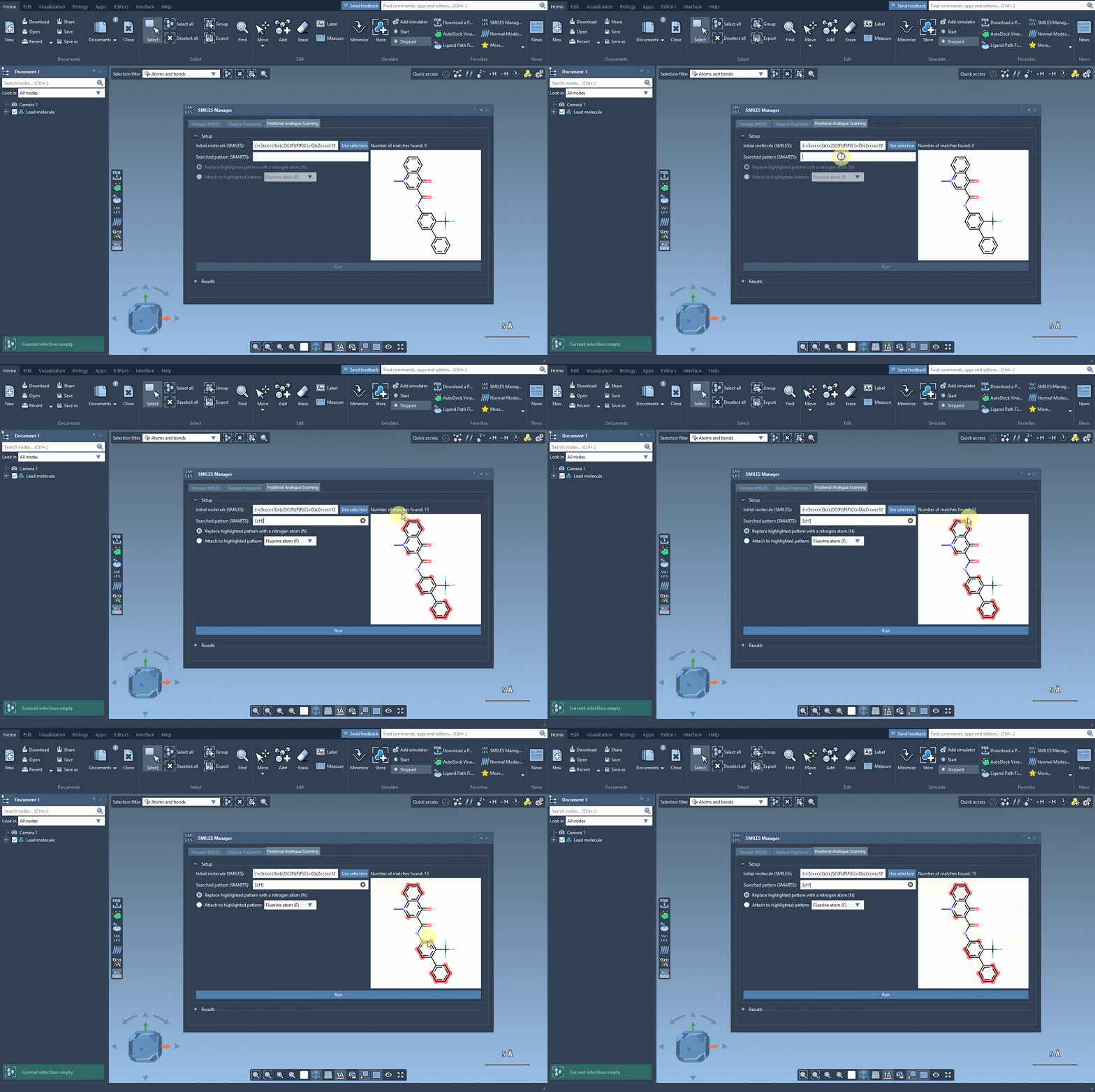
Next, you’ll specify the pattern in the molecule that you want to replace or modify. These patterns are defined using a SMARTS code. For instance, you could look for aromatic carbon atoms by using the code [cH]. When you enter this SMARTS code, the interface will highlight matching patterns in your molecule.
This visual identification helps you understand the scope of potential replacements and areas for exploration. For a clearer demonstration, check out the image below:
Generating Analogues
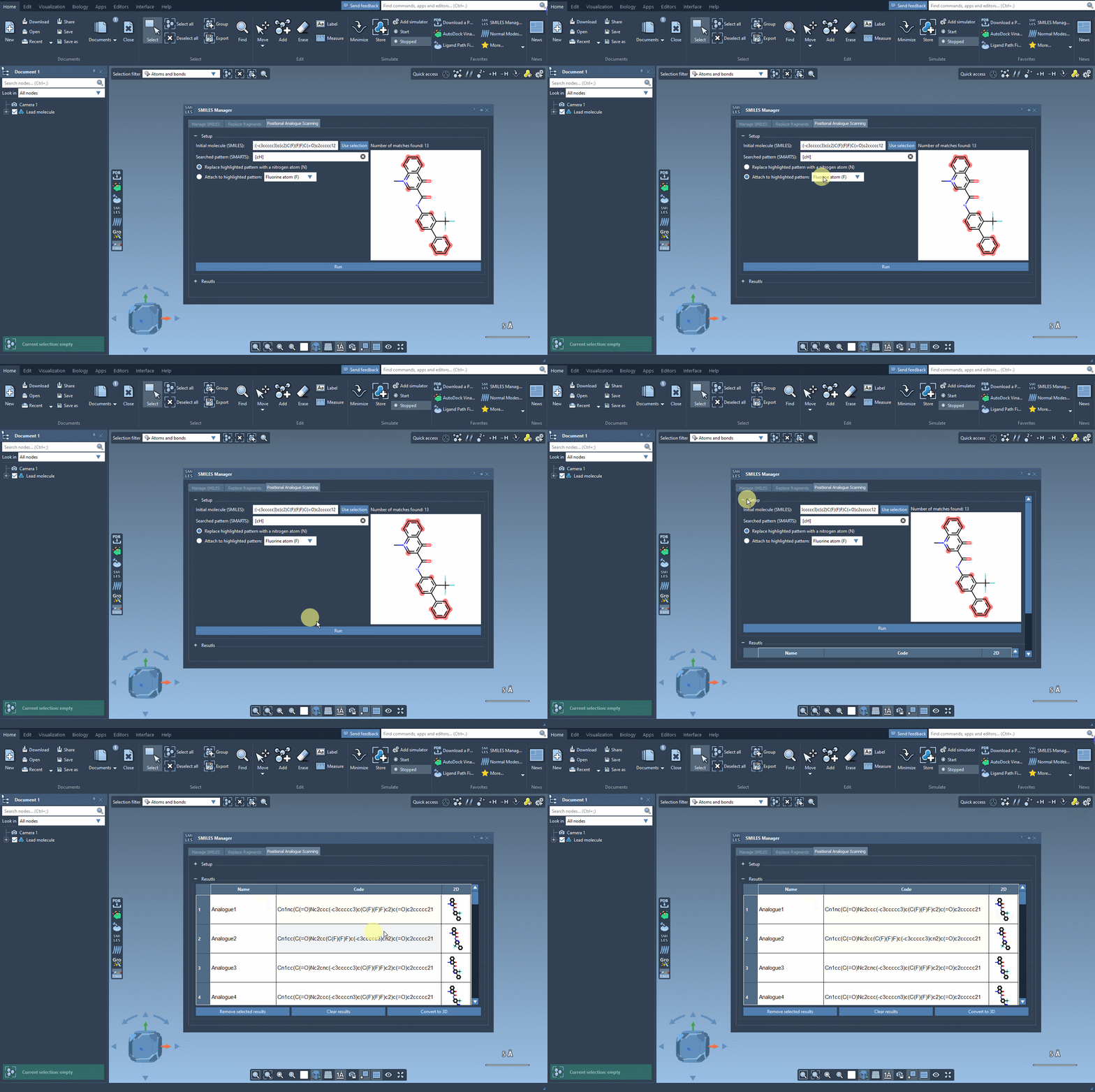
Once the pattern is selected, you can choose how to modify it. You may replace the identified pattern with another atom, such as nitrogen (N), or attach groups like fluorine (F) or methyl (CH3). Simply click Run to generate analogs, and the results will be displayed instantly with their associated SMILES codes and 2D depictions.
Here’s how the process looks in action:
Refining the Results
The results table is where you can refine your analogs. Here are some key actions you can perform:
- Modify analogue names or SMILES codes directly in the table.
- View larger versions of 2D depictions by double-clicking on them.
- Generate 3D structures for specific analogs by right-clicking on their images.
- Remove selected analogs or clear the table entirely to reset your analysis.
This flexibility allows for quick and easy optimization of your analogue series based on your needs and objectives.
Moving to 3D Analysis
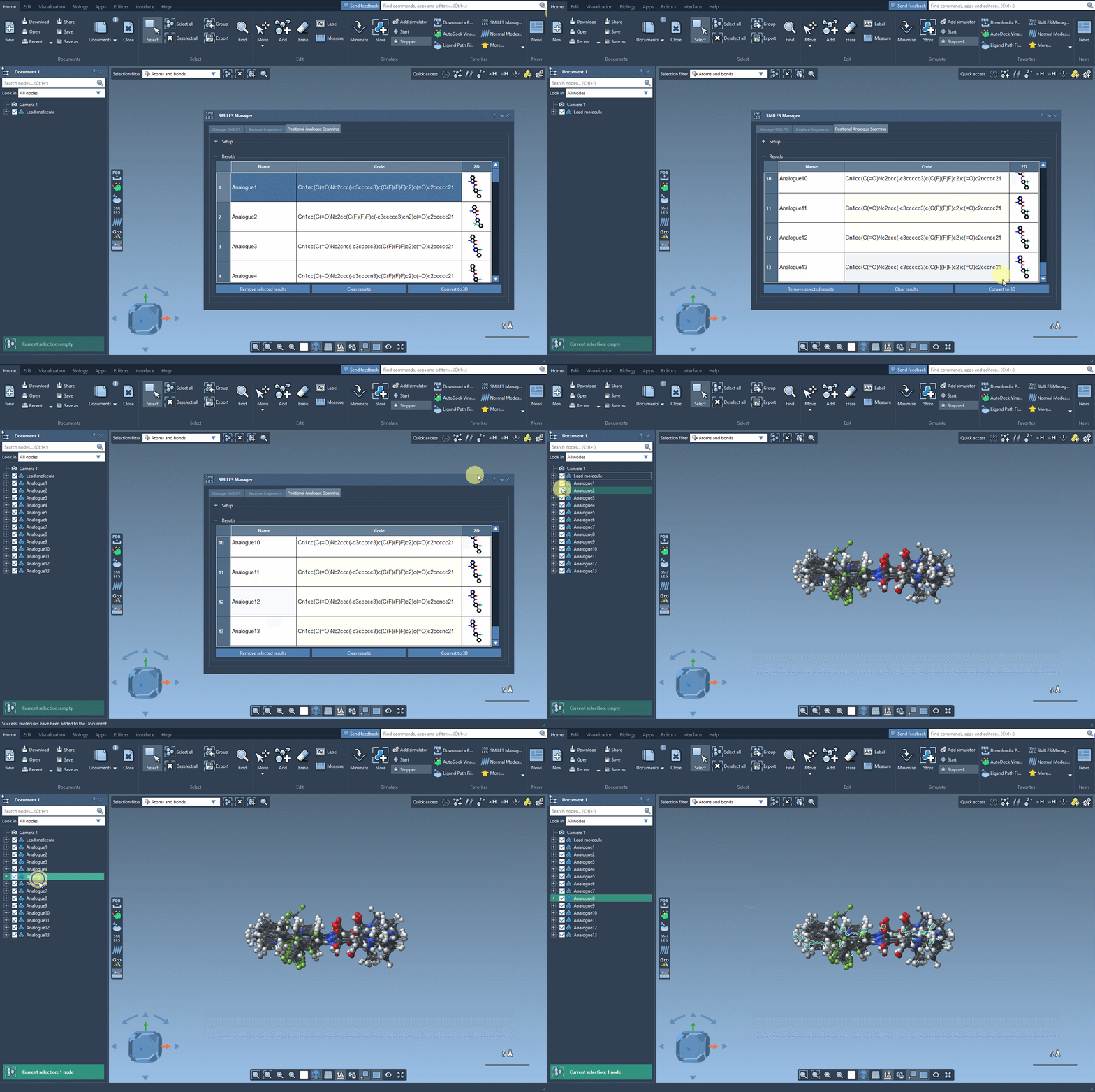
When you’ve identified promising analogues, you can generate their 3D structures using the Convert to 3D button. This enables further study, such as docking simulations, to examine interactions with target proteins. For instance, you could use an extension like AutoDock Vina Extended to evaluate how structural changes impact binding affinity and interactions.
Learn More
From pattern selection to 3D analysis, the Positional Analogue Scanning feature in SAMSON’s SMILES Manager simplifies the molecular design process and aids in the efficient exploration of alternatives. To dive deeper into this feature and learn step-by-step instructions, check out the official documentation at this link.
SAMSON and all SAMSON Extensions are free for non-commercial use. Download SAMSON today at SAMSON Connect.