



For molecular modelers, converting windowed simulation data into a meaningful Potential of Mean Force (PMF) profile is a critical step in understanding molecular interactions. However, ensuring a seamless workflow while performing these analyses can be a source of frustration. This is where the GROMACS Wizard, part of the SAMSON integrative molecular design platform, shines by offering an efficient and user-friendly WHAM analysis tool.
A Streamlined Process for PMF Analysis
GROMACS Wizard helps molecular modelers compute PMF profiles using the Weighted Histogram Analysis Method (WHAM). The tool ensures that critical parameters such as reaction coordinates, time range, and temperature are automatically set up, reducing manual errors, and saving time.
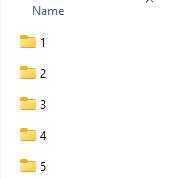
Let’s walk you through how to compute the PMF using GROMACS Wizard. To start, ensure that you’ve completed an Umbrella Sampling workflow and verify that the input folder is properly organized. The folder should contain subfolders corresponding to numbered simulation windows for the same system and reaction-coordinate definition.
Step-by-Step Instructions to Compute the PMF
Here’s how to perform PMF analysis:
- Open the WHAM Analysis tab in GROMACS Wizard.
- Choose the project path. You can use the “auto-fill” option (
 ) to quickly populate the field if your previous project was the Umbrella Sampling simulation.
 - Ensure the project folder is correctly organized with numbered subfolders aligning with the same system and reaction-coordinate definition. The folder structure is critical to ensuring accurate analysis.
Once these steps are completed, GROMACS Wizard will automatically load necessary parameters from the project.
Configuring and Running WHAM Analysis
- Select the desired reaction coordinate from the list provided by the tool. This step enables you to target the specific coordinate relevant to your study.
- Adjust optional settings such as bounds, time range, or energy units to tailor the analysis to your needs.
- Click the Compute button to begin the analysis. The tool runs WHAM calculations and generates two primary outputs:
- The PMF profile, which provides a representation of free energy changes along the reaction coordinate.
- A histogram that visualizes the coverage of coordinate space, helping you identify areas requiring additional sampling.
Below is an example of how these plots look:
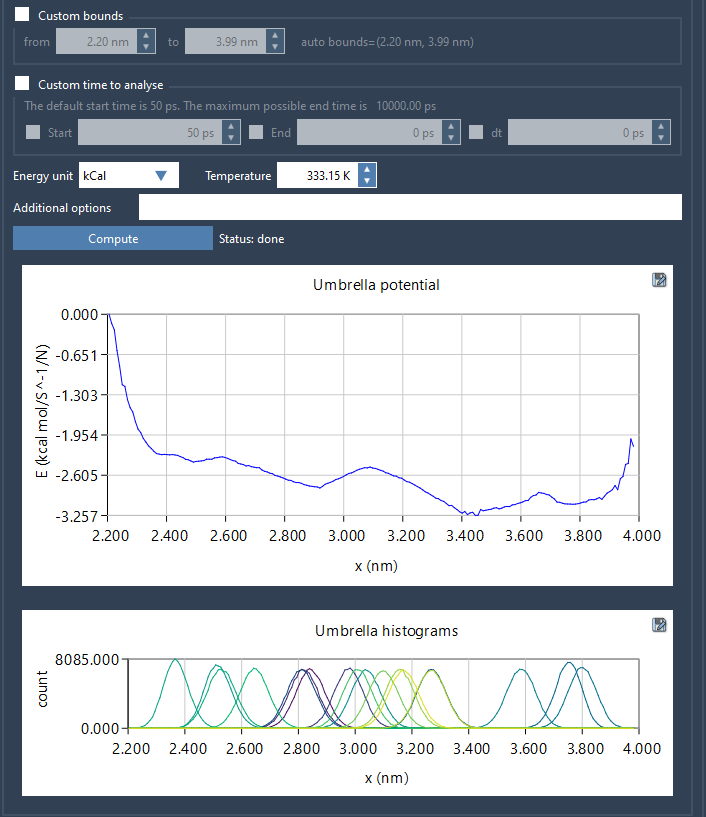
For larger trajectories, computation may take a few seconds to several minutes, but the results provide valuable insights into the system under study. The generated profiles, histograms, and plots are saved in the wham_results subfolder of the project for further inspection.
Interpreting PMF Results
The histogram output is particularly useful for identifying gaps in reaction-coordinate space coverage. Insufficient coverage in a specific region indicates the need for additional simulations, which can be set up by returning to the Umbrella Sampling workflow. GROMACS Wizard reuses computed data for reaction coordinates, simplifying the process if parameters remain unchanged.
Wrap-Up
By following these steps, you can transform the often-complex process of PMF analysis into a manageable workflow thanks to the GROMACS Wizard. To explore the full documentation and make the most of PMF analysis in GROMACS Wizard, visit the official page at this link.
SAMSON and all SAMSON Extensions are free for non-commercial use. Get your copy at SAMSON Connect.