



Molecular modelers often face the challenge of understanding dynamic processes, such as ligand unbinding, macromolecular conformational changes, or the movement of atomic groups. Visualizing these motions effectively can significantly aid in deciphering complex molecular systems. SAMSON’s Pathlines—a visual tool that displays the center-of-mass (COM) trajectories of selected atoms—provides an elegant solution to this issue. Not only does it reveal valuable insights into atomic dynamics, but it also promotes a deeper understanding of molecular mechanisms.
Why Use Pathlines for Molecular Modeling?
Pathlines are specifically designed to track and showcase the motion of groups of atoms along predefined paths. This makes them powerful tools for:
- Understanding ligand unbinding and diffusion processes.
- Analyzing collective domain movements in protein complexes.
- Visualizing center-of-mass displacement in simulations or reaction coordinate workflows.
Whether you’re studying a protein-ligand interaction or macromolecular motions, Pathlines help bring these dynamics into clear view.
How to Get Started with Pathlines
Using Pathlines in SAMSON is intuitive and can be completed in a few simple steps. Here’s how you can dive into visualizing your system:
Step 1: Load Your Molecular System
Start by loading the sample system provided in the relevant tutorial document. For example, this document features Lactose permease bound to its ligand Thiodigalactosid (TDG), as well as generated unbinding paths using SAMSON’s Ligand Path Finder Extension.

Step 2: Select Atoms and Paths
Once your system is loaded, you need to select the atoms whose motion you want to visualize. This can be done in the Document view by choosing an atom group and one or more paths. If no specific selections are made, the visualization will default to showcasing the entire system and all paths available in the document.

Step 3: Create Pathline Visual Models
To create a visual model of the center-of-mass motion, explore the Visualization > Visual model menu and select Pathline of the center of mass. Upon confirming your choice, you’ll see a dynamic pathline in your system, allowing you to explore the trajectory of the selected atoms along the paths.
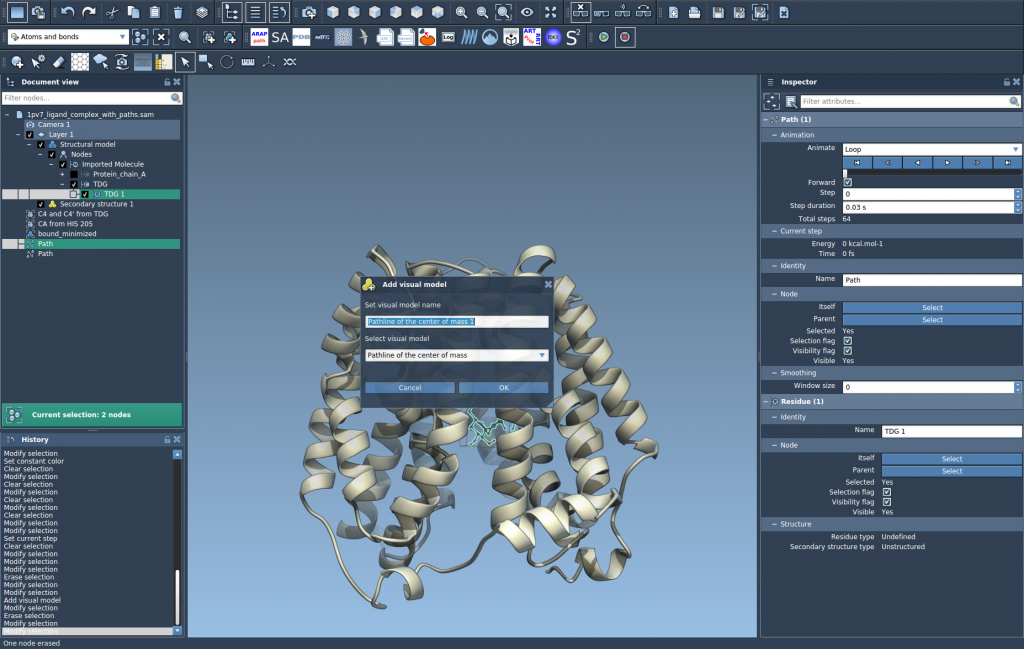
Customizing and Exploring Pathlines
SAMSON provides several options for customization, ensuring that the Pathline visualization fits your specific analysis needs. These options include:
- Double-clicking paths in the Document view to start or stop motion.
- Accessing detailed settings through the Inspector (Ctrl/Cmd + 2).
- Modifying visual properties, such as color and thickness, for better clarity and presentations.
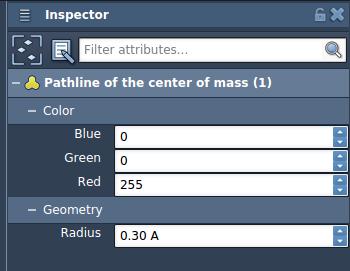
If at any point you delete a path or the atoms it references, the associated pathline will either be removed or automatically updated to reflect the changes.
Use Cases and Applications
Pathlines are widely applicable in various scenarios:
- Visualizing ligand unbinding/rebinding routes, crucial in drug discovery research.
- Analyzing large-scale domain motions involved in protein folding or molecular machines.
- Tracking the COM movement across pathways in reaction coordinate workflows, simplifying simulation interpretations.
By providing actionable insights, Pathlines empower molecular modelers to study dynamic molecular systems with ease and precision.
Getting Started
Want to learn the full details of utilizing Pathlines in SAMSON? Check out the original tutorial here for step-by-step instructions and valuable tips.
Note: SAMSON and all SAMSON Extensions are free for non-commercial use. You can download SAMSON at this link.