



For molecular modelers, one of the key challenges is accurately modeling transitions between protein conformations. Whether you’re studying conformational analysis, working on free energy simulations, or preparing reaction coordinates, having a realistic and smooth transition path is essential. This is where the As-Rigid-As-Possible (ARAP) interpolation feature in SAMSON can make your workflow faster and more efficient.
The ARAP Interpolator allows you to compute continuous paths between two protein conformations, providing biologically meaningful geometric transitions in seconds. Here’s a detailed step-by-step guide to help you leverage ARAP interpolation.
Why Model Smooth Transitions?
Predicting an accurate transition path between protein conformations can unlock deeper insights into structural interconversion processes, such as protein folding, molecular recognition, and enzymatic catalysis. Using ARAP Interpolation in SAMSON enables you to:
- Visualize continuous structural changes efficiently.
- Obtain intermediate conformations for reaction pathway analysis.
- Prepare inputs for techniques like umbrella sampling or Parallel Nudged Elastic Band (P-NEB) refinement.
- Export paths for further computational simulations.
Step-by-Step Overview of ARAP Interpolation
1. Prepare Your Protein Structures
To start, load the protein structures in SAMSON. As an example, let’s work with two conformations of Diphtheria Toxin (1DDT and 1MDT):
- Fetch the structures using Home > Fetch and entering their PDB IDs in SAMSON.
- Focus on chain
Aonly. Delete chainBfrom1MDTusing the Erase tool.
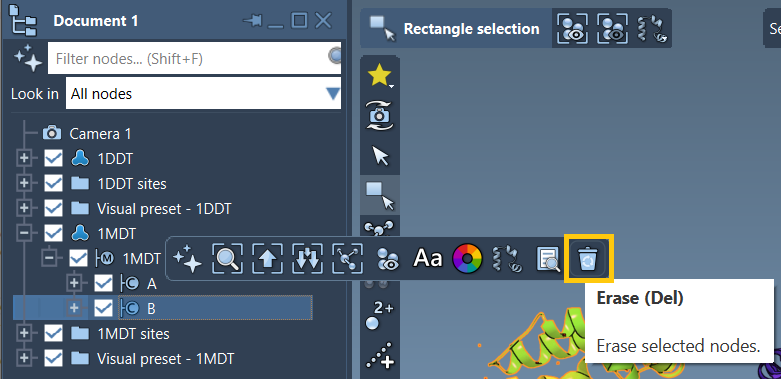
Clean your structures to remove alternate locations, waters, ligands, and ions using Home > Prepare. This ensures your structures are in the best shape for interpolation.
2. Define Start and Goal Conformations
Create conformations for your cleaned structures:
- Select
1DDTin the Document view, then go to Edit > Conformation and name it1DDT A. - Do the same for
1MDT, naming the conformation1MDT A.
These conformations will serve as the start and goal points of the transition path.
3. Run the ARAP Interpolation
Open Home > Apps > Biology > ARAP Path Interpolation, and set up the app:
- Select Start:
1DDT A, and Goal:1MDT A. - Choose All except hydrogens under Construct ARAP vertices by matching to exclude hydrogens while ensuring other atoms are matched.
Under Construct ARAP edges, check:
- from bonds in the Start structure: to account for covalent bonds.
- Try connecting α-carbons before and after missing residue segments: to maintain connectivity over gaps in the residues.
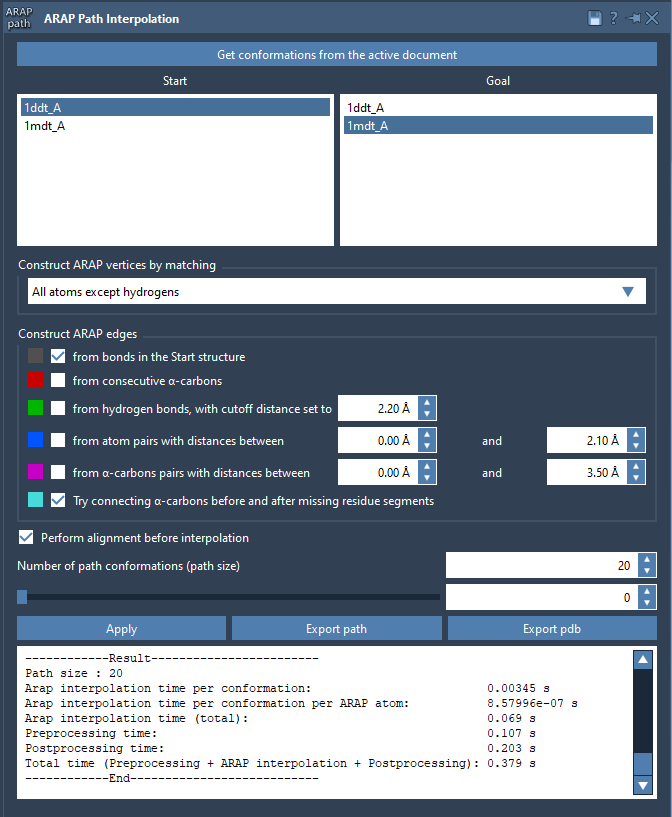
Enable Perform alignment before interpolation to align the start and goal conformations.
Finally, set the number of intermediate conformations. For instance, choosing 20 conformations will include the start and goal structures, and 18 intermediate steps.
4. Analyze and Export the Result
After the computation is complete, you can use the slider within the app to visualize the structural transformation:
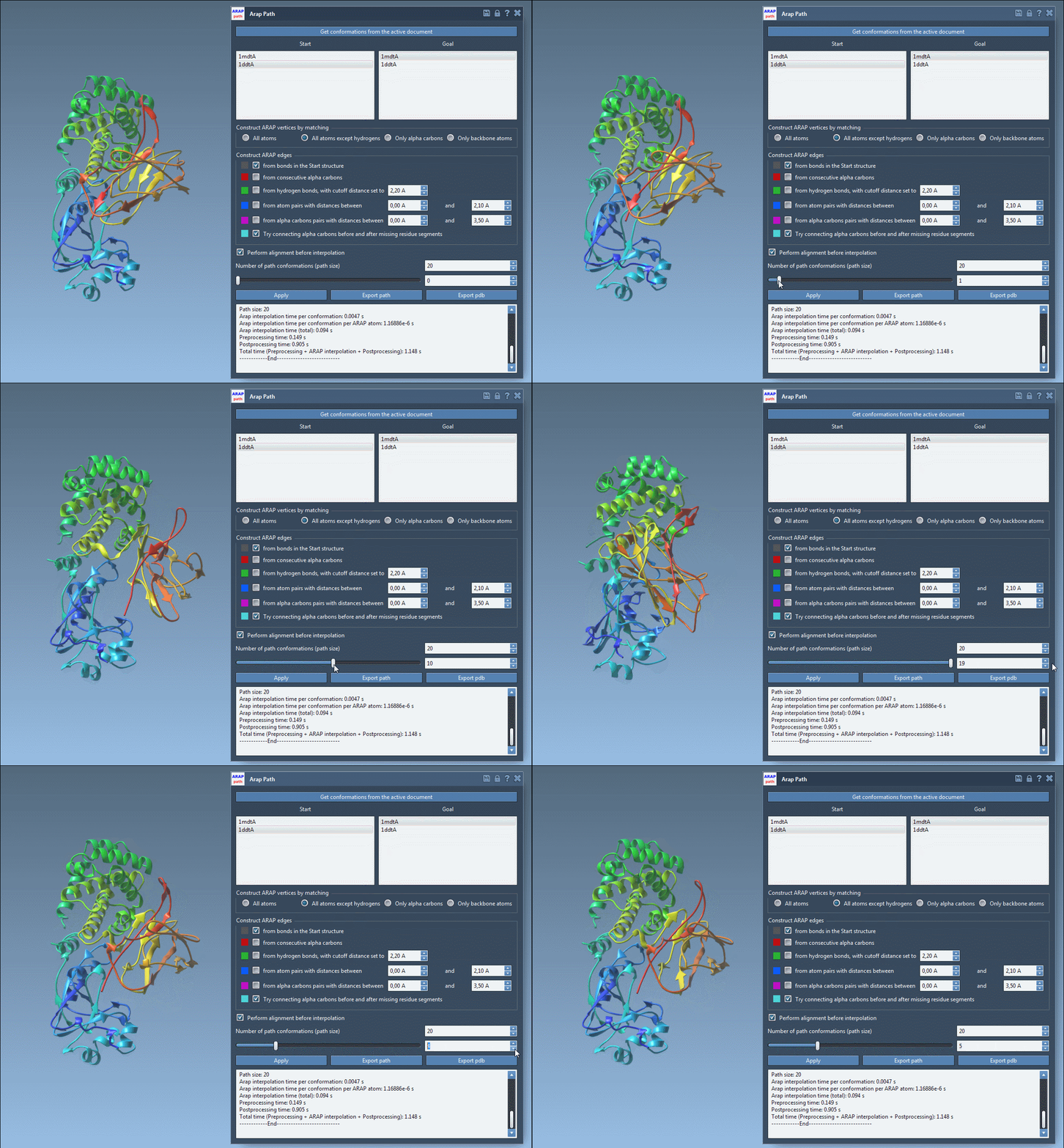
- View edge construction: Visualize the ARAP edge network built during interpolation.
- Explore export options: Save the path as a trajectory, a PDB file, or individual conformations.
With these tools, you can further use the generated path in umbrella sampling, dimensionality reduction, or transition path refinement with P-NEB techniques.
Learn More With Detailed Tutorials
For additional guidance and options, visit the complete documentation at Generating a Transition Path Between Protein Structures with ARAP Interpolation.
SAMSON and all SAMSON Extensions are free for non-commercial use. Learn more and get SAMSON at SAMSON Connect.