



Molecular modelers often face the challenge of preparing detailed input files for simulation workflows such as reaction coordinate studies or free energy calculations. This requires exporting precise atomic trajectories, and in many cases, only specific subsets of atoms along a defined path. With SAMSON’s Export Along Paths extension, this process becomes streamlined, efficient, and easy to customize.
Why Exporting Specific Atom Coordinates Matters
In molecular modeling, you might need to analyze or simulate a particular group of atoms, such as a ligand or a binding site, as it moves along a trajectory. Examples include:
- Generating reaction coordinate inputs for free energy profiling.
- Exporting ligand exit or entry pathways for enhanced sampling simulations.
- Visualizing intermediate states or key transitions.
Such tasks are essential for accurately modeling biomolecular behavior, yet exporting specific subsets of atoms along trajectories can often feel cumbersome. The Export Along Paths extension streamlines this process, allowing you to focus on the analysis rather than the setup.
Step-by-Step: Exporting a Subset of Atoms
Here’s how to make the most of the Export Along Paths extension to export just the coordinates you need:
1. Open the Export Along Paths App
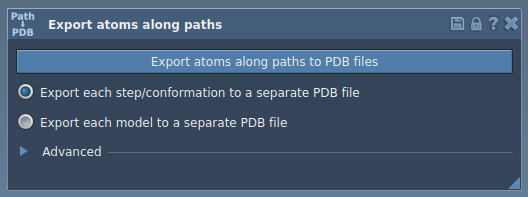
Start by opening the app via Home ▸ Apps ▸ All ▸ Export Along Paths. Alternatively, you can locate it through the Find everything… shortcut (Shift + E).
2. Select the Subset of Atoms
- Expand the Advanced panel in the app interface.
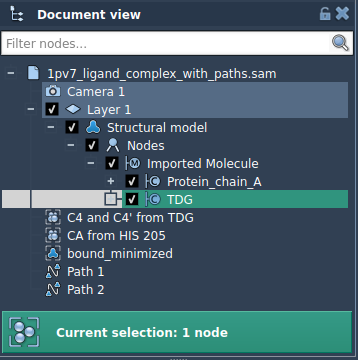
- Use the Document view to select the group of atoms you wish to export. For instance, you might start with a ligand such as
TDGthat’s part of a protein-ligand system.
3. Define the Model to Export
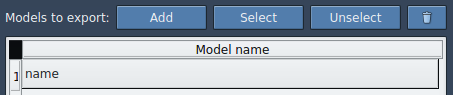
- Click Add in the app interface to define the selected atoms as a model for export. The subset of atoms will appear in a named table below.
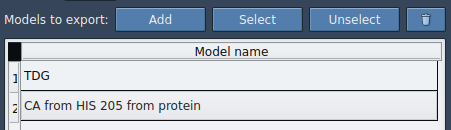
This model is now ready for customization. Rename the model by double-clicking on its name. You can also add multiple sets of atoms using the same procedure, making it convenient to group and track different atomic subsets.
4. Export the Coordinates
- Select the desired export format: frames combined into a single PDB file or each frame stored as a separate PDB file.
- Choose the path(s) along which you want to export the defined model’s coordinates.
- Click Export atoms along paths to PDB files to complete the process. You’ll be prompted to select a destination folder and file prefix.
Customized Outputs for Streamlined Analysis
Whether you’re working on ligand pathways, reaction coordinate studies, or specific atom tracking, the Export Along Paths extension helps you extract only the data you need for your simulation workflows. By tailoring the export to specific molecules or atomic groups, this feature ensures efficiency and precision in modeling tasks.
Get Started
If you want to dive deeper and learn more details or advanced options, visit the official documentation.
Note: SAMSON and all SAMSON Extensions are free for non-commercial use. Download SAMSON at https://www.samson-connect.net.