



Carbon nanotubes (CNTs) have become a cornerstone in molecular modeling, nanotechnology, and material design. From nanosensors to molecular transport systems, their diverse applications make them essential for researchers. Yet, building customized CNT models efficiently can still be a challenge. With SAMSON’s Nanotube Creator Extension, the process is streamlined, offering flexibility and precision.
Why Customize Carbon Nanotubes?
Carbon nanotubes’ applications are vast:
- Building devices like CNT-based nanotransistors or sensors.
- Exploring electronic structures for nanoelectronics research.
- Modeling unique nanostructures for simulations, including drug delivery systems or filtration membranes.
To leverage CNTs for specific applications, researchers must modify parameters like length, radius, or molecular arrangement efficiently. This is where the Nanotube Creator becomes vital.
Two Simple Ways to Build CNTs
In SAMSON, nanotube creation involves two methods, optimized for different needs:
Method 1: Building in the Interactive Viewport
If you prefer hands-on control, the interactive viewport mode is ideal. Follow these steps:
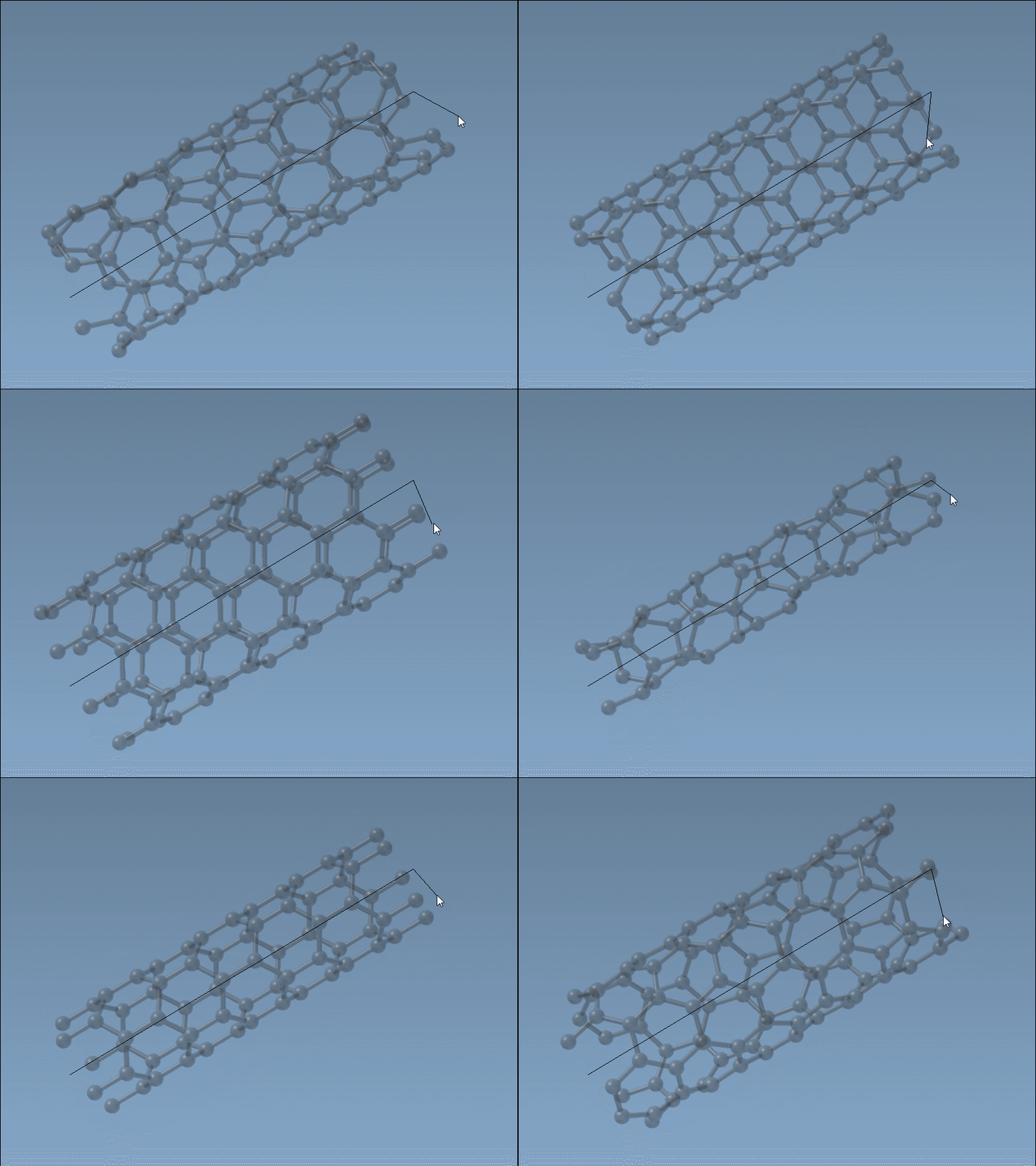
- Define the axis and length of the nanotube by pressing and dragging the left mouse button in the viewport. You’ll see real-time feedback on the orientation and length in the status bar:

- Adjust the radius by releasing the mouse button and moving the cursor; once satisfied, click again to finalize.
If fine-tuning is needed, the status bar provides live updates for accurate alignment of n and m parameters (chiral vectors). Here’s a visualization of this step:
Method 2: The Graphical Interface (GUI)
For precise parameter input, the graphical interface offers complete control. Activating the Nanotube Creator editor reveals a user-friendly GUI, where you tweak values like:
- Start and End Positions: Set the 3D axis for the CNT.
- n/m Parameters: Adjust the chiral vectors to determine the structure and radius.
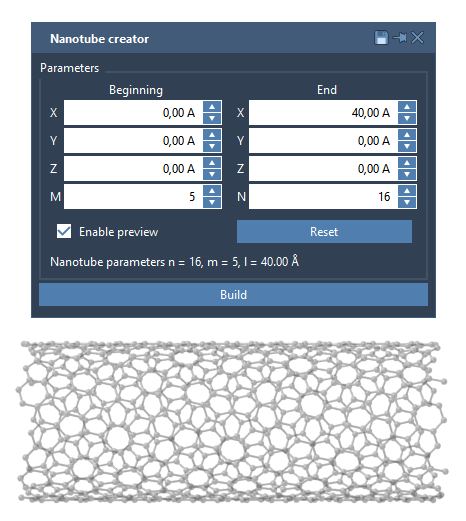
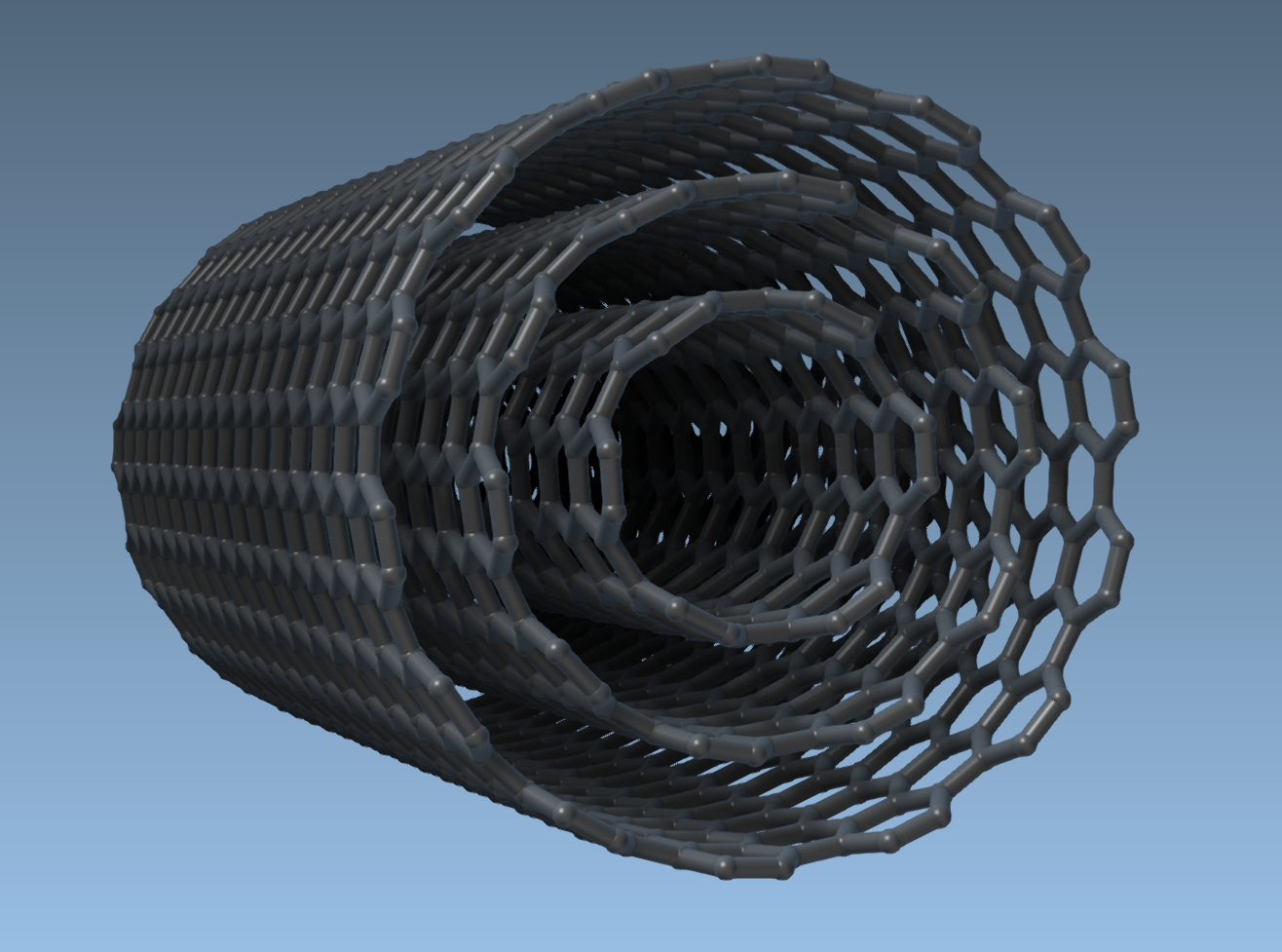
Multi-walled CNTs (MWCNTs) can easily be built by defining different shells within the same workspace. For instance, creating three concentric CNT layers involves choosing progressive n and m values. With each click of the Build button, additional layers emerge.
A Quick Example: Multi-Walled Nanotube
Here’s how to build a multi-walled CNT using the GUI:
- Set Start/End Positions:
(0, 0, 0)to(40, 0, 0), producing a CNT 40 Å long. - Create three layers (shells):
- CNT 1:
n = 6,m = 6, then click Build. - CNT 2:
n = 10,m = 10, then click Build. - CNT 3:
n = 14,m = 14, then click Build.
- CNT 1:
And voilà! You’ll generate this multi-walled nanotube model:
Taking the Next Steps
Once your CNT is built, consider the following:
- Visualize or export stunning images of your models using SAMSON’s visualization tools.
- Simulate properties like mechanical or electronic characteristics, leveraging SAMSON’s modeling capabilities.
- Create hybrids by merging CNTs with other molecules for advanced applications.
Feel free to explore related tutorials, like generating crystal models or delving into the Universal Force Field, to broaden your materials science projects.
To dive deeper into carbon nanotube modeling in SAMSON, visit the original documentation page.
Note: SAMSON and all SAMSON Extensions are free for non-commercial use. Get started now!