



For molecular modelers, accurately determining transition paths often presents a challenge. Generating physically meaningful pathways between molecular states, such as ligand binding or unbinding transitions, is critical for understanding systems at a deeper level. However, finding optimized paths can require significant manual effort without the right tools. Enter the Parallel Nudged Elastic Band (P-NEB) method in SAMSON—a streamlined solution for optimizing such paths.
What is P-NEB?
The P-NEB app in SAMSON is designed for optimizing rough molecular paths into more scientifically meaningful ones. Whether you have a trajectory or a series of conformations to work with, P-NEB leverages the Nudged Elastic Band (NEB) method. It optimizes intermediate conformations of a path by balancing physical forces and distributing states with spring forces for uniformity. This makes it a reliable option for improving unrefined molecular paths, such as ligand unbinding pathways.
Applying P-NEB to Optimize a Path
Let’s say you already have an approximate transition path derived from tools like the Ligand Path Finder. Here’s how P-NEB can help refine it:
Step 1: Start with Your Input Model
First, load a path into SAMSON. For instance, you could use a pre-generated Zinc ligand unbinding trajectory or a protein-ligand complex (e.g., Lactose permease and Thiodigalactosid, as illustrated in the documentation).

Step 2: Open the P-NEB App
Access the P-NEB app via Home > Apps > All > P-NEB. Once launched, you’ll see an intuitive interface that allows you to configure optimization parameters.
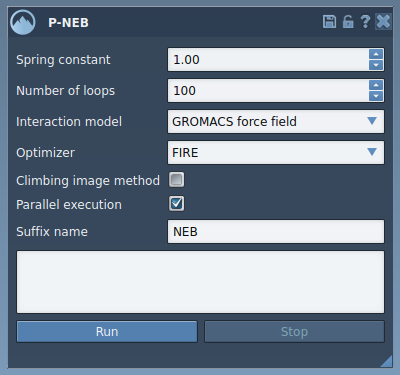
Step 3: Configure P-NEB Settings
The app has several adjustable settings to fine-tune your optimization. For a typical ligand path optimization, you might use the following parameters:
- Spring constant: Set this to 1.00.
- Number of loops: Enter 100 for sufficient optimization cycles.
- Interaction model: Use the “Universal Force Field” option for energy calculations.
- Optimizer: Select “FIRE” (Fast Inertial Relaxation Engine).
- Climbing image strategy: Leave unchecked initially; you can try this option later.
- Parallel execution: Enable this for faster computations.
- Suffix name: Add a unique label like “NEB” to identify your output.
Step 4: Run the Optimization
Simply click the Run button. The app will prompt you to decide whether to use existing bonds for simulations—select YES.
You’ll see real-time progress in the status bar as P-NEB processes the path, optimizing conformations step by step.

Step 5: Analyze the Results
Once complete, your refined path will appear in the Document View under a new node with your chosen suffix. Double-clicking the node enables path animation, while options like “Inspector” allow you to examine details.

Why Use P-NEB Over Manual Adjustments?
Manually refining paths can be time-consuming and prone to errors. P-NEB automates this process, ensuring that intermediate images are scientifically accurate and transitions follow physical principles. Furthermore, by using parallel execution, the app delivers results significantly faster, even for complex systems.
Start Supporting Your Molecular Research Today
Optimizing ligand binding or unbinding pathways is crucial for many applications, from drug design to protein engineering. With the P-NEB app in SAMSON, this process becomes seamless and more accurate. To dive deeper into this topic, explore the comprehensive documentation here.
Note: SAMSON and all SAMSON Extensions are free for non-commercial use. Get started today by downloading SAMSON at https://www.samson-connect.net.