



Understanding molecular motion is a critical task for researchers studying protein-ligand interactions, macromolecular conformational changes, or atomic movements in simulations. However, tracking these motions effectively can be challenging and time-consuming without the right tools. The Pathlines feature in the SAMSON platform offers an elegant solution, allowing molecular modelers to visualize the motion of the center of mass (COM) along defined paths. This article walks you through the process of setting up and using Pathlines to streamline motion analysis.
What Are Pathlines, and Why Should You Care?
The Pathlines visual model is a powerful feature designed to depict the trajectory of selected atoms’ center of mass along a specified path. This makes it particularly useful for analyzing phenomena like ligand unbinding, domain movements within protein complexes, or collective molecular motions. By offering a simple way to create visual representations of these trajectories, Pathlines can save significant time while providing insights that are visually intuitive.
Getting Started with Pathlines
Using Pathlines begins with ensuring that your environment is ready. Follow these easy steps:
- Log into SAMSON Connect.
- Add the Pathlines extension from its extension page.
- Restart SAMSON to enable the extension.
- Optionally, download the sample system for this tutorial to follow along easily.
Visualizing Center-of-Mass Motion
Follow these steps to create and explore Pathlines for your system:
Step 1: Load the Sample System
If you want to practice, download the tutorial’s sample system, which contains the Lactose permease protein (1PV7) with its ligand Thiodigalactosid (TDG) and pre-generated unbinding paths:
- Click Home > Download in SAMSON.
- Paste this link () to download the example document.

This sample contains the protein under the name Protein_chain_A, the ligand as TDG, and two predefined paths. It is an excellent starting point for developing your Pathlines exploration skills.
Step 2: Select Atoms and Paths
Once the system is loaded, you’ll need to select the atoms and paths. In the Document view:
- Select the group of atoms whose center-of-mass motion you wish to visualize.
- Select one or more paths. Hold the Ctrl / Cmd key to select multiple paths as needed.
If no atoms or paths are selected, the visual model will default to using all atoms and paths in the document.

Step 3: Create a Pathline Visual Model
To generate a visual representation of the center-of-mass motion:
- Navigate to Visualization > Visual model > More… (shortcut: Ctrl/Cmd + Shift + V).
- Select Pathline of the center of mass from the dialog that appears and click OK.
This creates a Pathline showing the motion of the selected atoms’ center of mass along the chosen paths.
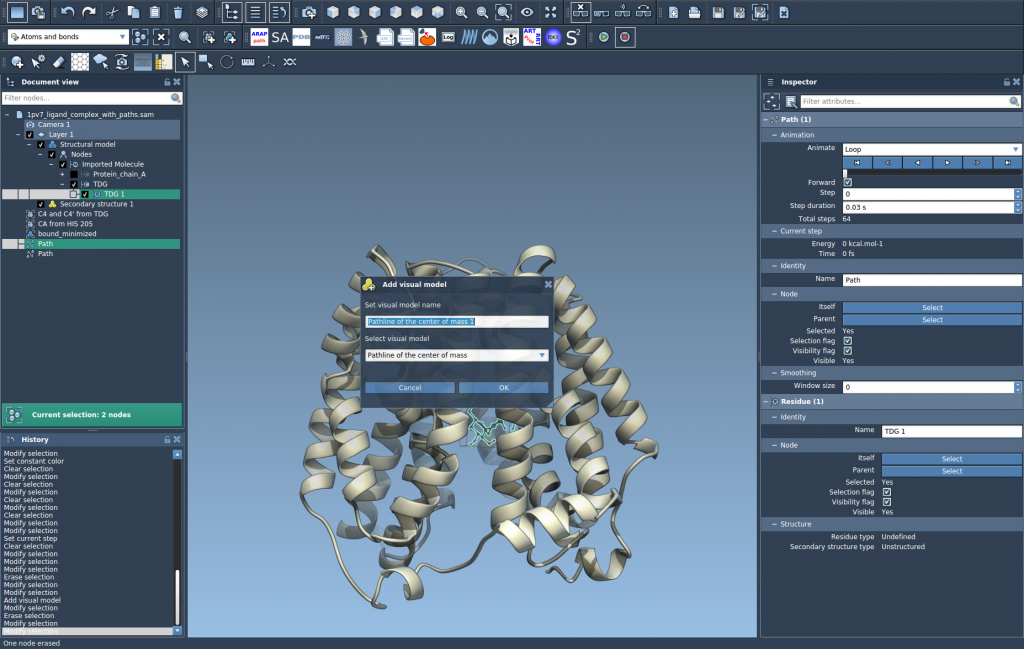
Step 4: Explore and Customize
Once the Pathlines are created, take time to explore them:
- Double-click a path in the Document view to toggle its visibility during playback.
- Right-click a path for additional options under Path > ….
- To adjust properties such as color or thickness, select the pathline and open the Inspector (Ctrl / Cmd + 2).
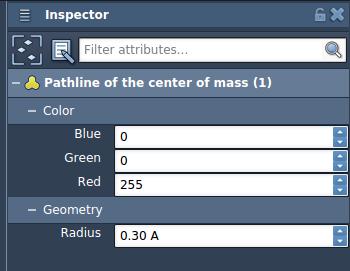
With these features, you can fine-tune your visualizations to best match your research objectives and create presentations that are both insightful and visually compelling.
Conclusion
Pathlines simplify the process of visualizing molecular motion by making center-of-mass trajectories clear and accessible. Whether you’re studying ligand unbinding or protein domain movements, the Pathlines extension offers an intuitive and effective way to interpret simulation results. To explore the full tutorial on Pathlines, visit the official documentation page.
SAMSON and all SAMSON Extensions are free for non-commercial use. You can download SAMSON at SAMSON Connect.