



In molecular modeling, efficiently exporting atomic trajectories is critical, whether for reaction coordinate studies, free energy calculations, or observing the movement along ligand pathways. The Export Along Paths extension in SAMSON addresses this pain point by providing a streamlined way to export atomic coordinates along pre-defined paths. If you’re curious how this can boost your workflows, keep reading.
The process involves identifying the desired paths and then configuring the export to match your requirements. Let’s go through the steps.
Steps to Export Atomic Trajectories
Step 1: Prepare Your System
To start, you’ll need a suitable molecular system loaded into SAMSON. If you’re following the documentation tutorial, you can download the prepared Lactose Permease system (1PV7) with ligand Thiodigalactosid (TDG) and unbinding paths pre-loaded:
- Go to Home > Download.
- Insert the sample file link: https://www.samson-connect.net/documents/046f1acd-c799-40f6-8185-cb4847eff795.
- Click Download.

Once loaded, you will see both the protein and ligand, along with the pre-defined paths, in the Document view.
Step 2: Launch the Export Along Paths App
Next, open the Export Along Paths app from SAMSON. You can find it under Home > Apps > All > Export Along Paths. Alternatively, use the quick access (Shift+E) to locate it.
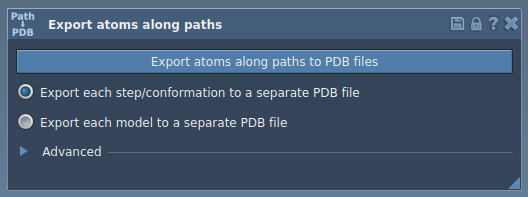
Step 3: Export Options
The app offers two core approaches: exporting all atoms or exporting a specific subset of atoms:
Option 1: Export All Atoms
- Select the desired paths in the Document view.
- Choose an export mode:
- All frames in a single PDB file.
- Each frame exported as a separate PDB file.
- Click Export atoms along paths to PDB files, and save the output to your desired location.
You can refine the export process by expanding the Advanced panel to set an export interval for frames.
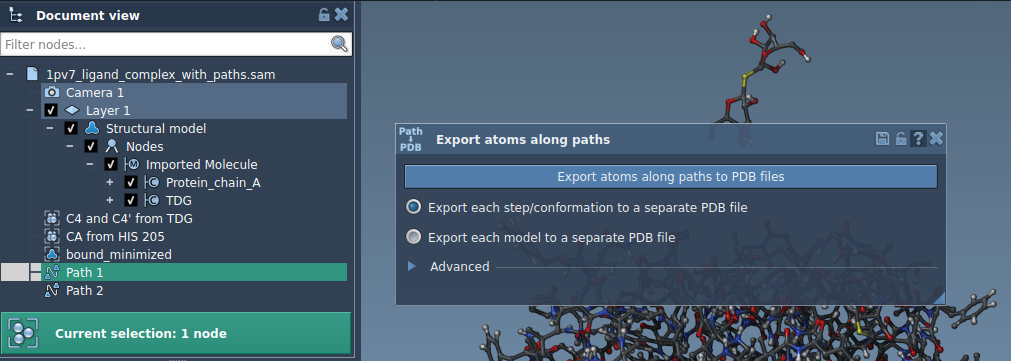
Option 2: Export a Subset of Atoms
For more specificity, you can export selected atoms—such as just the ligand (TDG).
- From the Advanced panel, select the desired subset of atoms in the Document view.
- Click Add, creating a “model” for export.
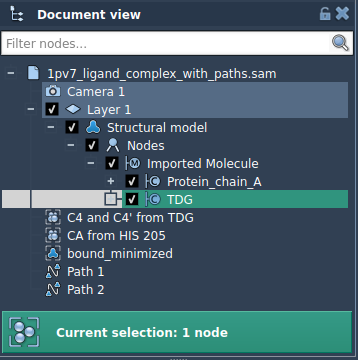
You can define multiple models this way, name them for clarity, and toggle their inclusion in the export. Once ready:
- Pick an export format (single or multiple PDB files).
- Select the paths and click Export atoms along paths to PDB files.
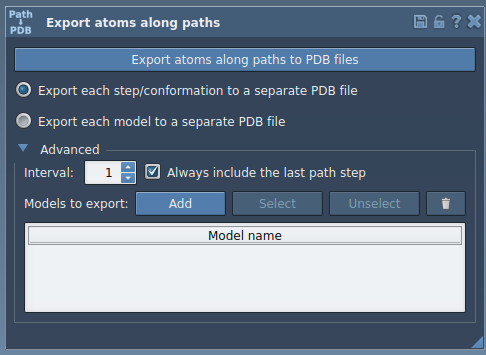
Through these steps, you can customize the exported dataset to align perfectly with your simulation or analysis needs, whether focusing on entire systems or just a few key atoms.
Why This Matters
Exporting trajectories isn’t just about data—it’s about enabling downstream tasks. Whether generating reaction coordinates for enhanced sampling or creating visualizations of ligand movements, the Export Along Paths app ensures precision and flexibility for molecular modelers.
For full details and additional customization tips, explore the original documentation.
SAMSON and all SAMSON Extensions are free for non-commercial use. You can get SAMSON at SAMSON Connect.