



One of the recurring challenges in molecular modeling lies in visualizing and analyzing the movement of specific atoms (e.g., ligands or active site residues) along pre-defined paths. Whether you’re preparing input files for free energy profiling, studying reaction coordinates, or simply investigating atom movements along pathways, the ability to customize exports is invaluable. Fortunately, SAMSON’s Export Along Paths Extension offers the tools to streamline this process efficiently.
The Problem: Managing Complex Molecular Pathways
Molecular modelers often grapple with datasets brimming with atomic trajectories. When modeling phenomena such as ligand unbinding or calculating reaction coordinates, you may need to isolate data for a specific subset of atoms (e.g., the ligand or binding-site residues) as part of simulation workflows. Without a method to selectively export only the relevant trajectories, preprocessing data can become cumbersome and error-prone.
The Solution: Define and Export Atom Models in SAMSON
SAMSON’s Export Along Paths Extension empowers you to manage these scenarios with precision. Through its intuitive interface, you can:
- Select subsets of atoms from larger models, such as a ligand and its interacting residues.
- Export their trajectories in multiple formats, supporting both single and multi-PDB file outputs.
- Perform these tasks quickly and repeatably, thanks to user-defined sets referred to as “models.”
Step-by-Step Guide: Exporting Subset Atom Trajectories
Here’s how you can easily export trajectories for just the atoms of interest:
-
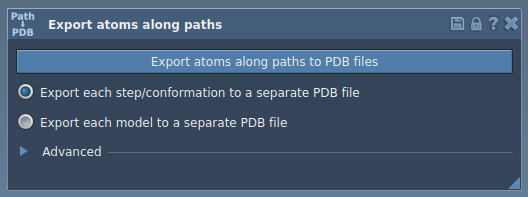
Open the Export Along Paths App:
Navigate to Home > Apps > All > Export Along Paths in SAMSON. Alternatively, use the “Find everything…” feature by pressing Shift + E.
-
Define a Subset of Atoms:
In the Document view, identify and select the atoms of interest (e.g., ligand
TDG).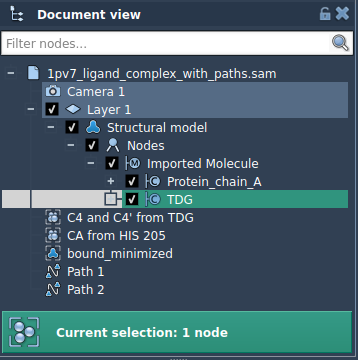
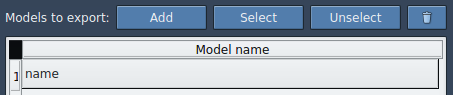
Click Add in the app interface to define this set as a model to export. Rename the model as needed by double-clicking on its name in the model table.
-
Export the Trajectories:
Select export options:
- Choose between a single PDB file containing all frames or separate PDB files for each frame.
- Adjust the frame interval under the Advanced panel for optimal data sampling.
Select the relevant path(s) in the Document view, then click Export atoms along paths to PDB files. Specify a destination folder and file prefix when prompted.
The result is a tailored dataset containing only the information you need for downstream analysis or simulations. You can further refine workflows by adding and exporting additional models through the same process.
Why This Matters
By focusing on specific subsets of atoms, you save time, enhance precision, and eliminate redundant data from your molecular models. Tasks such as free energy profiling, visualization of ligand pathways, and reaction coordinate generation become significantly more manageable and streamlined.
To learn more about exporting atom trajectories in SAMSON, visit the official documentation page.
Note: SAMSON and all SAMSON Extensions are free for non-commercial use. Download SAMSON here.