



One of the challenges molecular modelers often face is the process of exporting and analyzing atomic trajectories along predefined paths. These paths are critical for understanding reaction coordinates, free energy calculations, or tracking ligand movements through binding sites. Luckily, SAMSON’s “Export Along Paths” extension provides a seamless solution for this.
Streamlining Atomic Path Exports
Tracking atomic trajectories is essential for many simulation workflows. For instance, when studying protein-ligand binding or calculating reaction coordinates, exporting these trajectories can be a tedious task if manual methods are used. With the “Export Along Paths” extension, SAMSON allows you to export atomic coordinates in just a few steps, saving precious time and reducing effort.
Key Features of the Export Tool
Using the “Export Along Paths” tool, you can:
- Export all atoms in a molecule along a defined path.
- Export only a subset of atoms, such as a ligand or specific regions like the binding site.
- Select export modes: save all frames in a single PDB file or save each frame as a separate PDB file.
These flexible options make it perfect for preparing data for downstream applications like free energy calculations or visualization.
Getting Started: Exporting Trajectories
Let’s break it down into manageable steps:
Option 1: Export All Atoms
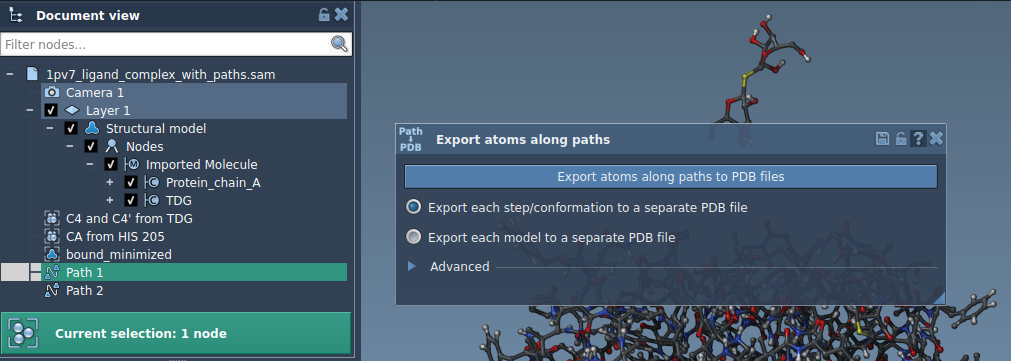
- Begin by selecting one or more paths in the Document view.
- Choose one of the following export modes:
- All frames in a single PDB file
- Each frame as a separate PDB file
- Click on Export atoms along paths to PDB files.
- You’ll be prompted to select a destination folder and file prefix.
Optional: You can set additional parameters such as frame export intervals by expanding the Advanced section.
Option 2: Export a Subset of Atoms
Sometimes, you only need to focus on a subset of atoms, like a specific ligand. Here’s how:
- Open the Advanced panel.
- Select a subset of atoms in the Document view (e.g., ligand TDG).
- Click Add to define this selection as a model for export.
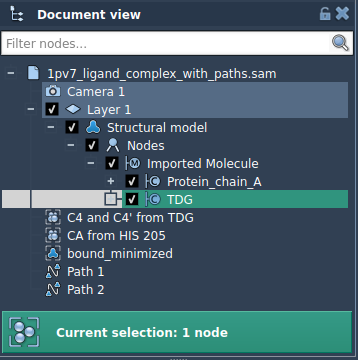
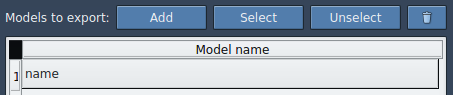
You can manage multiple sets of atoms, rename models, and fine-tune your selection. When ready, select the export format and paths, then click Export atoms along paths to PDB files. This process ensures that only the atoms you’re interested in are included in the output.
A Valuable Tool for Molecular Modeling
Whether you’re generating reaction coordinate files, extracting ligand trajectories, or preparing for enhanced sampling, the “Export Along Paths” extension simplifies these processes for molecular modelers. Its flexibility and ease of use can support a wide range of molecular modeling needs.
To learn more about the “Export Along Paths” extension and dive deeper into its features, visit the official documentation at https://documentation.samson-connect.net/tutorials/export-along-path/export-atoms-trajectories-along-paths/.
SAMSON and all SAMSON Extensions are free for non-commercial use. Discover SAMSON at https://www.samson-connect.net.