



Setting up an effective molecular simulation can feel overwhelming, particularly if you’re working with advanced machine-learning tools. Many molecular modelers struggle with efficiently setting up workflows that combine precision and speed. One highly effective tool for energy and force evaluation is the UMA Force Field in SAMSON, which utilizes deep learning-based atomistic models. In this post, we’ll guide you through the steps to set up UMA Force Field in SAMSON for your project, with tips to avoid common pitfalls.
Why Set Up UMA Force Field?
UMA Force Field is well-suited for fast geometry refinement, exploratory relaxation, and qualitative force analysis. By learning to properly set it up, you’ll unlock the capability to refine and evaluate molecular and material systems with state-of-the-art machine learning models, such as UMA-S and UMA-M. Let’s break down the process.
Step 1: Preparing for UMA
Before you start, verify these prerequisites:
- Ensure that the UMA Force Field extension is installed in SAMSON.
- Have the Python Scripting extension installed and updated.
- Make sure your machine has permission to install Python packages for the first-time setup.
Note: During the first setup, UMA creates a dedicated Python environment, which might take some time. You may need to recreate the interaction model after the initial setup.
Step 2: Adding a Simulator
Once the prerequisites are in place, follow these steps to integrate UMA Force Field into your SAMSON simulation workflow:
- Open a document with your molecular or material system of interest.
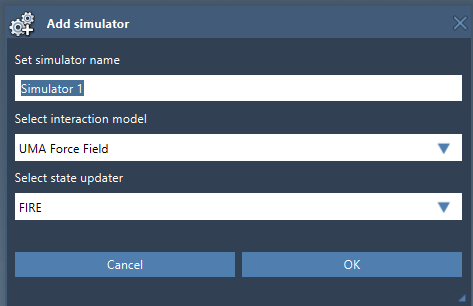
- Navigate to Edit > Simulate > Add simulator to add a new simulator.
- From the list of interaction models, select UMA Force Field.
- Choose the appropriate state updater for the simulation. A common choice is FIRE (Fast Inertial Relaxation Engine).
- Press the OK button.
Step 3: Configuring the UMA Force Field
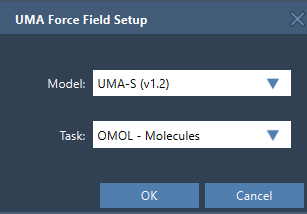
After adding the simulator, you’ll see the UMA Force Field Setup window. Here, you’ll configure the following key components:
- Model: Select the version of UMA Force Field you need for your simulation. For most tasks, UMA-S is a good starting point, while UMA-M can handle more complex workflows requiring additional capacity.
- Task: Choose a task based on the type of system you’re modeling (e.g., OMOL for molecules, OMAT for inorganic materials, or OC20 for catalysis).
Pro Tip: Start with UMA-S unless you’re sure you need the larger UMA-M model. This will save computational resources while still yielding valuable insights.
Step 4: Running Your UMA Simulation
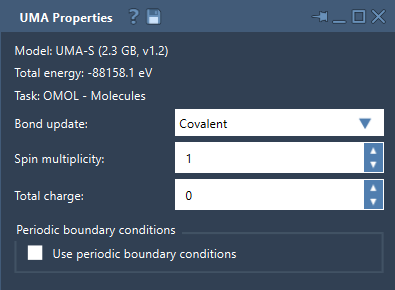
With the setup complete, SAMSON initiates the UMA backend and loads your selected model. Once the UMA Properties window appears, you can:
- Begin the simulation via Edit > Simulate > Start.
- Monitor as SAMSON completes the first UMA evaluation.
- Interactively refine structures or move atoms while UMA dynamically updates energy and force metrics in real-time.
At the start, you might see that the energy is briefly unavailable in the properties window. However, once the first evaluation completes successfully, energy values will appear, enabling seamless exploration of your system.
Conclusion
Setting up the UMA Force Field interaction model in SAMSON is an empowering process for molecular modelers. By following these steps, you can start modeling and refining structures with cutting-edge machine learning capabilities. To dive deeper into advanced adjustment options like bond update modes, charge and spin multiplicity settings, and periodic boundary conditions, check out the original documentation page.
Note: SAMSON and all SAMSON Extensions are free for non-commercial use. You can download SAMSON here.