



Analyzing the movement of atoms during molecular simulations is essential for understanding dynamic processes such as ligand binding/unbinding, reaction mechanisms, or conformational changes in biomolecules. However, exporting specific atom trajectories for further analysis can be a challenging task for molecular modelers. This is where SAMSON’s Export Along Paths extension simplifies your workflow.
Whether you aim to generate reaction coordinate files, study ligand pathways, or visualize intermediate states of molecules, this extension allows you to export atomic trajectories in a few systematic steps. Below, we break down one of SAMSON’s key capabilities: how to export atom trajectories along a path efficiently.
Step 1: Setting Up
Before exporting data, make sure you have the Export Along Paths app installed in SAMSON. If not, you can easily add it by navigating to the Export Along Paths Extension page on SAMSON Connect. Once installed, restart SAMSON to activate the tool.
Step 2: Load Your Sample System
If you’re just starting, SAMSON provides a sample document for practice. This document features the Lactose permease protein system (1PV7) with its ligand, Thiodigalactosid (TDG), and ligand unbinding paths. You can download it using the link: https://www.samson-connect.net/documents/046f1acd-c799-40f6-8185-cb4847eff795. This file contains pre-calculated ligand pathways, helping you focus on the task of trajectory exportation.

Step 3: Export Atom Trajectories
To export atom trajectories, open the Export Along Paths app via Home > Apps > All > Export Along Paths. The app interface provides options for exporting either all atoms or a subset. Below are the two methods:
Option 1: Export All Atoms
- In the Document view, select one or multiple paths.
- Choose the export mode:
- Single PDB file for all frames
- Separate PDB files for each frame
- Click Export atoms along paths to PDB files and select a destination folder and file prefix.
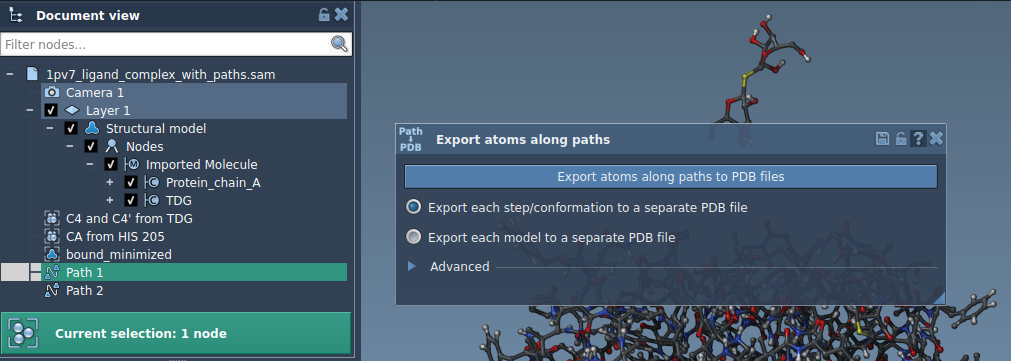
For additional customization, expand the Advanced section to adjust frame export intervals.
Option 2: Export a Subset of Atoms
If you need to focus on a specific molecule, such as a ligand:
- Open the Advanced panel in the app.
- Select a subset in the Document view (e.g., ligand
TDG). - Click Add to define this group as a model for export.
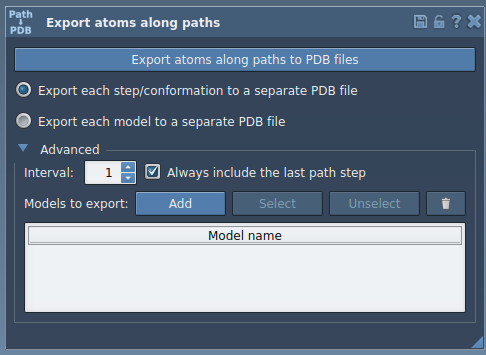
- Rename the model by double-clicking its name.
- Add multiple groups of atoms if needed.
Finally, choose the export format, select a path, and hit Export atoms along paths to PDB files.
Applications in Research
This capability is not only versatile but also applicable to a broad range of molecular modeling challenges. Here’s what you can do with exported trajectories:
- Generate reaction coordinates for free energy calculations.
- Export ligand trajectories for enhanced sampling studies.
- Visualize and analyze intermediate states along binding/unbinding paths.
- Track specific atom groups, such as binding site residues or ligand backbones.
These features help streamline your molecular simulation workflows, whether you’re preparing input files for further calculations or extracting key movement data from ligand or protein pathways.
For more detailed guidance, visit the full documentation page: Export Atom Trajectories Along Paths.
SAMSON and all SAMSON Extensions are free for non-commercial use. You can download SAMSON at samson-connect.net.