



Protein modeling often involves analyzing structural transitions between conformations. These transitions are critical for understanding biochemical mechanisms, simulating reaction pathways, or setting up free energy simulations. However, generating smooth and biologically meaningful transition paths can be a challenge. This is where the ARAP Interpolator in SAMSON makes a significant difference, offering a fast and easy solution for building continuous paths between protein conformations.
Why Transition Paths are Important
Capturing the intermediate states between two protein conformations is essential in various applications like:
- Conformational analysis and molecular dynamics simulations.
- Transition state modeling in enzymatic reactions.
- Umbrella sampling setups for free energy calculations.
Manually creating intermediate structures is not only time-consuming but may also lack precision or realism. The ARAP Interpolation feature saves time and ensures accuracy by using a biologically meaningful geometry model to construct the path.
How to Generate Transition Paths with ARAP in Three Steps
Here’s a quick look at how you can use the ARAP Interpolator to efficiently build a transition path between two protein conformations:
Step 1: Load and Prepare Structures
Begin by loading the structures you want to study. For this example, the Diphtheria Toxin structures 1DDT and 1MDT are used:
- Open Home > Fetch in SAMSON.
- Input the PDB IDs:
1DDT 1MDT. - Click Load to fetch and load the structures into your workspace.
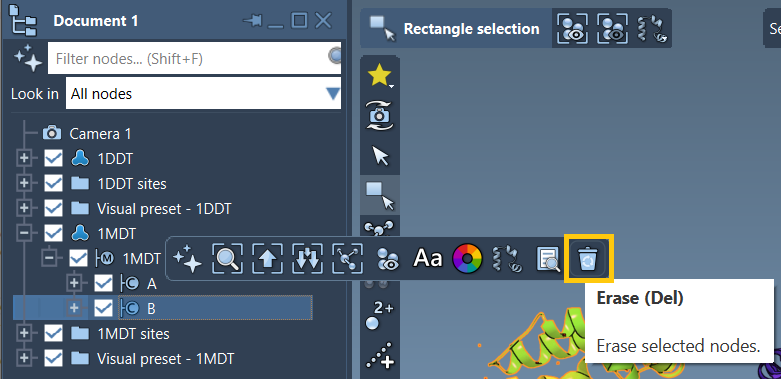
After loading, remove unnecessary chains – such as B in 1MDT, or water, ligands, and ions – using the Home > Prepare tool. Cleaning the structures ensures that they can be efficiently used in interpolation.
Step 2: Define Conformations
Select and define conformations for the starting and target structures:
- For
1DDT, select the structure in the Document view, go to Edit > Conformation, and name it e.g.,1DDT A. - Repeat the same step for
1MDTas1MDT A.
These conformations act as the start and target points for ARAP Interpolation.
Step 3: Run the ARAP Interpolation App
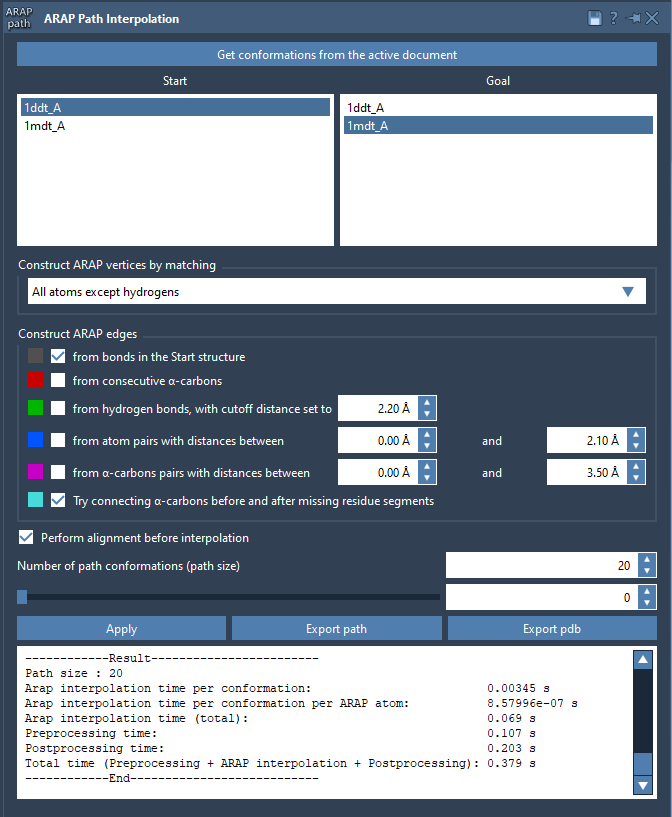
Open the app via Home > Apps > Biology > ARAP Path Interpolation. Choose the defined conformations as the start and goal, match atoms (e.g., all except hydrogens), and set edge construction rules for continuity. Under preprocessing options, check Perform alignment before interpolation for better accuracy. Finally, set the Number of path conformations to a desired value (e.g., 20) and click Run.
Analyze and Export Results
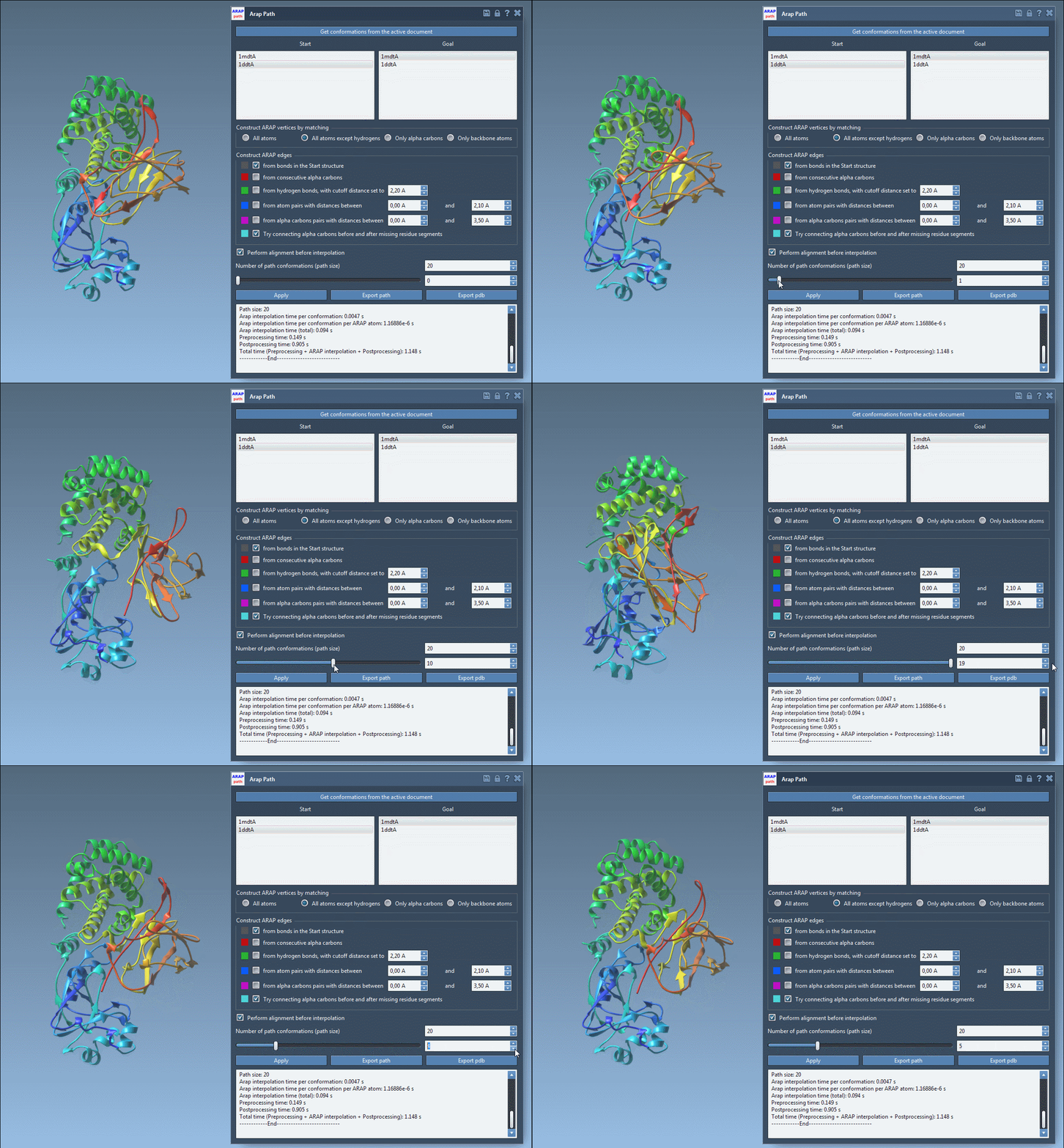
Once the interpolation is complete, use the slider to visualize the transition path. You can also generate a visual representation of edge construction, helping you understand the logic behind the generated path:
- Enable or disable visibility of ARAP edges in the Document view.
- Export the transition path as a PDB file for further analysis or simulations.
Applications for Computational Biology
This smooth and realistic transition path can now be leveraged in advanced workflows, such as:
- Setting up umbrella sampling with the GROMACS Wizard.
- Refining paths using parallel nudged elastic band methods (P-NEB).
- Simulating reactions or visualizing motion dynamics.
With ARAP Interpolation, generating these paths has become not only faster but also more intuitive. To learn more, explore the full documentation: here.
Note: SAMSON and all SAMSON Extensions are free for non-commercial use. Get SAMSON at https://www.samson-connect.net.