



Molecular modelers often face a significant challenge: how to effectively filter and select specific molecular nodes, such as atoms, residues, or structural groups, from extensive data sets. Whether you’re analyzing ligand-receptor interactions or working on structural refinements, a precise and efficient selection mechanism is indispensable. This is where SAMSON’s Node Specification Language (NSL) comes to the rescue.
In this blog post, we’ll explore how NSL can be used for filtering molecular nodes using the Document view. This practical feature can significantly boost your productivity and accuracy when dealing with complex molecular models. Let’s dive in!
What is Node Filtering in the Document View?
SAMSON’s NSL allows you to filter nodes directly in the Document view, making it an interactive and visually intuitive process. With just a few well-constructed expressions, you can narrow down your selection to focus on the specific nodes you need for your research or application.
For example, you can use expressions such as:
node.type structuralGroup(or its short version:n.t sg) to filter for structural groups.C within 5A of "ALA 22"to select all carbon atoms within 5 angstroms of alanine residue 22.
Getting Started with Node Filtering
To filter nodes in the Document view:
- Locate the filter box in the Document view of SAMSON.
- Enter an NSL expression that defines the criteria for selection or filtering. For example, try
node.category ligand, receptorto filter all nodes categorized as ligands or receptors. - Press Enter to apply the filter and view the filtered nodes directly in the Document view.
Here’s an example to visualize:
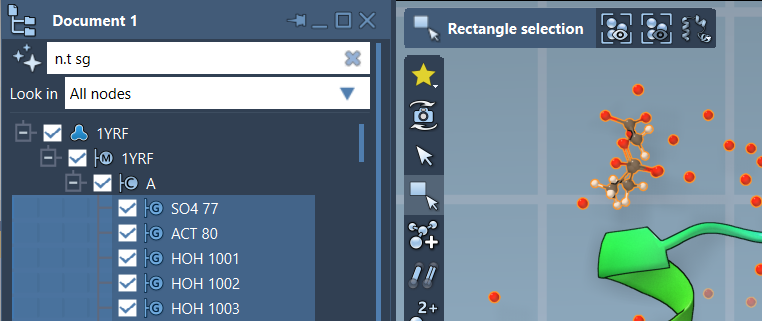
Interactive Filtering Made Easy
The Document view enables real-time feedback, allowing you to preview the results of your filter expression. Additionally, using the Tab key (Tab) can help with context-sensitive completion, especially when working with node names. For example:
- Entering
"ALA(without a closing quote) and pressing Tab will display all nodes whose names start with “ALA”.
This simple yet powerful feature saves time while improving the accuracy of your selections.
Let AI Help You!
If constructing NSL expressions sounds daunting, SAMSON has you covered. You can use the AI Assistant, integrated into the platform, to generate NSL expressions for your specific needs. Just click the  Ask AI button next to the filter box, and let the assistant craft expressions tailored to your document hierarchy. This can be particularly helpful for newcomers to NSL!
Examples to Try
Here are some expressions you can experiment with to see the power of NSL filtering:
node.type backbone(short version:n.t bb): Filters backbone nodes.residue.secondaryStructure helix(short version:r.ss h): Filters residue nodes in an alpha helix secondary structure.C within 5A of S: Filters all carbon atoms within 5 angstroms of sulfur atoms.
Conclusion
Effective node filtering within the Document view is just one of the remarkable benefits of SAMSON’s Node Specification Language. By mastering these filtering techniques, you can significantly streamline your molecular modeling workflow and focus on the elements that truly matter in your research.
To learn more about NSL and its comprehensive capabilities, visit the official documentation page: https://documentation.samson-connect.net/users/latest/nsl/.
SAMSON and all SAMSON Extensions are free for non-commercial use. Download SAMSON from https://www.samson-connect.net.