



For molecular modelers, understanding how proteins organize themselves within their crystal structures or biological assemblies is essential. Whether it’s exploring interactions at protein-protein interfaces, reconstructing quaternary structures for simulation, or designing symmetric protein complexes, these insights are key to driving successful workflows in molecular design and research. However, obtaining this structural understanding can often be a painstaking process.
Fortunately, the Symmetry Mate Editor in SAMSON simplifies this process by allowing users to generate symmetry mates directly from PDB structure data. By leveraging metadata provided in widely used PDB files, structural insights can be revealed efficiently. Here’s how the Symmetry Mate Editor can help you simplify symmetry-related tasks, from visualization to assembly reconstruction.
Why Generate Symmetry Mates?
Symmetry mates aren’t just about creating symmetric visuals; they provide actionable data for vital molecular modeling tasks such as:
- Visualizing biological assemblies: Move from crystallographic units to biologically relevant assemblies.
- Exploring protein-protein interfaces: Analyze potential binding sites and molecular interactions.
- Reconstructing complex structures: Generate quaternary structures for simulations or molecular designs.
- Designing symmetric models: Create protein complexes and nanostructures for various design pipelines.
How It Works in SAMSON
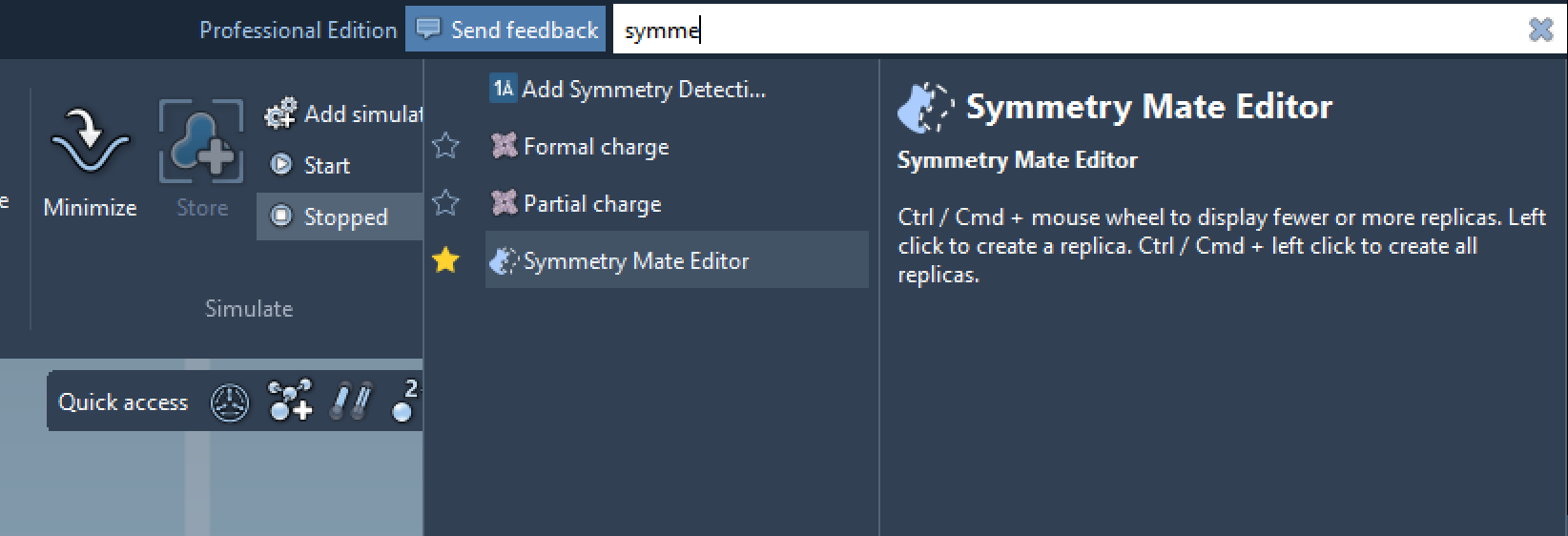
The workflow for working with the Symmetry Mate Editor in SAMSON is remarkably intuitive. Once you’ve opened a PDB file containing symmetry information, simply activate the editor:
- Method 1: Use the
Shift + Ekeyboard shortcut to find and launch the Symmetry Mate Editor. - Method 2: Access it through the Editors menu via the left-side viewport (… > General > Symmetry Mate Editor).
After activating the editor, you’ll notice control nodes appear in the viewport to represent symmetry transformations.
Exploring and Generating Mates
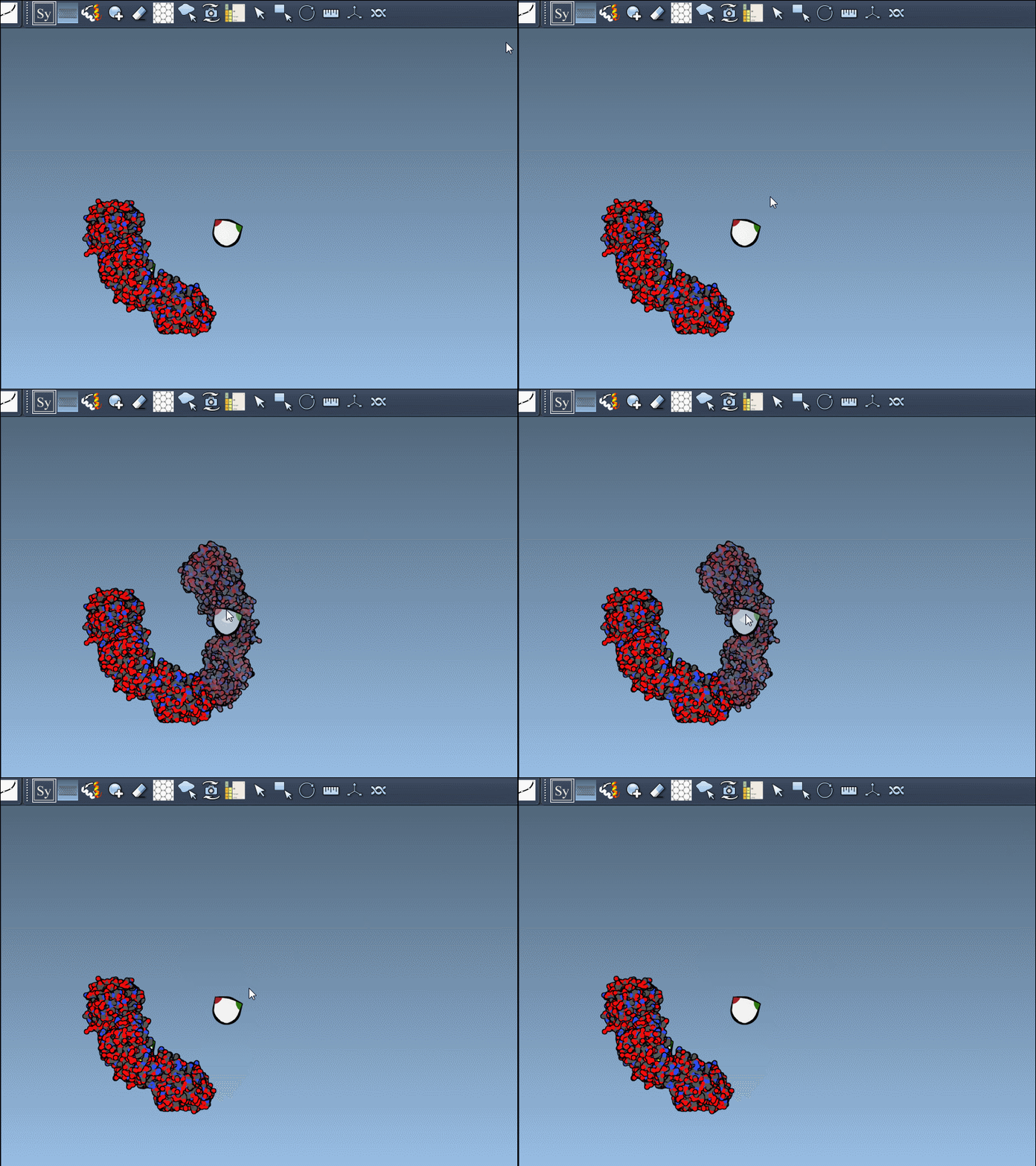
The Symmetry Mate Editor offers a flexible interface to explore arrangements of proteins:
- Use
Ctrl/Cmd+ scrolling your mouse wheel to adjust the number of visible control nodes. - Hover over a node to preview symmetry replicas in real-time.
- Click a node to permanently generate the desired replica. This user-friendly workflow allows you to quickly construct complex structures.
For example, here’s how previewing and generating mates works:
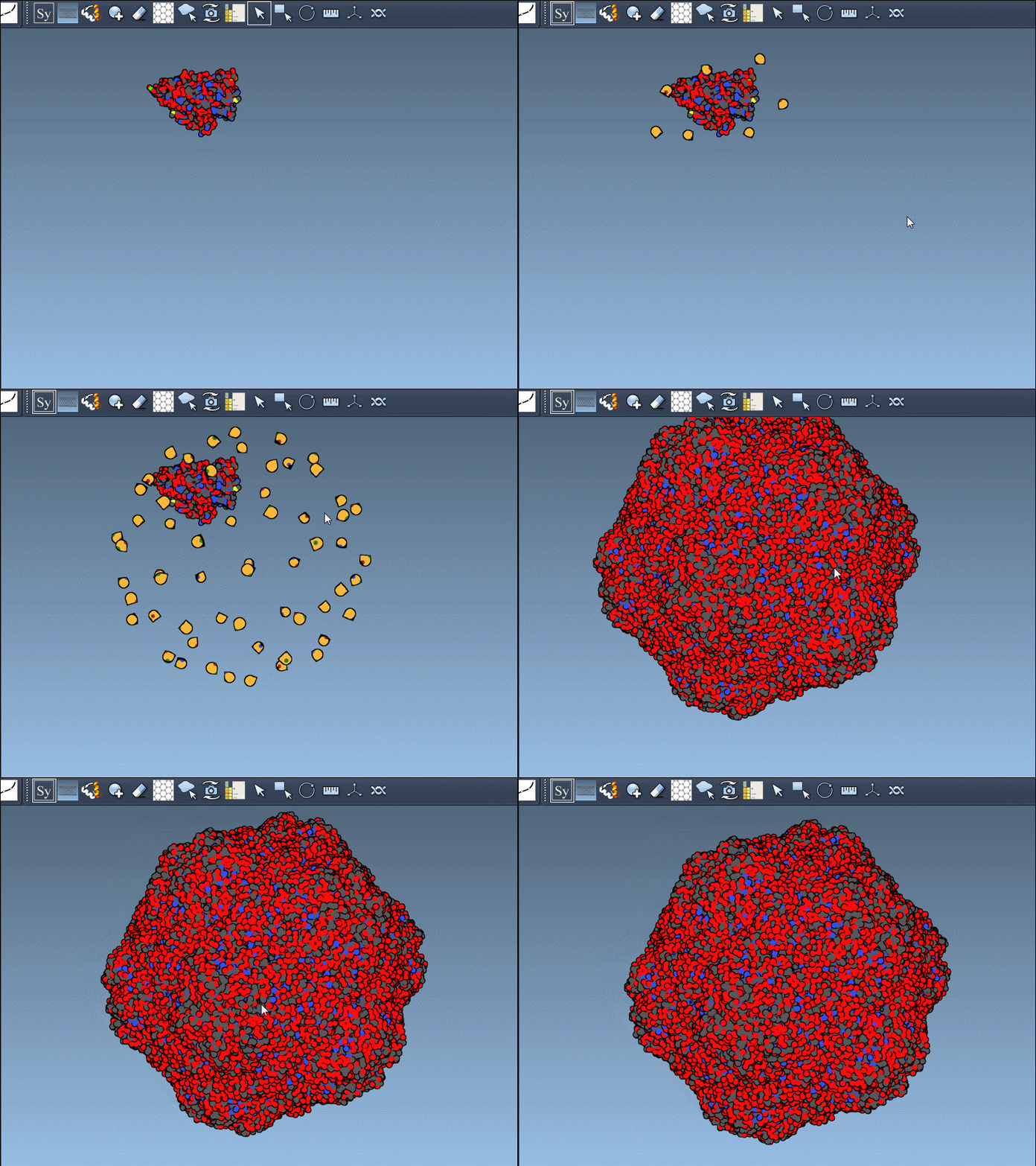
If you wish to generate all symmetry replicas at once, hold the Ctrl/Cmd key while hovering and clicking a control node. Here’s an example of generating a full symmetric assembly:
CRYST1 vs. BIOMT Records
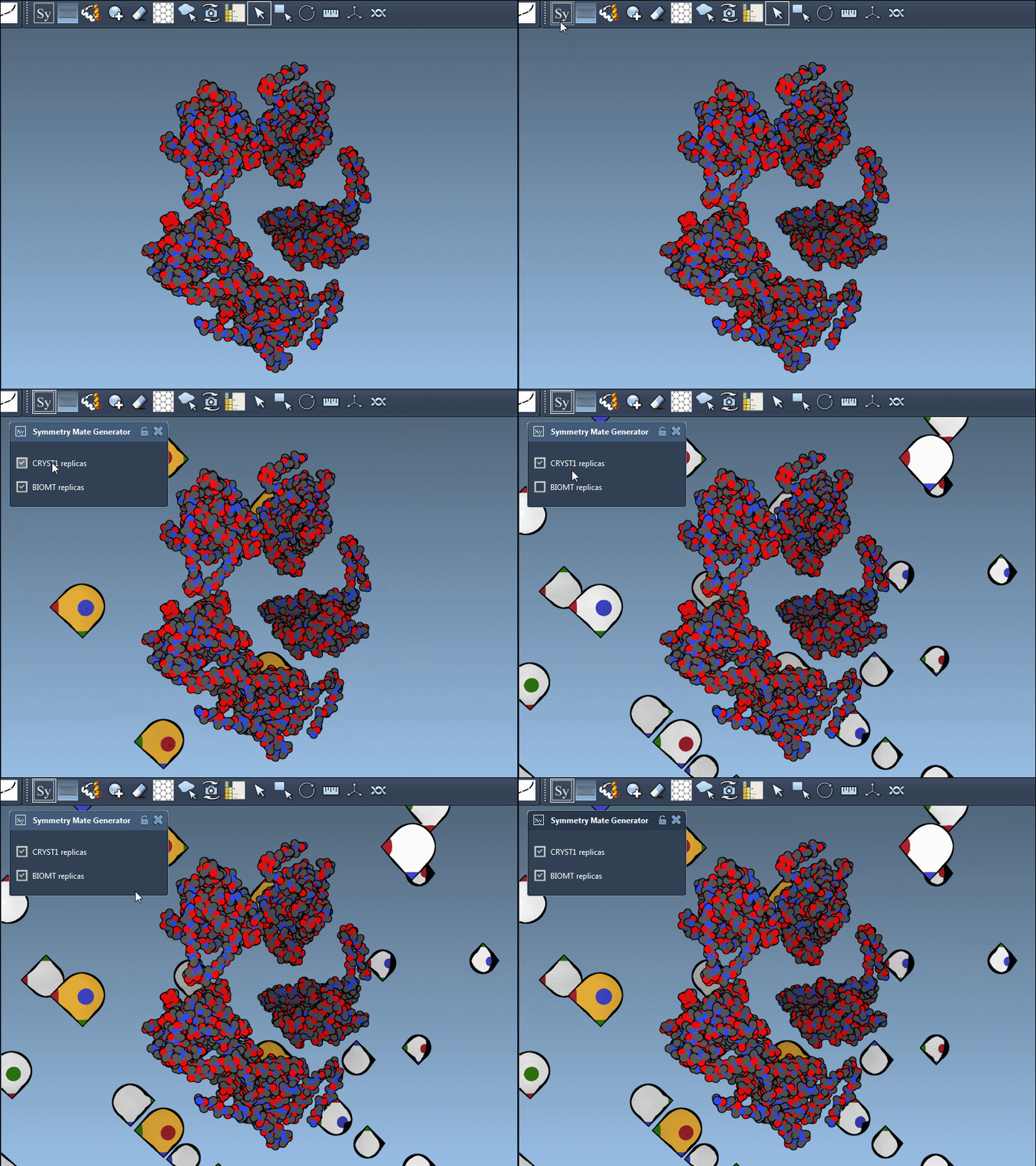
The editor also supports both CRYST1 (symmetry from crystal lattice) and BIOMT (symmetry from biological annotations) record types, which are distinguished by different widget colors:
| Record type | Description | Widget color |
|---|---|---|
| CRYST1 | Symmetry from crystal lattice | White |
| BIOMT | Symmetry from biological assembly annotations | Yellow |
You can toggle between these types directly in the Symmetry Mate Editor, depending on the goal of your modeling workflow.
Conclusion
The Symmetry Mate Editor in SAMSON empowers researchers to dive directly into protein symmetry workflows without unnecessary complexity. Whether you’re studying biological assemblies, reconstructing complex protein structures, or preparing for molecular simulations, this tool saves time and boosts productivity.
Ready to explore? Check out the full tutorial on SAMSON Connect at this link.
SAMSON and all SAMSON Extensions are free for non-commercial use. You can get SAMSON here to start your molecular modeling journey today.