



Carbon nanotubes (CNTs) are indispensable in molecular design, nanotechnology, and computational materials science. Their unique mechanical, thermal, and electronic properties make them highly sought-after for building nanodevices, modeling membranes, and simulating molecular transport. But how do you create accurate CNT models efficiently without spending hours on complex operations?
With SAMSON, the Nanotube Creator Extension offers a streamlined way to generate single-walled and multi-walled carbon nanotube structures with ease. In this post, we’ll focus on creating CNTs interactively right in the viewport—a quick and hands-on method perfect for molecular modelers who want to visualize and build their designs in real-time.
Setting up the Nanotube Creator
Before diving into building CNTs, ensure that you’ve installed and activated the Nanotube Creator Extension:
- Log into your SAMSON Connect account.
- Find the Nanotube Creator on the Extensions page, hit Add, and restart SAMSON.
- Activate the editor directly from the viewport menu with … > Materials > Nanotube Creator or use the Find everything… tool (Shift+E) to search “Nanotube Creator.”
Now, you’re ready to start modeling interactively!
Interactive Method: Hands-on Creation
The interactive mode lets you quickly draw nanotubes directly in the viewport with straightforward mouse actions. Here’s how:
Step 1: Define the Axis and Length
Click and drag the left mouse button in the viewport to set the nanotube’s axis and define its length. Live feedback is displayed in the status bar, helping you visualize both the length and orientation of the nanotube.
Here’s a demonstration of this step:

Adjust the position until you’re satisfied with the nanotube’s axis and release the mouse button to proceed to the next step.
Step 2: Adjust the Radius
After setting the axis, move your mouse to modify the nanotube’s radius (corresponding to the m parameter). Confirm by clicking the left mouse button again. Here’s what this step looks like in action:
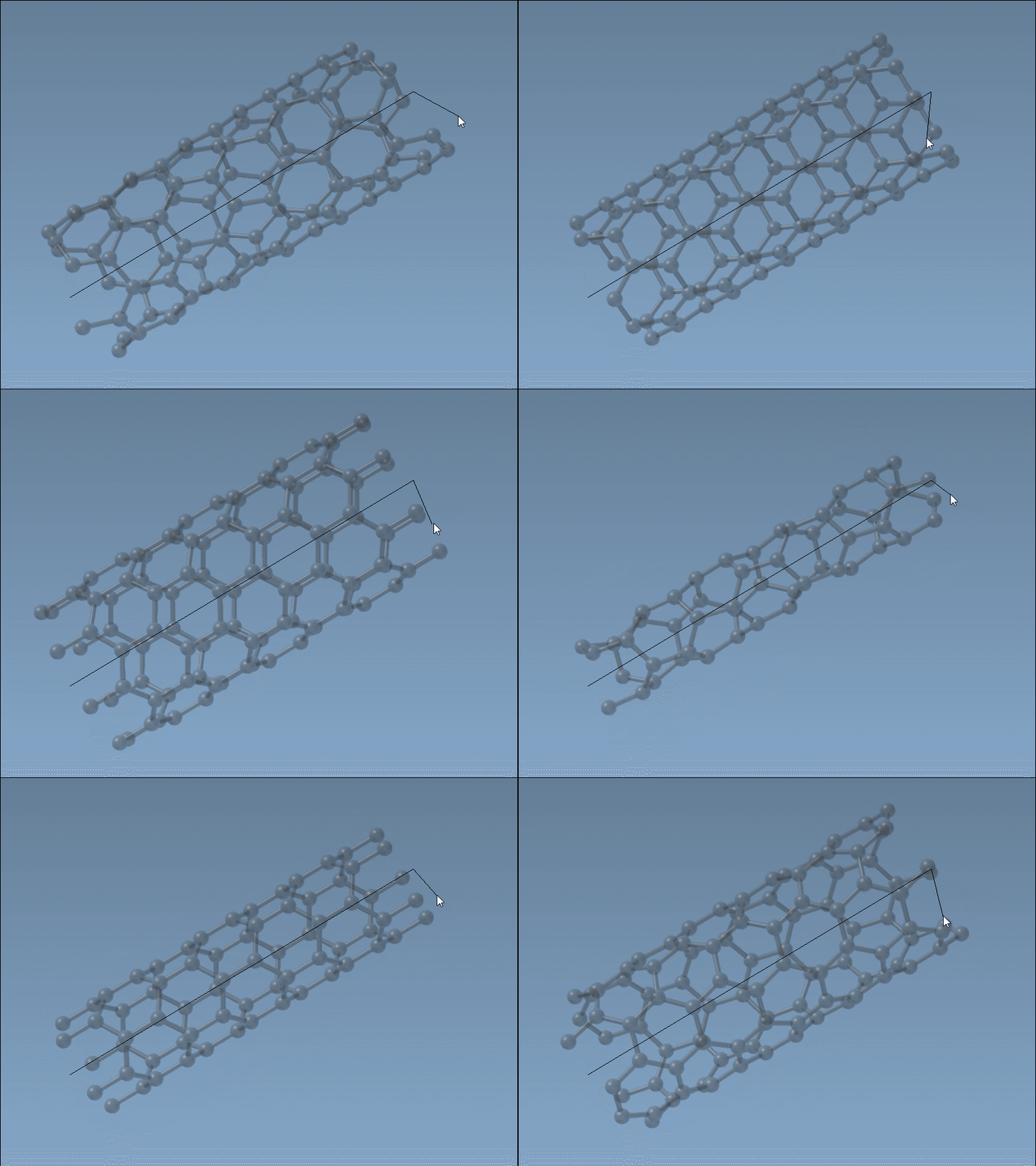
During the process, keep an eye on the live updates in the status bar to fine-tune both n and m parameters for precise control over the final structure.
Why Use the Interactive Mode?
The interactive mode in SAMSON provides an intuitive way to design CNTs effectively. It eliminates the need for intricate setup and allows real-time adjustments, empowering you to:
- Experiment with different axis orientations and lengths for customized designs.
- Quickly prototype single-walled or multi-walled nanotubes for your simulations.
- Obtain immediate visual feedback, simplifying parameter selection.
What’s Next?
Once your nanotube is complete, you can explore additional possibilities:
- Export high-quality images using the Visualization Guide.
- Simulate the mechanical or electronic properties of your nanotube with SAMSON’s modeling tools (learn more here).
- Combine your CNTs with other molecular structures to create hybrid nanodevices.
Ready to take the next step? Don’t forget to consult the complete tutorial for additional tips and advanced features.
SAMSON and all SAMSON Extensions are free for non-commercial use. Discover SAMSON and start designing today at SAMSON Connect.