



Molecular modelers often face the challenge of systematically exploring chemical modifications to optimize their drug candidates or materials. One pressing need is to quickly generate and evaluate a series of molecular analogs to understand how structural changes influence properties or interactions. The Positional Analogue Scanning feature in SAMSON’s SMILES Manager addresses exactly that pain point, allowing users to generate chemical analogs from a starting molecule and a SMARTS pattern. Here’s how to leverage this workflow in SAMSON to streamline your molecular design process.
What is Positional Analogue Scanning?
At its core, positional analogue scanning involves identifying specific patterns or regions in a molecule (using SMARTS patterns) and substituting them to explore how various modifications impact molecular properties. This method provides a rapid and systematic way to study functional group replacements or additions. With SAMSON’s user-friendly interface, this analysis becomes intuitive and efficient, with minimal manual intervention required.
How to Get Started
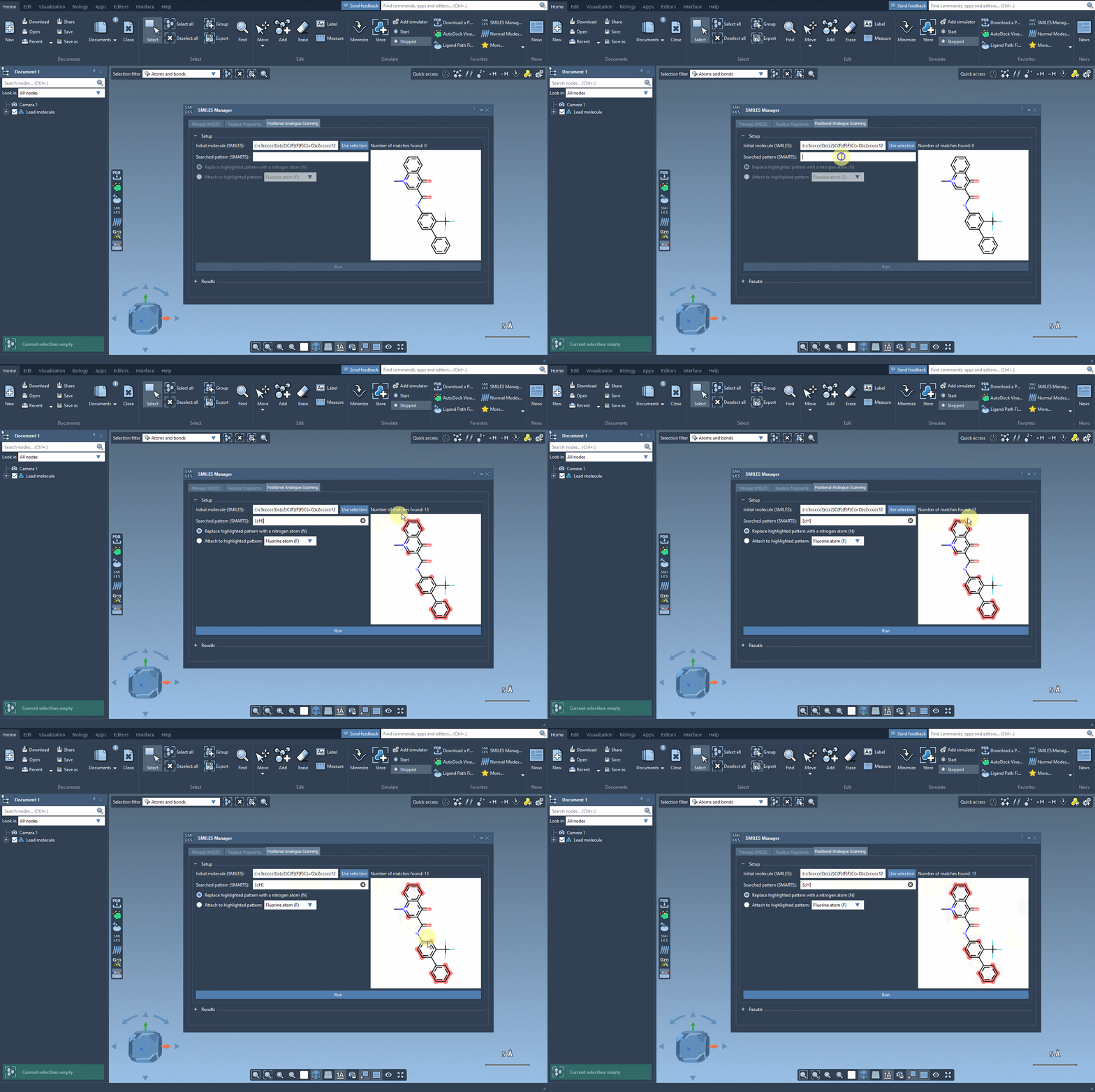
The process starts with defining your molecule of interest. In SAMSON, you can either:
- Enter the SMILES code of your starting molecule.
- Directly select the molecule in the SAMSON document and simplify initialization by pressing the Use selection button.
The example below demonstrates how the feature highlights an initial molecule and prepares it for analysis:
Searching Targets with SMARTS Patterns
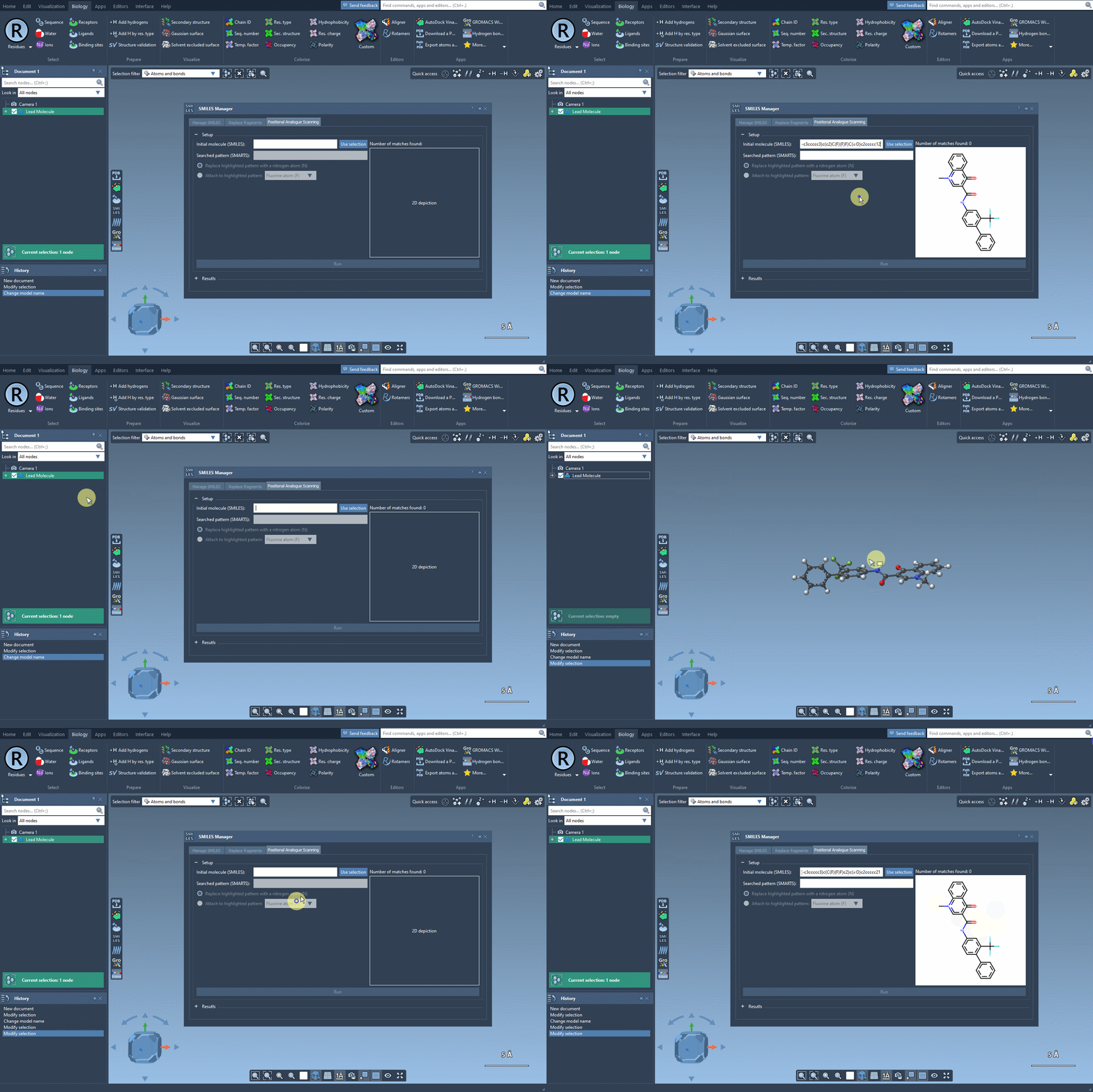
Once your molecule is ready, the next step is defining the pattern you wish to modify. For example, if you aim to replace aromatic carbons, you can use the SMARTS code [cH]. The interface will highlight all matching patterns in your target molecule. This step is critical for gaining clarity on the regions of interest before making substitutions.
Replacing or Attaching Functional Groups
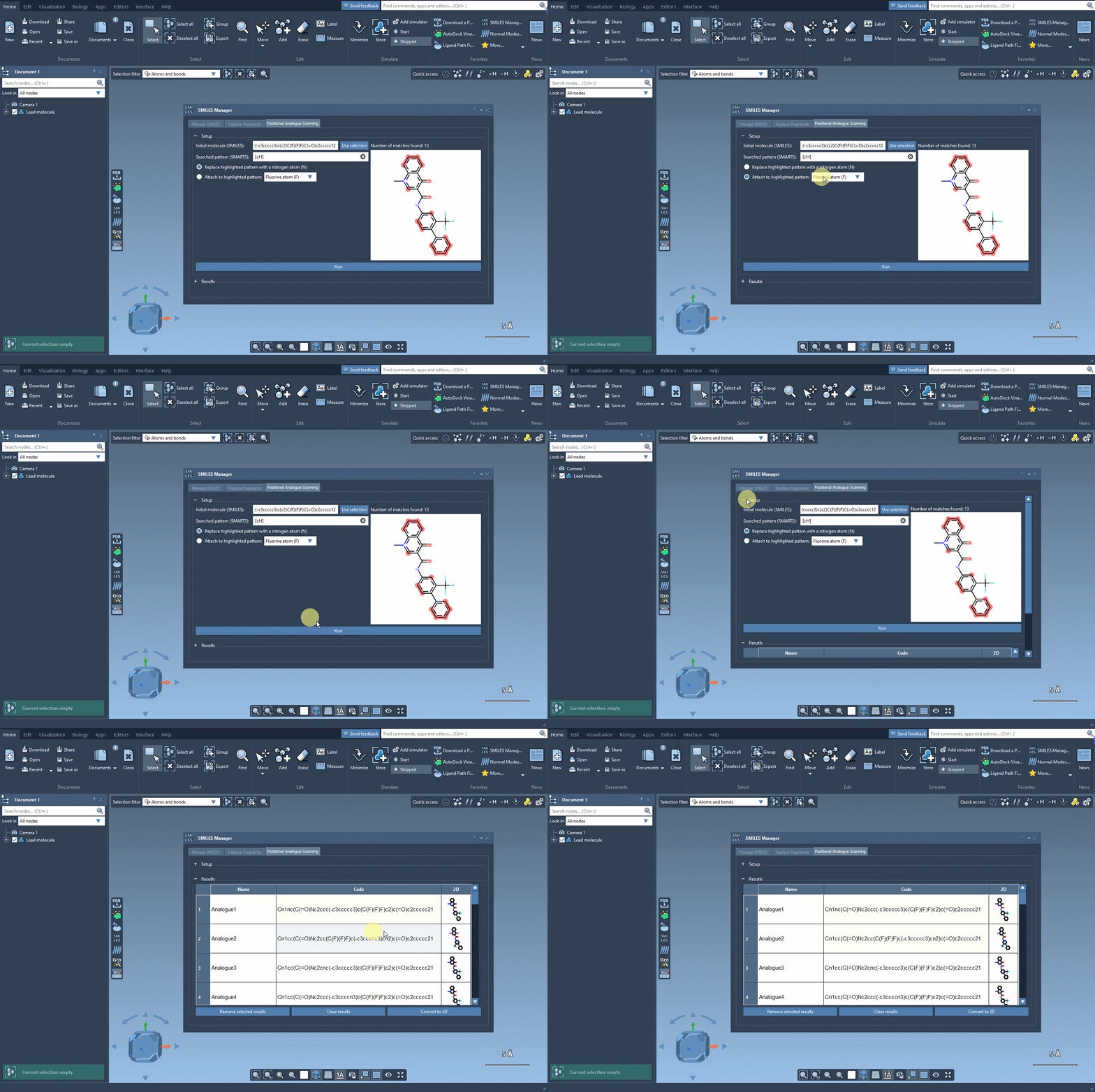
After specifying the substitution pattern, you can choose how to modify it. Whether you want to replace a pattern with nitrogen (N), attach a fluorine atom (F), or add a methyl group (-CH3), the process is straightforward. By clicking Run, SAMSON generates a series of analogs almost instantly and showcases them in the results table with their corresponding SMILES codes and 2D depictions:
Customizing and Visualizing Results
The system-generated analogs aren’t just static results. Once displayed in the results table, you can:
- Modify names or SMILES codes directly.
- Expand 2D depictions for better visualization.
- Generate 3D structures of specific analogs for deeper exploration.
- Remove selected analogs or clear the table entirely to focus on promising candidates.
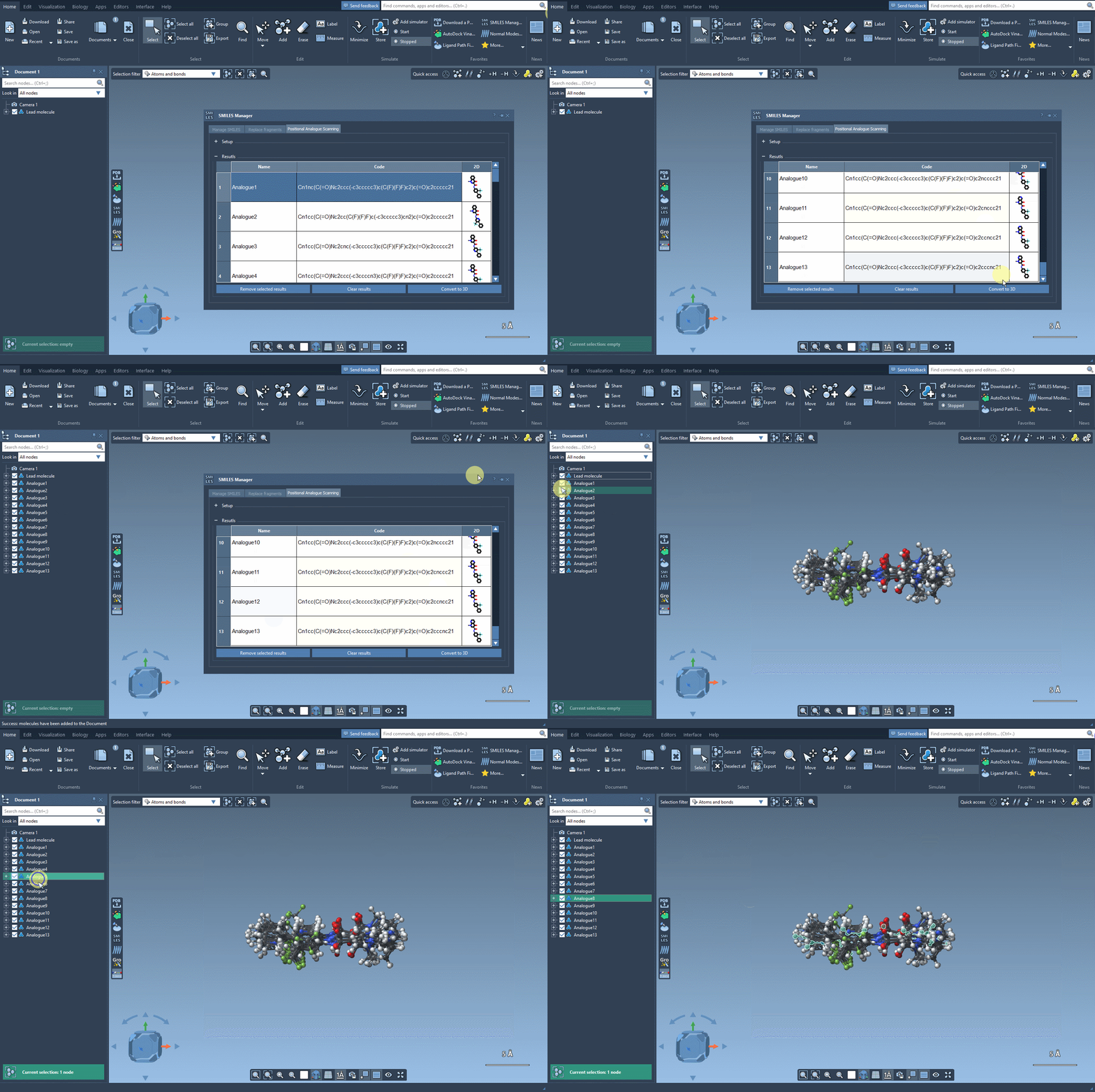
For those interested in 3D data, SAMSON provides tools to convert the generated SMILES into 3D models, enabling further analyses such as docking or interaction studies with target proteins:
Why Molecular Modelers Should Care
Instead of manually creating and comparing analogs, SAMSON’s Positional Analogue Scanning streamlines the process, empowering modelers to generate analog series in minutes. Whether optimizing interactions with a protein target or exploring structure-property relationships, this feature saves time and reduces complexity in the exploratory phase of molecular design.
To learn more about the Positional Analogue Scanning functionality, visit the full documentation page here: https://documentation.samson-connect.net/tutorials/smiles-manager/perform-positional-analogue-scanning-using-the-smiles-manager-element/
SAMSON and all SAMSON Extensions are free for non-commercial use. You can get SAMSON at https://www.samson-connect.net.