



Protein structures can exist in multiple conformations, and understanding the transition paths between these conformations is important for molecular modeling tasks such as conformational analysis, studying reaction pathways, and setting up simulation workflows. However, generating smooth, realistic transition paths can often be time-consuming and computationally expensive.
This is where the As-Rigid-As-Possible (ARAP) Interpolation method available in SAMSON comes to the rescue. With just a few steps, you can create a seamless path between two protein conformations. In this guide, you’ll find out how to set things up and achieve meaningful results efficiently using this method.
How ARAP Interpolation Works
ARAP Interpolation uses a biologically meaningful geometric model to create continuous structural transitions between two protein structures. Unlike other methods, ARAP interpolation generates paths in seconds, making it an excellent tool for workflows such as preparing trajectories for simulations or understanding large-scale motions like the “open-to-closed” transitions of proteins.
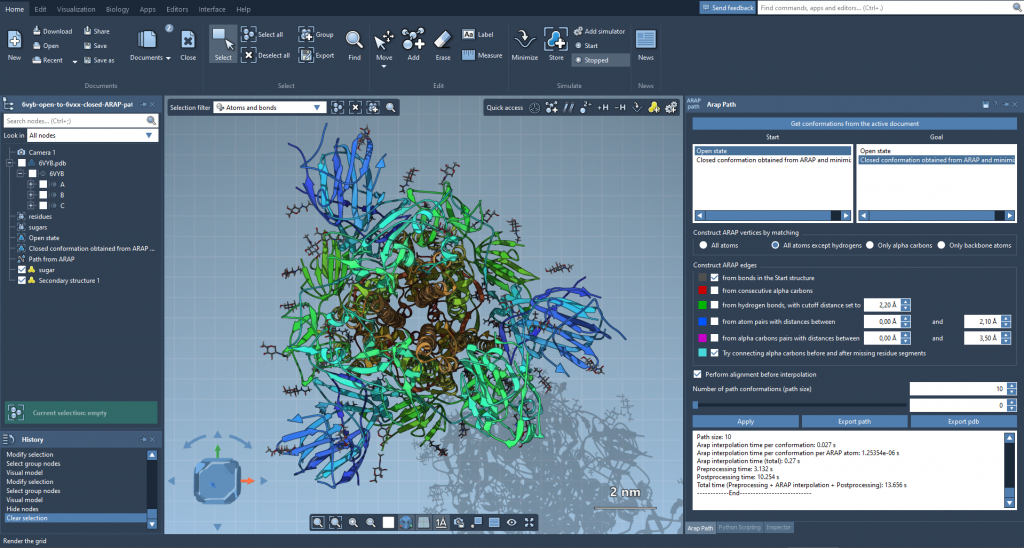 Example of ARAP Interpolation in action, used for studying conformational changes in the SARS-CoV-2 spike protein.
Setting Up the Transition Path
Step 1: Loading Protein Structures
For a practical example, let’s generate a transition path between two conformations of the Diphtheria Toxin (chains A and B of 1DDT and 1MDT):
- In SAMSON, open Home > Fetch and input
1DDT 1MDTto load the structures from the Protein Data Bank (PDB). - Delete chain
Bfrom both structures to focus on chainAonly. - Clean the structures using Home > Prepare to remove alternate locations, water, ligands, and ions.
Once cleaned, you’ll have two starting structures for interpolation.
Step 2: Defining Conformations
The next step is to define conformations for the start (e.g., 1DDT A) and goal (e.g., 1MDT A).
- Select each structure in the Document view, go to Edit > Conformation, and assign descriptive names to the conformations.
These will serve as the basis for generating the ARAP interpolation path.
Step 3: Running the ARAP Interpolation
Launch the ARAP Interpolation tool from Home > Apps > Biology > ARAP Path Interpolation. Follow these steps:
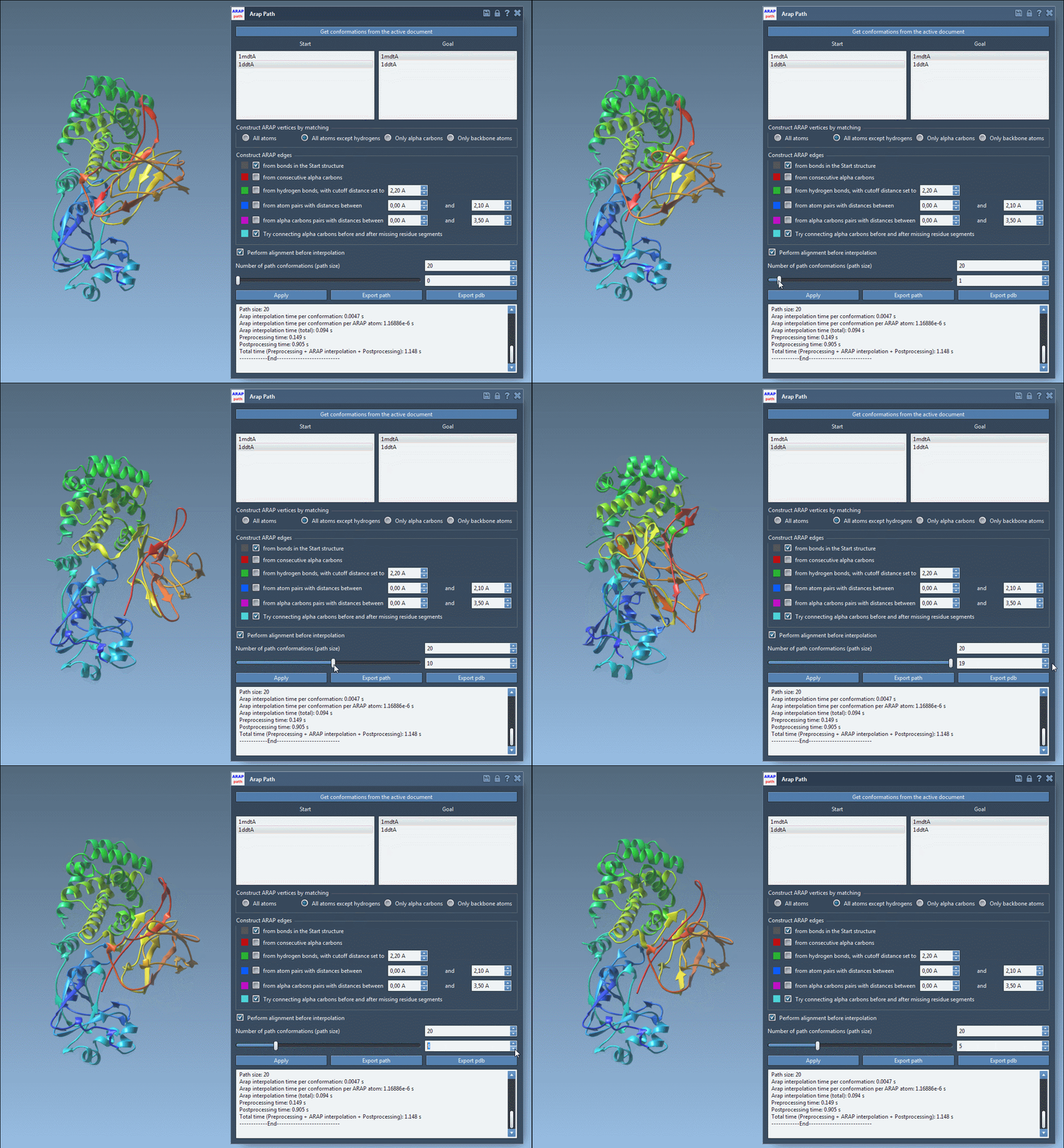
- Select your conformations by clicking Get conformations from the active document and assign the start and goal conformations.
- Choose atom matching preferences, such as “all except hydrogens” for more robust results.
- Set the number of path conformations (e.g., 20) to control the resolution of the transition path.
- Enable preprocessing options like Perform alignment before interpolation for better results.
Finally, click Run. Within seconds, the ARAP algorithm will generate an interpolated pathway connecting the start and goal conformations.
Analyzing and Exporting Results
Visualization
The generated transition path can be visualized using a slider that allows you to navigate smoothly between conformations. Additionally, ARAP edges, which highlight connectivity between atoms across the path, can be toggled for better understanding of structural transitions.
Export Options
- Export path: Save the interpolation path as a trajectory object within SAMSON.
- Export PDB: Generate a PDB file including all the conformations along the path, with each conformation saved sequentially.
Why ARAP Interpolation?
While tools that enable protein visualization exist, the ARAP Interpolation app in SAMSON stands out for its speed and biologically meaningful modeling. Whether you’re setting up umbrella sampling or analyzing complex motions in proteins like the SARS-CoV-2 spike, ARAP interpolation simplifies the preparatory work, allowing you to focus more on interpreting results.
To dive deeper into ARAP Interpolation, its underlying principle, and additional features, visit the official documentation page.
Note: SAMSON and all SAMSON Extensions are free for non-commercial use. Get started by downloading SAMSON from SAMSON Connect.