



Carbon Nanotubes (CNTs) are extraordinary structures with applications ranging from nanotechnology to advanced material science. However, designing accurate CNT models that meet exact specifications can often be a time-consuming task for molecular modelers. To address this, SAMSON offers an easy and interactive solution through the Nanotube Creator Extension. In this guide, we will dive into how you can rapidly and precisely design CNTs interactively using SAMSON’s tools, saving you time and effort.
Why Modelers Struggle with CNT Design
Creating CNT models with specific chirality, length, and radius is not straightforward, particularly when switching between design and simulation tools. Without the right modeling interface, tasks like aligning CNTs to axes or fine-tuning parameters like n and m values can be frustratingly imprecise.
SAMSON resolves this with interactive tools that allow you to manipulate and visualize nanotube creation in real time. Let’s see how it works.
The Interactive CNT Design Workflow
The Nanotube Creator Extension allows you to design single-walled and multi-walled CNTs within SAMSON’s viewport. Here’s how you can interactively model a CNT:
Step 1: Setting the Nanotube Axis and Length
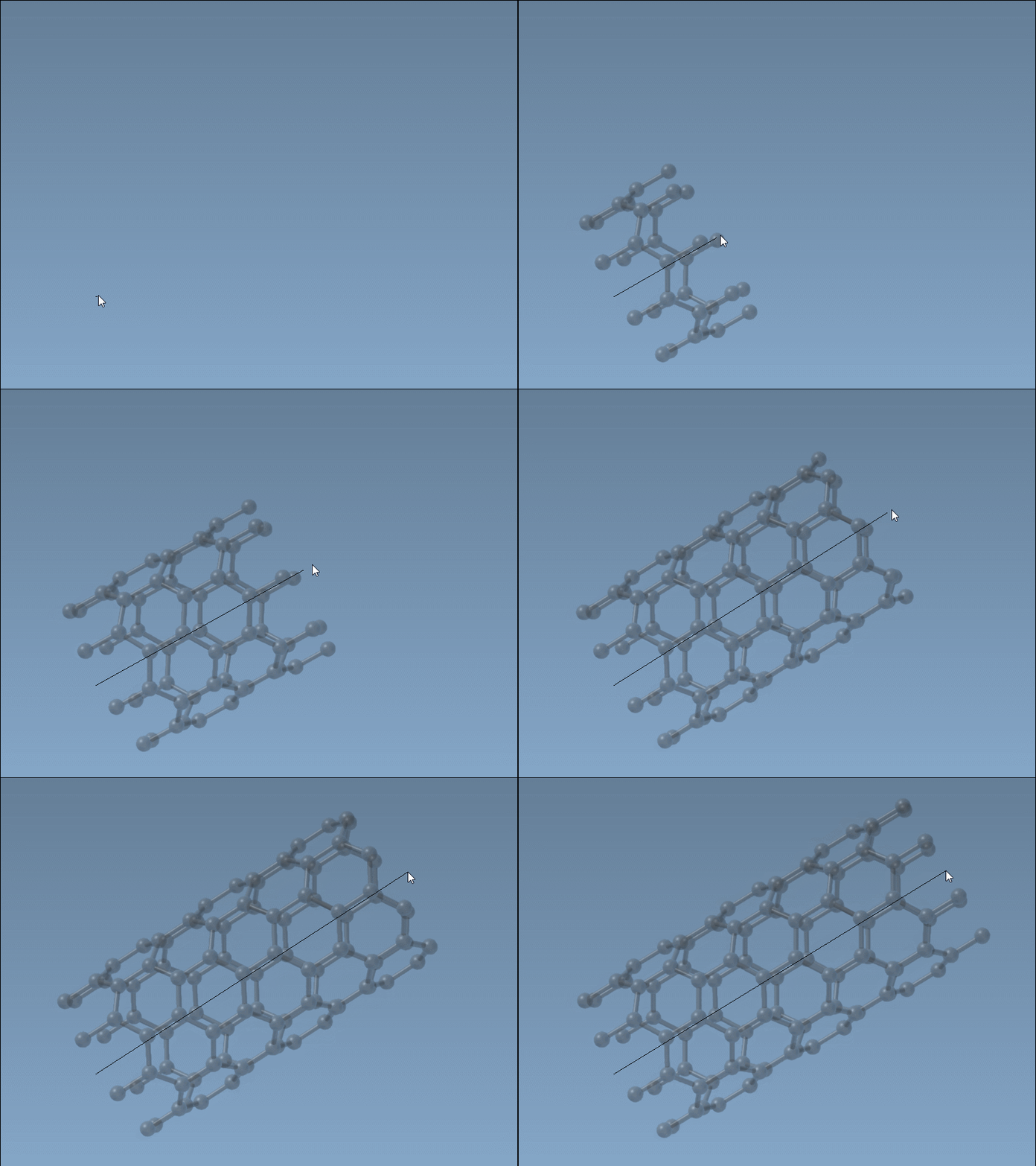
First, activate the Nanotube Creator in the SAMSON viewport through the left-side menu or by using the Shift + E shortcut and searching “Nanotube Creator”. Once activated, you can set your nanotube’s axis and length by pressing and dragging the left mouse button in the viewport.
As you define the axis and length, the status bar at the bottom provides real-time feedback about the axis orientation and the tube’s length. This ensures you construct a precise structure according to your requirements.
Step 2: Adjusting the Radius
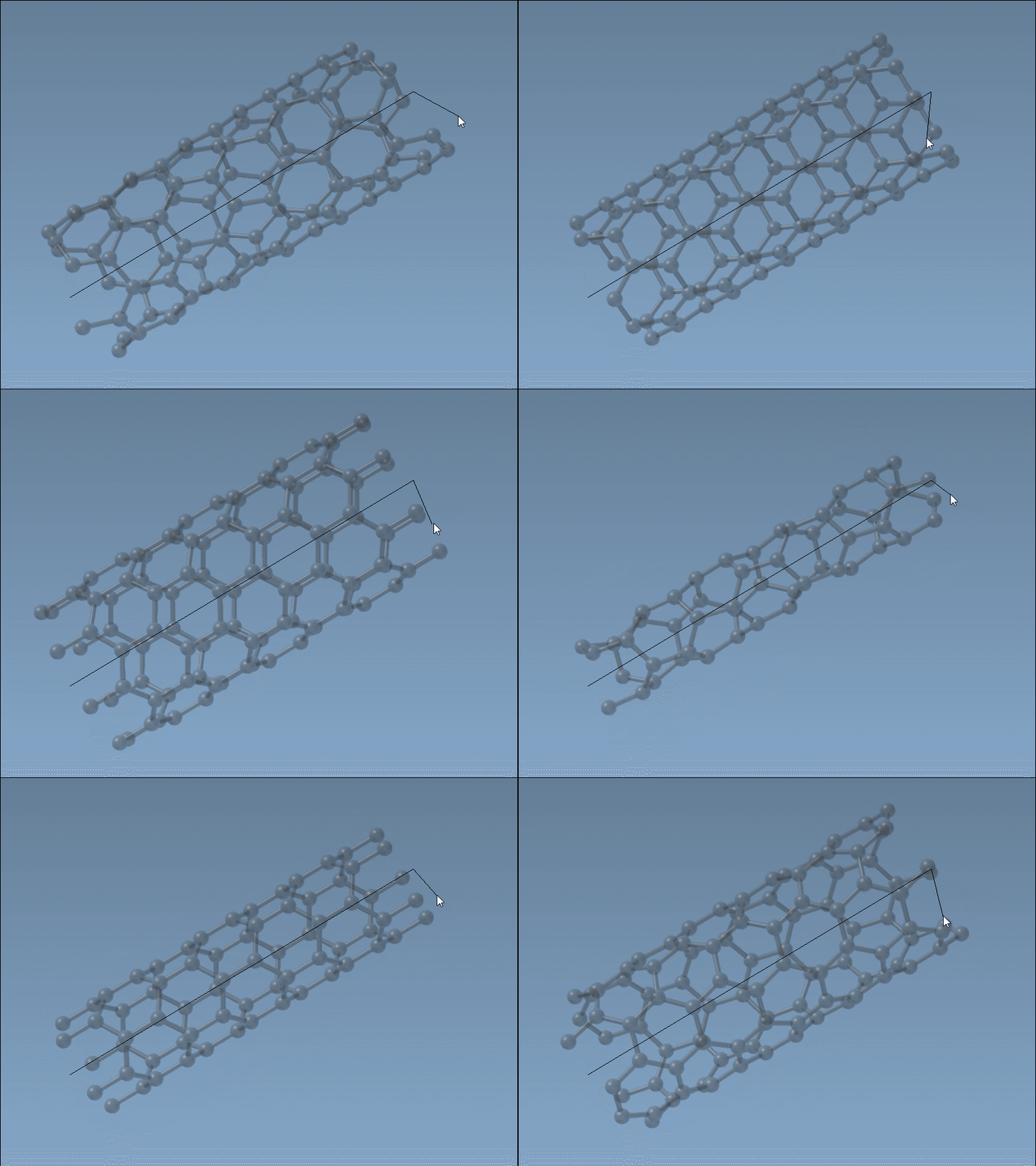
Once you release the mouse button, you can set the radius by moving your mouse to adjust its size dynamically. The m parameter, which determines the radius, is displayed in the status bar to give you control. Confirm your choice with another left mouse button click.
Precision Parameter Adjustment
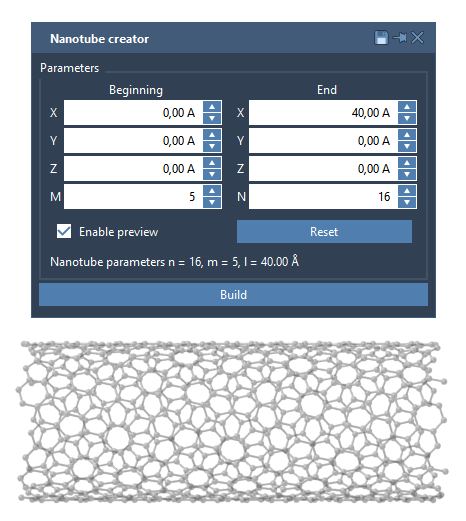
To achieve precise control over parameters such as n and m, you can use the graphical interface (GUI) provided by the extension. Activate the GUI by selecting the Nanotube Creator in the editor and toggle its visibility if needed. With the GUI, you can:
- Define start and end positions of the CNT along specific axes in 3D space.
- Fine-tune
nandmvalues for chirality and radius. - Easily create multi-walled CNTs for complex models.
A Quick Example: Multi-Walled Nanotubes
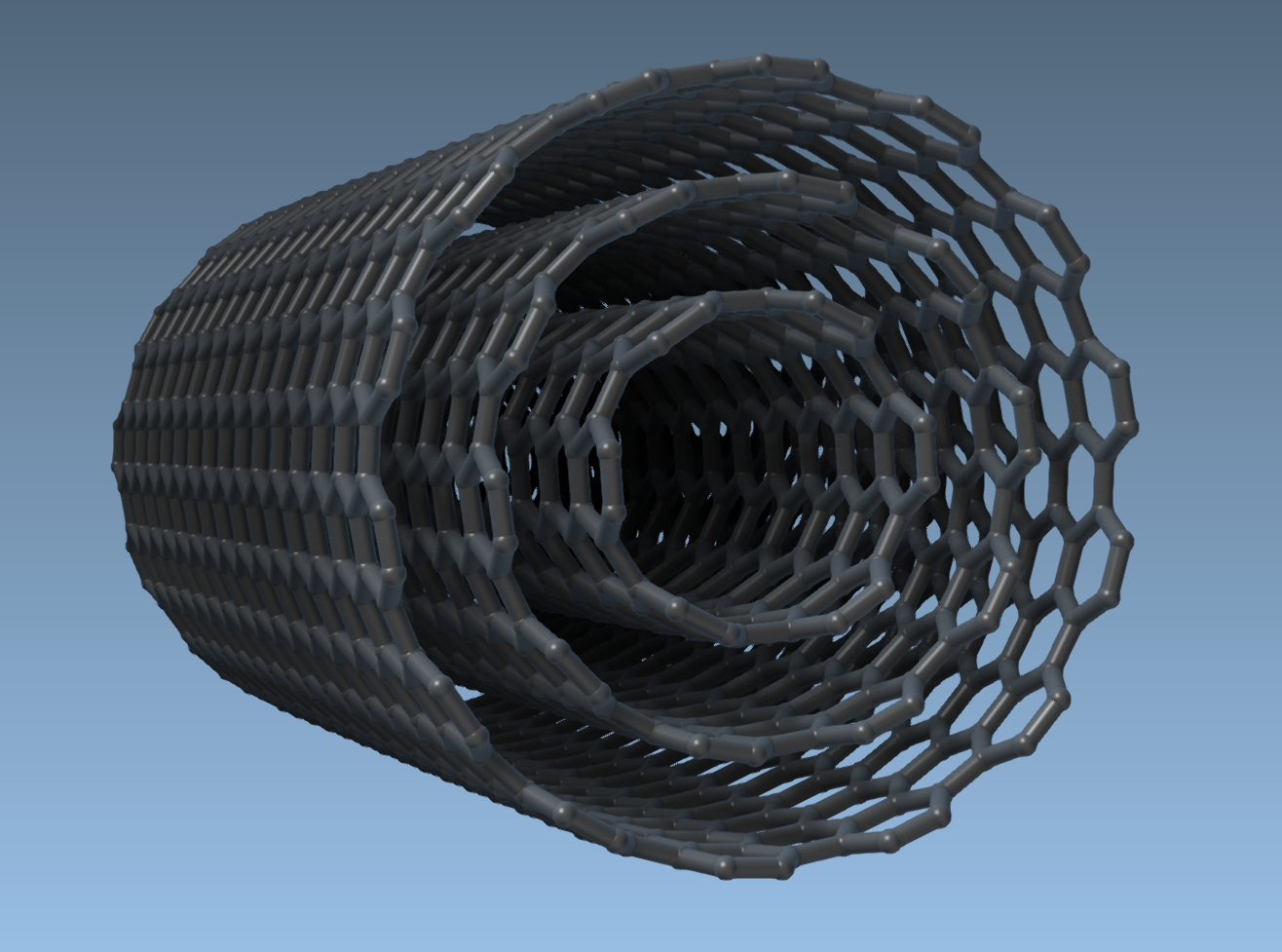
For example, you can create a multi-walled nanotube step-by-step as follows:
- Set start/end positions to
(0, 0, 0)and(40, 0, 0)for a CNT with a length of 40 Å along the x-axis. - Model CNT 1 with
n = 6,m = 6, and click Build. - Add CNT 2 with
n = 10,m = 10, and click Build. - Add CNT 3 with
n = 14,m = 14, and click Build.
This technique produces concentric CNT layers, giving you a robust multi-walled nanotube.
What’s Next?
Once your model is ready, it can be exported for advanced simulations or used as part of complex nanostructures. Additionally, SAMSON makes it possible to study mechanical, electronic, and thermal properties of CNTs or combine them with other molecules for hybrid designs. To learn more about modeling nanotubes in SAMSON, check the official documentation here.
Note: SAMSON and all SAMSON Extensions are free for non-commercial use. You can get SAMSON at https://www.samson-connect.net.