



One of the challenges molecular modelers often face is dealing with complex molecular structures, where multiple selections need to be quickly accessed or modified throughout the workflow. To address this pain point, SAMSON introduces a powerful feature: Quick Groups. This feature streamlines the management of selections in molecular modeling, enabling users to save, switch, and recall various selections with ease and speed. Let’s dive into how Quick Groups can simplify and enhance your molecular design processes.
What are Quick Groups?
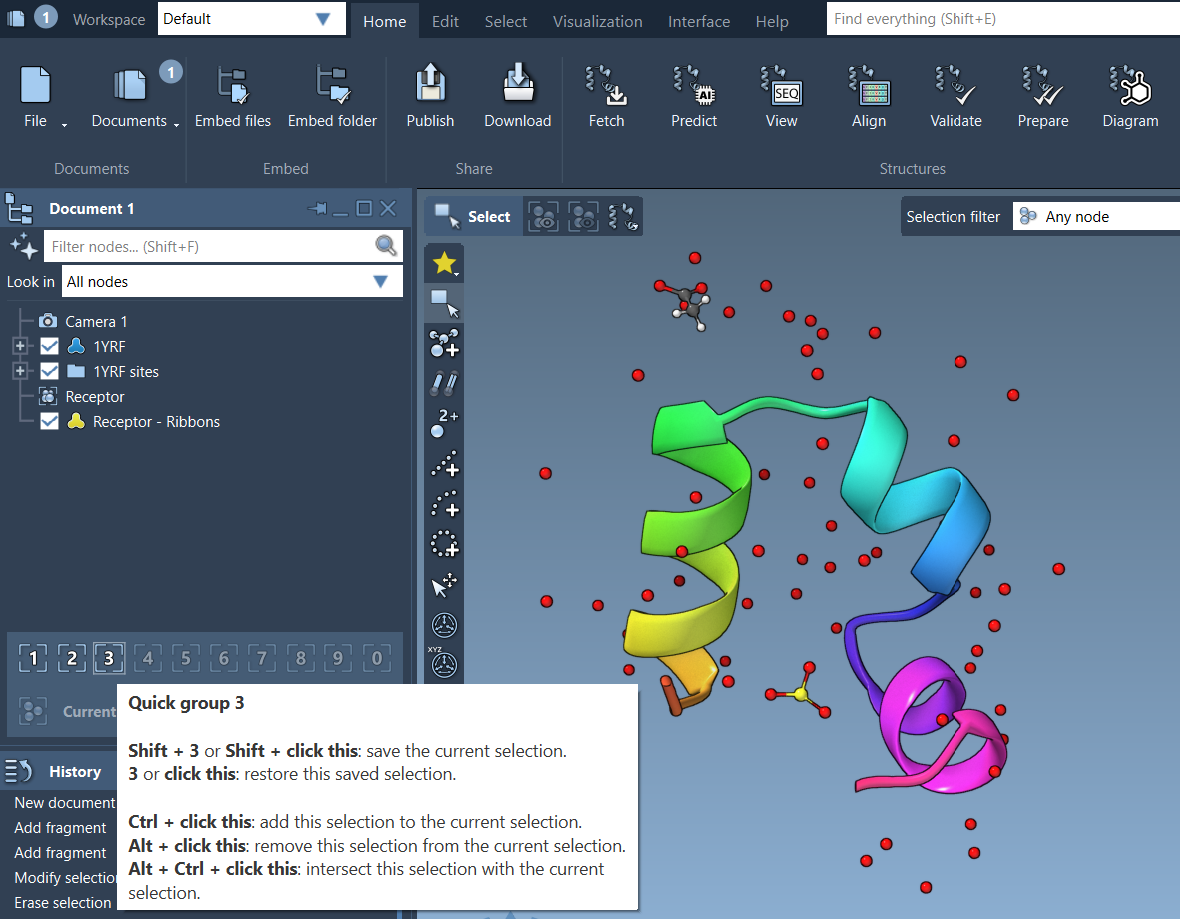
Quick Groups in SAMSON allow you to rapidly save and toggle between multiple selections within a molecular system. These groups are temporary and indexed (1-10), offering extreme flexibility for iterative workflows. Whether you’re designing molecules, analyzing dynamics, or preparing simulations, Quick Groups make it easy to compartmentalize and revisit selections without starting from scratch.
Why Use Quick Groups?
- Quickly navigate between structural regions of interest.
- Effortlessly compare different sections of a molecular system.
- Improve efficiency in visual modeling and simulation setup.
- Conduct educational walkthroughs with predefined selections.
How to Assign Quick Groups
- Make your desired selection (e.g., atoms, residues).
- Assign the selection to a Quick Group using either:
- Mouse method: Hover over a Quick Group slot in the Document view and press Shift+click.
- Keyboard method: Press Shift + a number key (e.g., Shift + 2) to assign the selection to Quick Group 2.
You can create up to 10 Quick Groups, making this feature highly versatile for molecular modeling.
Switching Between Quick Groups
Once groups are assigned, switching between them is seamless:
- Press the number key associated with the Quick Group to select it (e.g., 1, 2, etc.).
- Double-press the number key (e.g., 11) to zoom in on that group’s selection.
- Click directly on the Quick Group icons in the Document view.
These shortcuts enable rapid toggling, perfect for comparing structural elements or focusing on specific parts of a molecular system during analysis, design, or simulation work.
Example Workflow
Here’s an example of how Quick Groups can enhance your workflow:
- Select ligand and assign it to Quick Group 1.
- Select receptor and assign it to Quick Group 2.
- Select water molecules and assign them to Quick Group 3.
- Toggle rapidly between these groups using 1, 2, and 3.
- Apply individual visualizations or actions to each group for detailed analysis.

Quick Groups are highly intuitive and significantly reduce the effort needed to manage molecular selections. With just a few clicks or keystrokes, you can make your workflow smoother and less error-prone.
To learn more about this feature and other selection tools, visit the original documentation page here: https://documentation.samson-connect.net/users/latest/selecting/.
Note: SAMSON and all SAMSON Extensions are free for non-commercial use. You can get SAMSON at https://www.samson-connect.net.