



For molecular modelers working on detailed molecular structures, effectively managing and selecting specific components of complex models can be tedious without the right tools. Whether you’re focusing on a certain residue, chain, or atom, the challenge grows exponentially with the size of the dataset. Luckily, the Node Specification Language (NSL) in SAMSON is a powerful feature that simplifies searching and filtering molecular structures based on properties. Let’s explore how it works and why it could save you significant time and effort!
How to Use NSL for Filtering
The purpose of the NSL in SAMSON is to allow users to specify and filter nodes (e.g., residues, atoms, bonds) within molecular documents using concise yet expressive commands. You can input these commands in two ways:
- Through the Select > Find command in SAMSON’s interface.
- Using the filter box in the Document View.
NSL expressions allow you to specify structural and chemical properties of nodes and quickly narrow down your searches. Let’s take a closer look at some example expressions and how they work.
Practical Examples of NSL Syntax
These use-case examples demonstrate how you can find and filter specific structural nodes in your molecular documents:
node.type residue: Filters for nodes classified as residues."CA" within 5A of S: Finds alpha-carbon atoms (CA) within 5 angstroms of sulfur (note: use quotes for any names with spaces).C or H: Selects all carbon and hydrogen atoms.node.category ligand, receptor: Filters nodes categorized as ligands or receptors—great for distinguishing significant molecular features!
Additionally, SAMSON’s Tab key feature in the search box lets you leverage context-sensitive auto-completion as you type your NSL expressions. For example, entering "ALA and pressing Tab suggests all nodes whose names begin with “ALA.”

Interactive Filtering in Document View
The Document View filtering is another invaluable option for molecular modelers who want to interactively browse and filter nodes. For instance, the following NSL expression can be used to focus on node.type structuralGroup (shortened as n.t sg), which represents structural groups within a molecule:
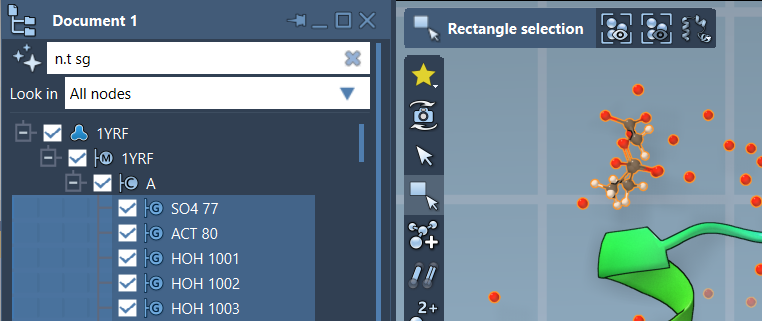
Clicking Enter applies the NSL expression to immediately highlight the relevant nodes in your molecular model.
AI-Enhanced NSL Assistance
One noteworthy advantage of SAMSON is its integration of an AI Assistant. This feature provides suggestions for constructing NSL expressions tailored to your active molecular document’s hierarchical structure. You can access the AI Assistant by clicking the Ask AI button, identified by this icon:

This is particularly helpful for users who may not yet be familiar with the specifics of NSL but want efficient search and filtering capabilities.
Key Benefits for Molecular Modelers
Filtering molecular structures using NSL not only simplifies complex workflows but also enables users to:
- Directly isolate the nodes they’re interested in, such as receptor sites or ligand molecules.
- Quickly apply operations and analyses to specific portions of molecular data.
- Save hours of manual selection in larger molecule sets.
Conclusion
The Node Specification Language (NSL) in SAMSON provides molecular modelers with an incredibly powerful and flexible way to filter and manage their molecular data. Whether you’re working on a drug-design project or analyzing macromolecular structures, mastering NSL will undoubtedly make your work more efficient.
If you’re ready to dive deeper into NSL and unlock its full potential, we highly recommend exploring the official documentation.
SAMSON and all SAMSON Extensions are free for non-commercial use. You can get SAMSON at https://www.samson-connect.net.