



For molecular modelers, setting up simulations with the Universal Force Field (UFF) can be an essential, but sometimes intricate, process. UFF is a versatile interaction model that spans the entire periodic table, making it a favorite for molecular mechanics and dynamics simulations. If you’ve been looking for a straightforward way to get started with UFF in SAMSON, this guide will walk you through the process, step by step.
Why Focus on Setting Up UFF?
Many researchers face challenges when initializing molecular systems for simulations: deciding how to define bonds, selecting interaction models, and ensuring correct atom typization are just a few. SAMSON simplifies this process with its built-in UFF interaction model, which includes automatic molecular perception to compute bonds, bond orders, and atom types seamlessly. Here’s how to take full advantage of this functionality.
Step-by-Step Guide to Setting Up UFF
- Open Your Molecular System: Start by opening a document containing the molecular system you want to simulate or modify. This system will form the basis of your UFF simulation.
- Add a Simulator: Go to
Edit > Simulate > Add simulator. Alternatively, use the shortcut Ctrl + Shift + M (or Cmd + Shift + M on Mac). Choose Universal Force Field from the list of interaction models. - Select a State Updater: If needed, select a state updater for the simulation (e.g., the Fast Inertial Relaxation Engine, or FIRE).
- Configure UFF Preferences: After selecting UFF, a configuration window will appear. Here, you can:
- Use existing bonds: Check this option if you prefer relying on already defined bonds. Leaving it unchecked allows UFF to recompute bonds based on atom positions and types.
- Finalize setup by pressing OK.
Once the setup is complete, SAMSON automatically initializes UFF, performing tasks such as computing covalent bonds (if Use existing bonds was not selected), bond orders, and atom types. If there are inconsistencies detected in the system, warnings will guide you to address them.
The Power of Visual Feedback
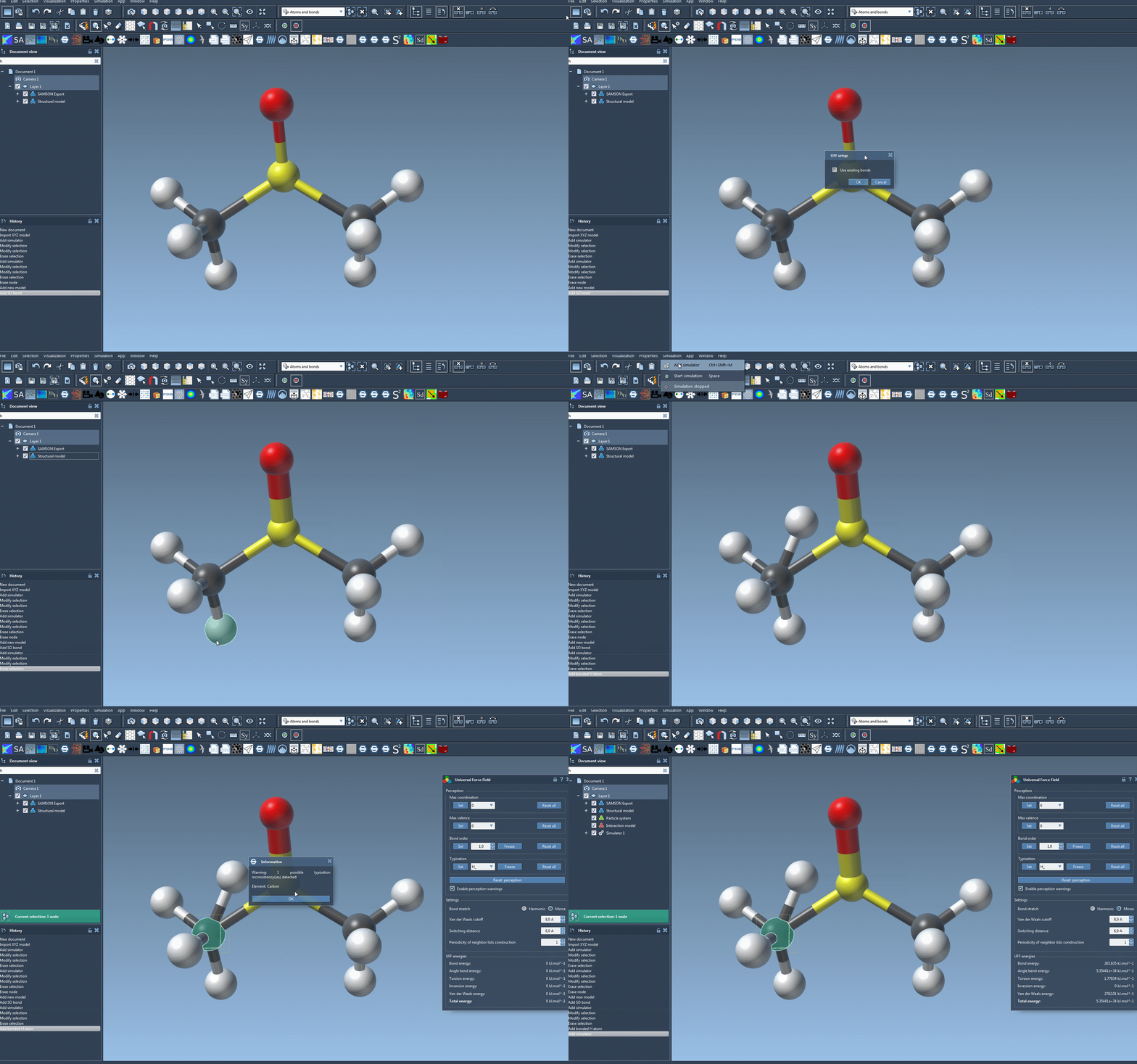
At this point, a parameter window appears, displaying energy terms and allowing you to interactively customize settings like bond stretch type, Van der Waals cutoff distances, and switching distances. Additionally, the platform lets you move atoms directly in the molecular system, providing live feedback as the positions of other atoms adjust.
Here’s a quick visual representation of the UFF setup and interactive adjustments:
Pro Tip: Keep It Simple for Starters
If you’re new to SAMSON, stick to the default settings during your first setup to familiarize yourself with the platform. Once you’ve gained more confidence, you can explore advanced settings like customized atom typization and bond order modifications.
Conclusion
With SAMSON, setting up and running UFF simulations has never been easier. The platform ensures that even beginner modelers can get started quickly while offering advanced users a host of customization options. To dive deeper into UFF and explore its full range of features, consult the UFF documentation.
Note: SAMSON and all SAMSON Extensions are free for non-commercial use. Download SAMSON today at SAMSON Connect.