



Setting up the search domain is a critical step in protein-ligand docking, as it defines the region where the docking algorithm will search for binding poses. A poorly configured search domain can significantly impact the accuracy and computation time. Here, we’ll provide a detailed walkthrough on setting up an effective search domain using the AutoDock Vina Extended SAMSON Extension.
Why is the Search Domain Important?
The search domain specifies the three-dimensional space that the docking simulation will explore. By narrowing down the search domain to the expected binding pocket or area of interest on the receptor, you not only improve the precision of the docking results but also decrease computational time. Conversely, a search domain that is too broad can lead to less reliable results and unnecessary computational effort.
Options for Configuring the Search Domain
The AutoDock Vina Extended app in SAMSON offers several ways to define the search domain:
- Manually modify: Adjust the center and size of the search domain directly in the interface by inputting desired coordinates and dimensions.
- Viewport adjustment: Use the corner controllers of the yellow search box visible in SAMSON’s Viewport to resize and reposition the search domain interactively.
- Based on selection: Define the search domain based on residues, atoms, or molecules currently selected in the Document view.
- Using a binding site: If you know the location of the binding pocket, you can anchor the search domain to this area by selecting the relevant ligand and specifying the pocket.
Being able to adjust the search domain in multiple ways provides flexibility and ensures that users can tailor the docking workflow to specific scientific goals.
Configuring the Search Domain
In this guide, we’ll demonstrate how to set up the search domain based on the binding site of a known bound ligand:
- Select a ligand: In the Document view, choose the bound ligand—for example, 2AZ8-IA in the tutorial dataset.
- Define the binding site: Go to Select > Biology > Binding sites. Specify the parameters for the site, such as the cutoff radius for selecting nearby residues. Click OK to confirm.
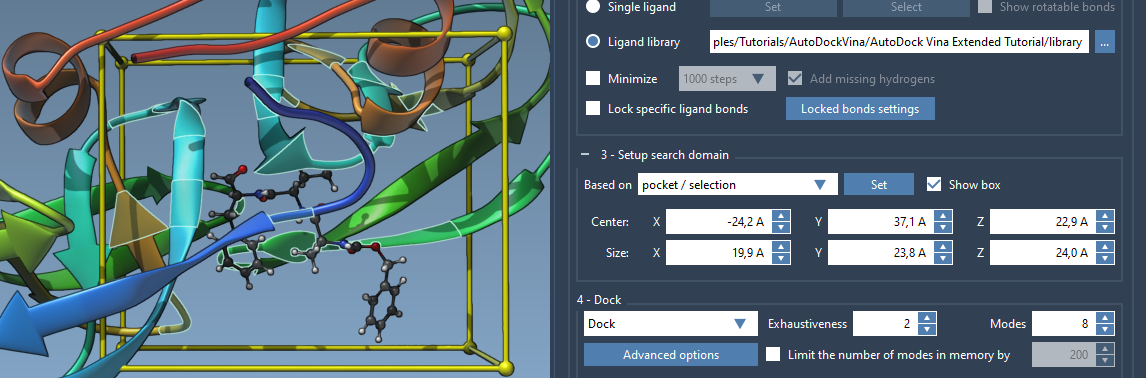
- Apply the search domain: Once the binding site residues are highlighted, choose Based on pocket/selection and click Set. The search domain box will now surround the specified binding pocket.
You will see a yellow search box in the Viewport, clearly outlining the search domain. The flexibility to tweak this box directly in the Viewport ensures ease of adjustment as needed.
Additional Tips
- Use the Show box option to toggle the visibility of the search domain in the Viewport.
- If your receptor binding site is misaligned with global coordinates, you can rotate or realign the system using SAMSON’s Move editors for better orientation.
- When refining the search domain’s size, ensure it’s large enough to account for potential ligand flexibility, but not larger than necessary to avoid redundant computations.
Conclusion
Setting up an efficient search domain ensures optimal docking accuracy while minimizing computation time. Experimenting with and refining the search domain setup is key to achieving reliable results tailored to your specific molecular modeling tasks. For further insights, you can explore the full documentation here.
SAMSON and all SAMSON Extensions are free for non-commercial use. Get started by downloading the SAMSON platform at https://www.samson-connect.net.