



Working with complex molecular structures can be overwhelming. Navigating through dense protein assemblies or visualizing intricate binding sites often becomes challenging with traditional rendering techniques that abruptly cut off parts of the molecule. Enter progressive clipping in SAMSON — a feature designed specifically to address these challenges with a smoother, more intuitive approach.
What is Progressive Clipping?
Progressive clipping enhances the exploration of molecular structures by offering a gradual transition instead of a sharp cutoff when clipping molecules. This technique combines clarity and realism, allowing you to better understand depth and structural relationships. It is particularly useful for:
- Exploring internal binding sites and ligand environments.
- Teaching or showcasing 3D molecular features interactively.
- Generating images or animations with depth clarity for presentations.
What makes this feature even more practical is that progressive clipping comes activated by default, ensuring an immediate improvement in visualization without requiring additional effort.
How to Use Progressive Clipping
1. Load a Molecular Structure
To experiment with progressive clipping, start by loading a molecular structure. Use the Home > Fetch option in SAMSON to import a protein of your choice effortlessly.
2. Control Clipping with Intuitive Shortcuts
Adjusting progressive clipping while navigating your molecular scene can be surprisingly simple:
- Control Clipping Distance
On a Windows/Linux system, press Ctrl and scroll or slide using the trackpad. On macOS, hold Cmd and scroll or slide similarly. - Modify Viewing Slab Thickness
Hold Shift + Ctrl (Windows/Linux) or Shift + Cmd (macOS) and scroll to expand or contract the visible region of the molecule.
3. Use the Clipping Control Panel
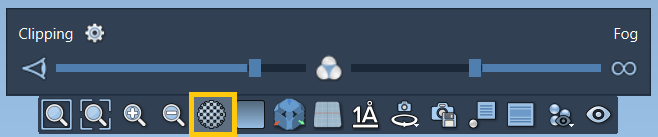
If you prefer a visual interface, SAMSON provides a dedicated clipping control panel accessible via the clipping and fog control icon in the viewport toolbar. This panel allows you to:
- Adjust clipping distance (left slider).
- Set fog intensity for distant areas (right slider).
- Access additional clipping preferences.
4. Customize the Effects
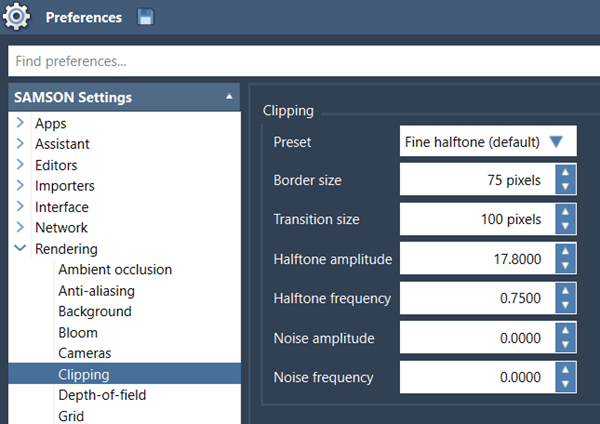
SAMSON provides several ways to fine-tune progressive clipping to your preferences. Access the settings menu through the clipping panel or navigate to Interface > Preferences > Rendering > Clipping. From there, you can:
- Select from predefined clipping styles.
- Adjust border size to highlight the clipped edge clearly.
Combine Clipping with Further Visualization
Enhance your workflow by combining progressive clipping with other visualization tools in SAMSON:
- Modify the background color for contrast.
- Utilize silhouettes for structural highlights.
- Label atoms or residues via the labeling tool for better clarity.
All these features work dynamically, ensuring clarity and depth remain as you zoom or rotate in the scene.
Ready to Explore More?
Progressive clipping tackles the struggles of dense molecular visualization, offering a polished tool for molecular modelers, researchers, and educators alike. Dive deeper into the detailed guidance and additional functions by visiting the official documentation.
SAMSON and all SAMSON Extensions are free for non-commercial use. Download SAMSON now at samson-connect.net.