



For molecular modelers, building solvent boxes or custom molecular assemblies can be a repetitive and time-consuming task, especially when accuracy is key. SAMSON’s Molecular Box Builder is designed to simplify this process and save you significant time. Whether you’re creating solvent boxes, lipid layers, or populating 3D spaces with specific molecules, the tool is intuitive and efficient. Let’s explore the step-by-step process!
Why Use Molecular Box Builder?
Creating an environment populated with non-overlapping molecules for simulations or analyses typically requires manual calculations or configuring complex tools. With the Molecular Box Builder in SAMSON, you can:
- Quickly generate solvent boxes or membrane-like systems.
- Accurately estimate how many molecules can fit into a defined 3D box.
- Control molecule orientation, box dimensions, and margins intuitively.
Here’s how to create a solvent box as an example:
Step 1: Set Up the Molecule to Populate
Begin by selecting the molecule or system you want to use to populate the box. This could be individual molecules, residues, or even custom structural groups:
- Select the desired molecule directly in the Document view or Viewport.
- Click the Set button within the Molecular Box Builder app.
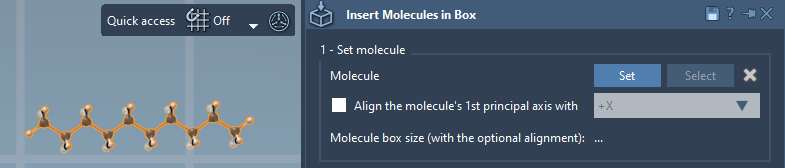
You can also tweak the orientation of the molecule:
- Select No alignment to maintain the original orientation.
- Use predefined axes (e.g., +X, -X, +Z, etc.) for precise alignment.
Once the molecule is aligned, SAMSON will calculate its bounding box automatically, factoring in your adjustments.
Step 2: Define Your Box
Next, it’s time to define the 3D space where your molecules will reside:
- Specify the box dimensions in
(X, Y, Z). - Enable the Center option if you want the box centered around a specific point or the origin.
- Adjust the margin between inserted molecules. Default settings avoid overlaps, but you can increase or reduce the margin as needed.
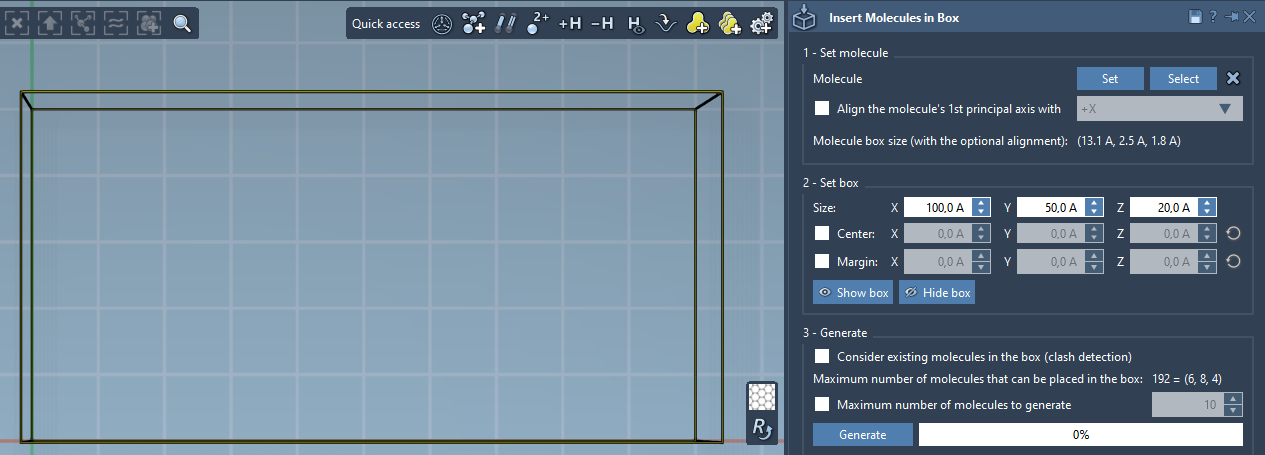
One of the standout features of Molecular Box Builder is its predictive capability. The app instantly calculates how many molecules can fit along each axis and shows the total count. Adjusting the box size or margins updates these predictions in real time. You can also toggle box visibility for better visualization.
Step 3: Generate the Solvent Box
With your settings in place, generating the solvent box is straightforward:
- Select Maximum number of molecules to generate to cap the number of molecules if needed. Otherwise, the tool will populate the box with as many molecules as possible based on your specifications.
- Click Generate. Depending on the box size and molecule count, the process may take a few seconds.
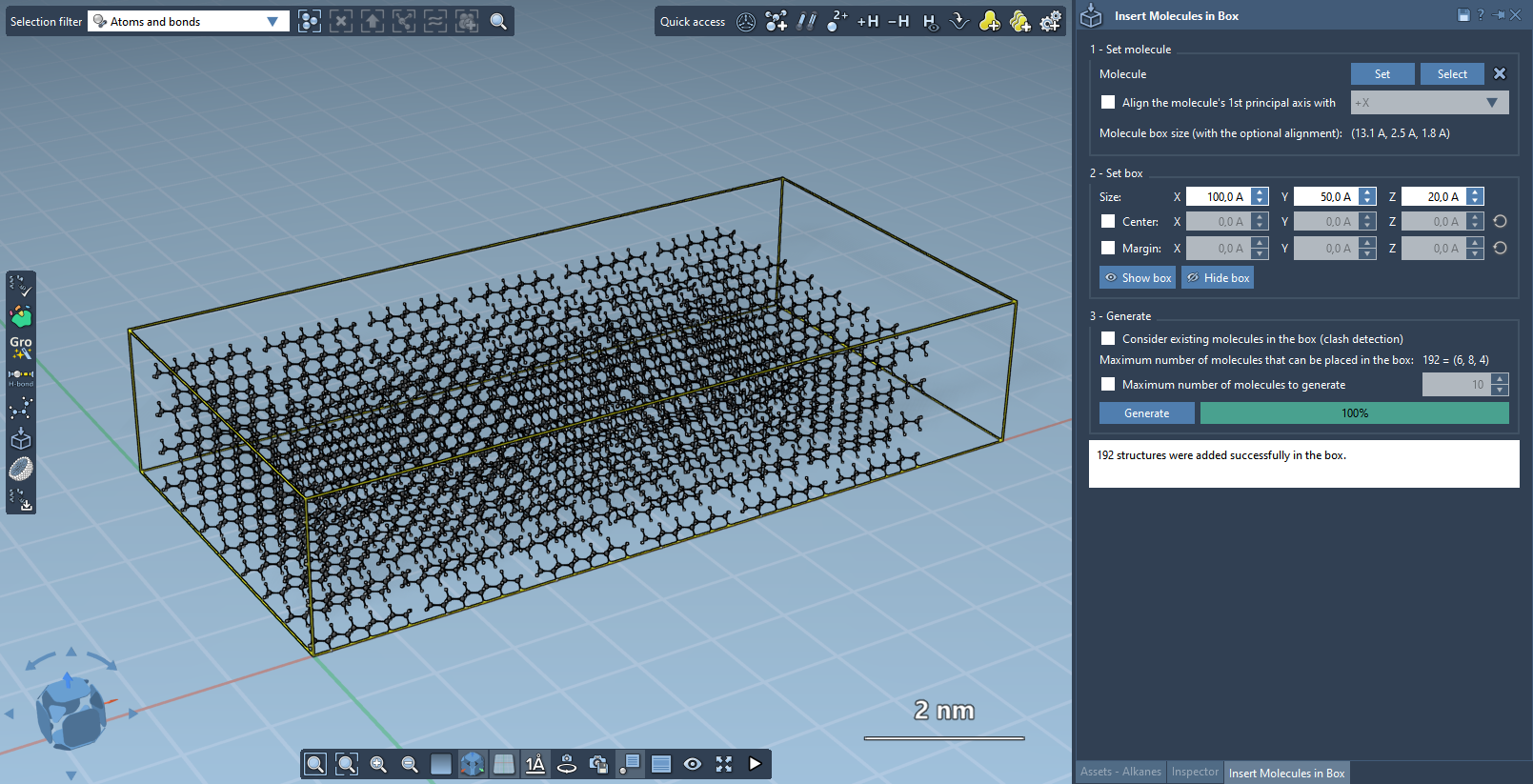
The result is a fully populated solvent box with non-overlapping, neatly arranged molecules, ready for further modeling or simulations.
Applications
The Molecular Box Builder isn’t limited to solvent boxes. It can also be used to:
- Construct customized molecular assemblies for specific research needs.
- Create lipid membranes surrounding proteins.
- Design environments for biological, chemical, or materials science applications.
If you’re interested in more advanced features like generating lipid bilayers or incorporating charged ions, the documentation also includes additional tutorials to expand your capabilities.
Learn More
For further details and advanced use cases, visit the official documentation page. Mastering this tool can significantly enhance your modeling efficiency and accuracy.
SAMSON and all SAMSON Extensions are free for non-commercial use. You can download SAMSON at SAMSON Connect.