



Molecular modeling often requires detailed analysis of atomic movements, whether for reaction coordinate studies, free energy calculations, or simply to visualize how atoms interact along a pathway. But extracting and processing this data can often feel complex and time-consuming. Luckily, SAMSON’s Export Along Paths Extension provides an intuitive solution for exporting atomic trajectories, enhancing your downstream workflows.
Why Export Atomic Trajectories?
For example, when studying ligand unbinding paths or optimizing transitions using methods like the Nudged Elastic Band (NEB), it is often necessary to extract atomic coordinates along predefined paths. This data enables simulations, energy profiling, or the creation of custom visualization for your research. Without the right tools, this process can involve cumbersome scripts or manual effort. SAMSON’s Export Along Paths Extension eliminates this friction, letting you focus on analysis rather than data wrangling.
Getting Started with the Extension
The Export Along Paths app simplifies the entire workflow. Before diving in, ensure the extension is added to your SAMSON platform. Install it directly from SAMSON Connect, restart SAMSON, and you’re ready to go!
Two Options for Exporting Trajectories
The flexibility of the extension allows molecular modelers to export either all atoms in the molecule, or just a carefully selected subset, such as a ligand or key residue. Here’s how you can proceed:
Option 1: Export All Atoms
- Select one or more paths in the Document view.
- Choose your preferred export format: all frames in a single PDB file or each frame as a separate file.
- Click Export atoms along paths to PDB files and select your destination folder and naming prefix.
This method is ideal if you need to work with the entire system across the simulations.
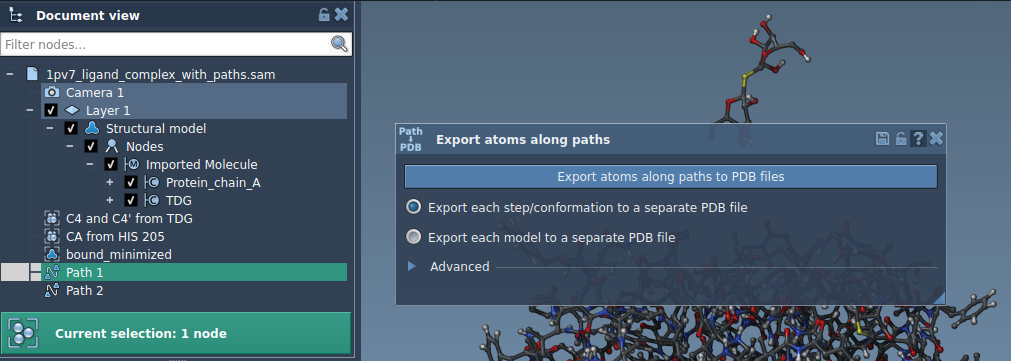
Option 2: Export a Subset of Atoms
For targeted studies, such as tracking ligand exit pathways or monitoring the motion of specific residues, you can define and export subsets with ease:
- Expand the Advanced panel in the Export Along Paths app.
- In the Document view, select your region of interest (e.g., a ligand like
TDG). - Click Add to include this group of atoms as a model for export.
The model appears in an interactive table where you can rename it, add multiple models, and make other refinements. Once satisfied, simply select the path(s) you wish to export and click Export atoms along paths to PDB files.
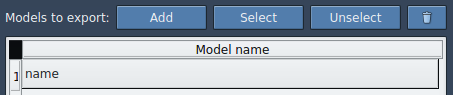
Practical Applications
The ability to easily export coordinates along paths supports a variety of molecular modeling tasks, including:
- Generating reaction coordinate files for free energy profiling.
- Exporting trajectory data for ligand entry/exit pathways or key protein transitions.
- Providing intermediate states to enhance molecular visualizations.
- Focusing only on important regions, such as active sites or backbone atoms.
Final Thoughts
With SAMSON’s Export Along Paths Extension, you can streamline your data export needs, enabling faster and more efficient molecular dynamic simulations or visualization tasks. Whether tracking full systems or zooming in on specific atomic groups, this tool simplifies what used to be a tedious task.
To learn more, visit the full documentation at https://documentation.samson-connect.net/tutorials/export-along-path/export-atoms-trajectories-along-paths/.
SAMSON and all SAMSON Extensions are free for non-commercial use. You can get SAMSON at https://www.samson-connect.net.