



Molecular modelers often face a key challenge: preparing stable and realistic molecular structures for simulations or interactive modeling workflows. Reaching energy minima efficiently can be time-consuming, particularly for systems involving large-scale molecular motions. This is where the FIRE Minimizer, as implemented in the SAMSON platform, comes into play. Designed for fast and efficient geometry optimization, the FIRE minimizer offers a modern solution that saves valuable time while ensuring accuracy.
Why Choose the FIRE Minimizer?
When comparing geometry optimization methods, FIRE stands out for its speed and compatibility. Unlike the steepest descent method, which can be slow in converging, FIRE is particularly adept at handling large-scale motions where potential energy changes are minimal but significant structural adjustments are required. With FIRE, users can prepare their systems with less computational effort and maintain flexibility by applying it to any SAMSON interaction model.
Here are some of the key benefits of FIRE Minimizer in SAMSON:
- Faster convergence for collective or large structural motions.
- Widely applicable to pre-simulation cleanup, interactive modeling, and workflows involving molecular adjustments.
- Compatible with all SAMSON interaction models for seamless integration.
How to Get Started with FIRE in SAMSON
Follow these simple steps to access and use the FIRE Minimizer effectively:
- Log into SAMSON Connect: To access the FIRE Minimizer, ensure you are logged in to your SAMSON account. If you need to register, visit SAMSON Connect.
- Add the FIRE Minimizer: Visit the FIRE Minimizer Extension page and click the Add button.
- Restart SAMSON: After adding the extension, restart the platform to activate your new toolset.
- Load a molecular system: Import a molecule into SAMSON from supported formats like PDB or MOL2. If you’re new to this, check out SAMSON’s Loading Molecules Guide for additional tips.
- Set up the simulation: Add a simulator by navigating to Edit > Add Simulator. Select your desired interaction model, and choose the FIRE State Updater.
Following these steps not only prepares your molecular systems efficiently but also enables you to explore FIRE’s settings to maximize its impact on your workflow.
Customizing the FIRE Minimization Process
To fine-tune how FIRE works, SAMSON allows users to modify key settings such as:
| Setting | Description |
|---|---|
| Step size | Adjust the initial integration step for finer control over the optimization. |
| Steps | Define the number of iterations (FIRE steps) before updating the viewport for better visualization. |
| Fixed | Optionally maintain a constant step size during minimization. |
These parameters allow for precise tailoring of the simulation dynamics, ensuring that your optimization runs match the scale and requirements of your system.
Visualizing Progress
One of the advantages of using FIRE is the ability to observe how molecular geometries evolve during optimization. By increasing the Steps value, updates become less frequent but showcase more noticeable changes in geometry. Below, you can see a visual comparison between FIRE and the steepest descent method:
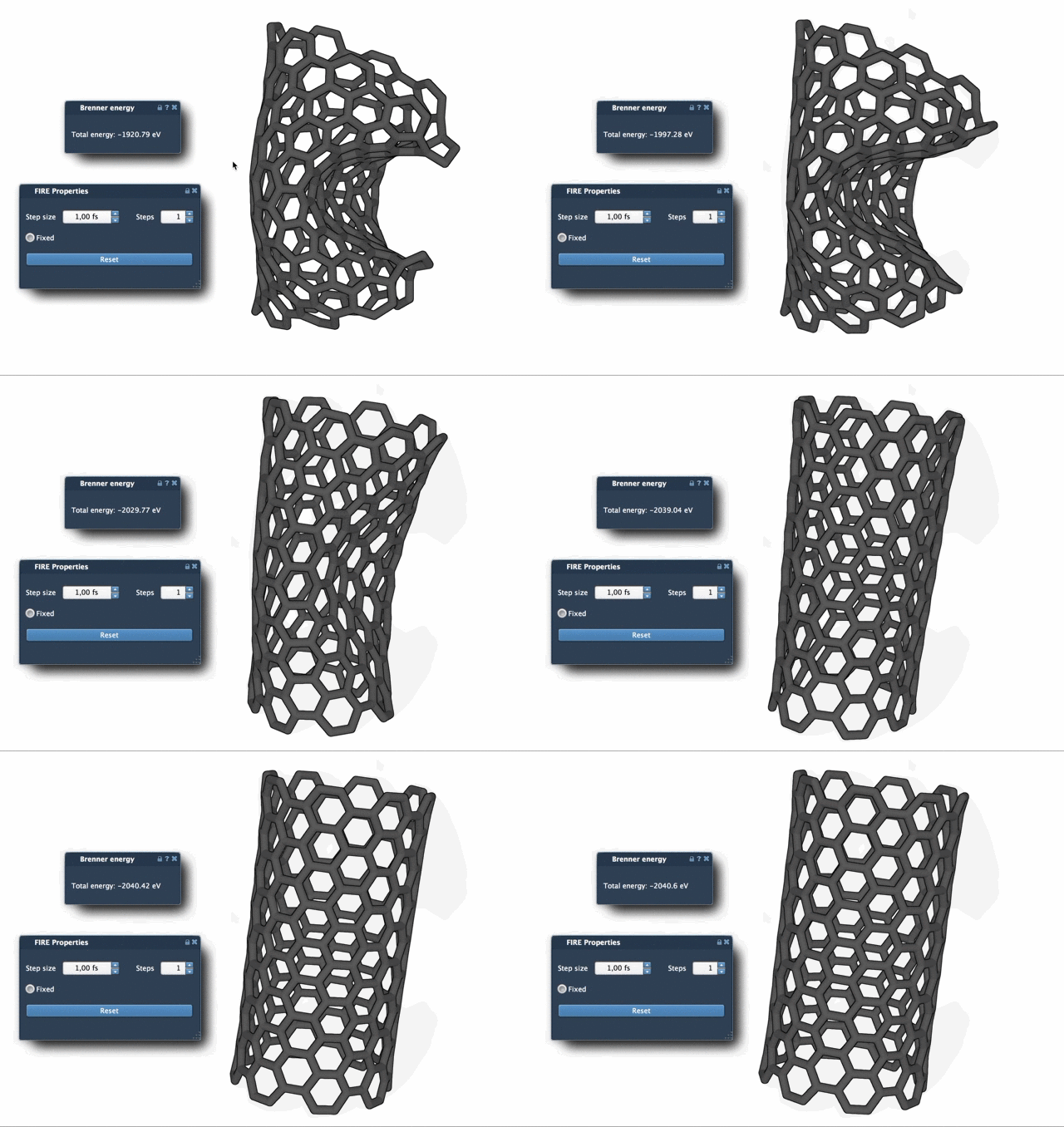
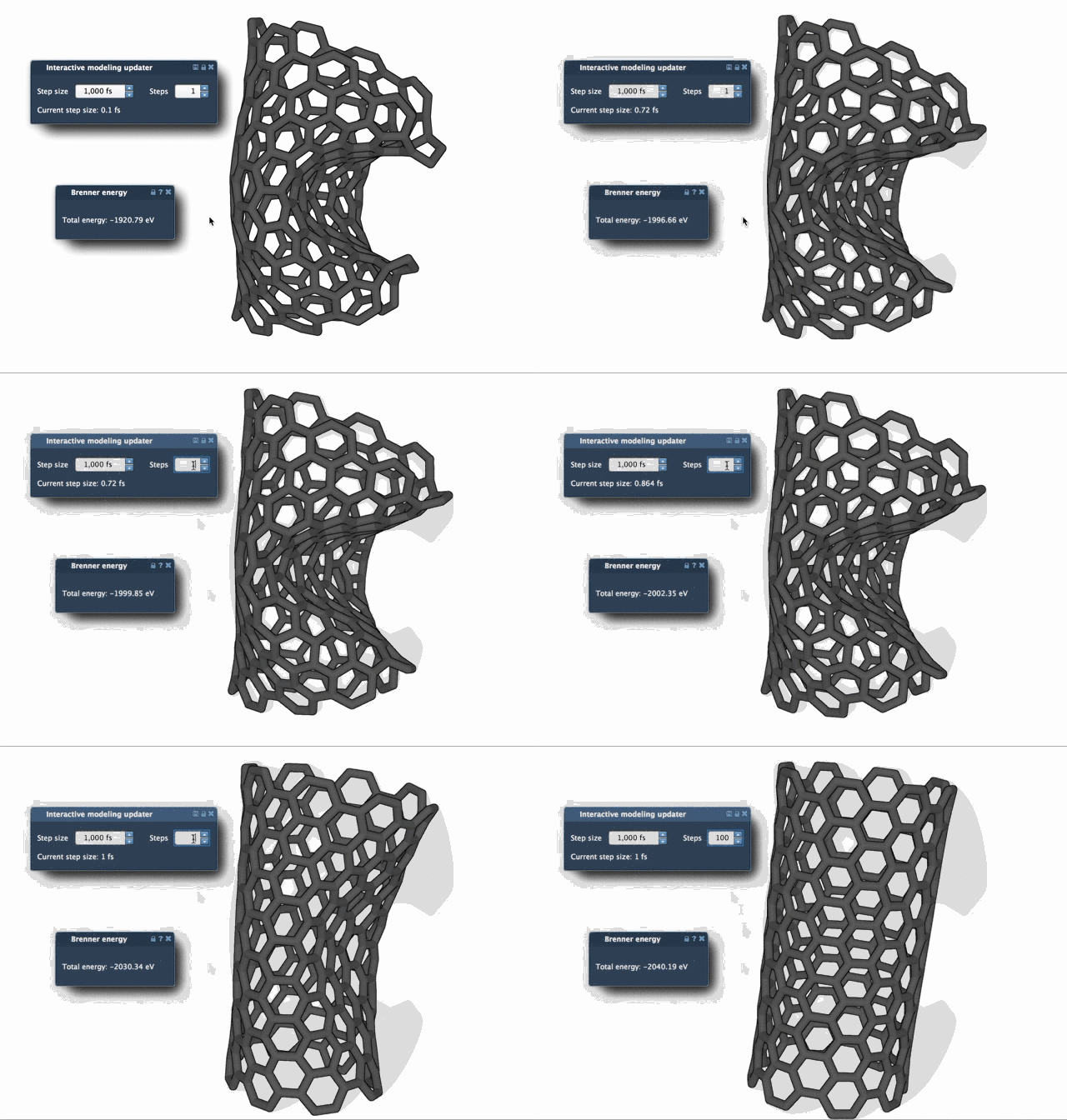
These animations highlight how much faster FIRE converges to an optimized geometry, especially under conditions of small energy changes and large-scale motion.
Learn More
Effective molecular modeling begins with efficient geometry optimization. By leveraging the FIRE Minimizer in SAMSON, users gain the ability to optimize molecular structures with precision, speed, and ease. To dive deeper into the FIRE Minimizer and its potential applications, visit the official documentation at this link.
Note: SAMSON and all SAMSON Extensions are free for non-commercial use. Download SAMSON today at samson-connect.net.