



As a molecular modeler, building truly customized polymers can often feel like an overwhelming task. How do you ensure the structures will function as intended? How do you streamline such a complex process? Fortunately, the Polymer Builder extension for SAMSON offers an intuitive way to tackle this challenge. Through its guided workflow, you can register custom monomers with ease and precision, paving the way toward generating tailored polymer designs. Let’s explore this process in detail and make polymer modeling more manageable.
Why Register Custom Monomers?
Custom monomers are the building blocks that define the behavior and structure of your polymer. By registering custom monomers in SAMSON’s Polymer Builder, you gain the flexibility to:
- Create unique chemical frameworks tailored to your design goals.
- Specifically define start and end atoms for clear linkage pathways between units.
- Reuse monomers in various sequences for greater versatility.
Now, let’s dive into how this is done.
Step 1: Start by Selecting a Monomer
Select the molecule (monomer unit) you want to register for your polymer in the Document view or the Viewport. Select a single molecule or fragment that best represents your monomer design.
Step 2: Registering Monomer Properties
Once the monomer is selected, use the Polymer Builder app to click on Register monomer from selection. The utility simplifies the process by automatically identifying start and end atoms at either end of the selected structure. However, you can also manually override them:
- S: Set a specific atom as the start/end from the current selection.
- P: Pick atoms from your molecule’s structure list.
- V: Highlight atoms for better visualization.
A monomer registered in the Polymer Builder is assigned a unique identifier (e.g., A, B, C), making it easy to reference in subsequent operations.
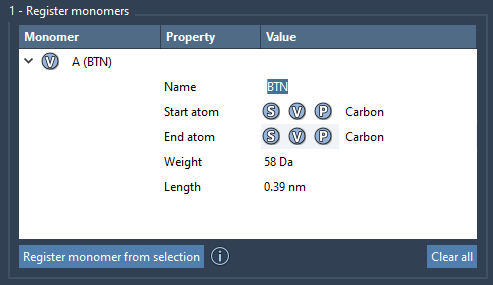
Step 3: Editing and Viewing Monomer Details
After registering a monomer, its details are displayed in a table. Here, you can find useful metrics such as molecular weight (in Daltons) and the distance between start and end atoms. You can also modify entries to adjust or expand the monomer’s properties if needed.
Want to remove unwanted monomers? Simply right-click on the entry in the list and choose Delete monomer. If you’re reorganizing your project, clear the entire table using Clear all.
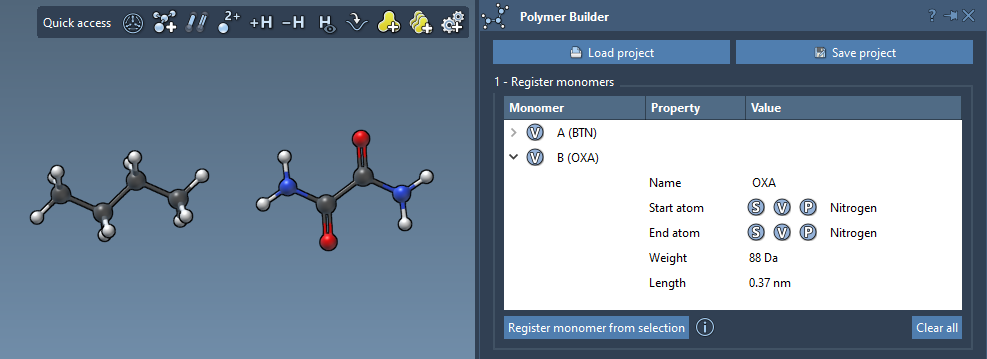
Key Tips for Success
There are a few best practices to consider when working with custom monomers in Polymer Builder:
- If your structure includes a single residue or structural group, the name will be based on it by default. Otherwise, provide a unique name for clarity.
- Any structural modification to a registered monomer (e.g., adding/removing atoms) will automatically deregister it from the list, keeping your project organized.
Note
The tool removes any excess hydrogens on connection sites during polymer generation for a more realistic structural output.
What’s Next?
By the time you finish registering your custom monomers, you’ll have a robust library ready for assembling intricate polymer sequences. The next steps involve organizing these monomers into reusable sequences, followed by generating your final custom polymer. These features unlock endless possibilities for molecular design, simulation, and property prediction.
To learn more about polymer assembly and subsequent steps, visit the Polymer Builder documentation page.
Note: SAMSON and all SAMSON Extensions are free for non-commercial use. Get SAMSON now at SAMSON Connect.