



For many molecular modelers, one of the most critical tasks is analyzing and utilizing atomic trajectories along predefined pathways. Whether for free energy calculations, reaction coordinates, or simply extracting essential data, this process can often feel cumbersome. Fortunately, the “Export Along Paths” extension in SAMSON simplifies this, offering a straightforward method to export atomic coordinates for further downstream analysis.
Why Export Atom Trajectories?
Imagine you’ve just computed a ligand unbinding path using a tool like the Ligand Path Finder. Perhaps you’ve even refined it using advanced optimization methods like the Parallel Nudged Elastic Band (P-NEB). What next? To delve deeper into your molecular modeling process—such as profiling reaction coordinates or visualizing motion—you’ll need the atomic coordinates along this path.
This is where the “Export Along Paths” app shines. This tutorial will provide you with a step-by-step guide on how to extract atomic trajectories in the precise format you need.
Step-by-Step: Exporting Atomic Trajectories
Here’s how you can export trajectories using the “Export Along Paths” feature in SAMSON:
Step 1 – Load the Sample System
Start with a sample system to get hands-on experience. For example, load the structural model of Lactose permease (Protein Data Bank ID: 1PV7) with its ligand, Thiodigalactosid (TDG), and two pre-computed unbinding paths.
To load the sample:
- Go to Home > Download in SAMSON.
- Use the provided document link: https://www.samson-connect.net/documents/046f1acd-c799-40f6-8185-cb4847eff795.
- Click Download to bring the system into SAMSON.

Step 2 – Open the Export Along Paths App
Next, locate the “Export Along Paths” app:
- Go to Home > Apps > All > Export Along Paths.
- Alternatively, press Shift + E and search for the app in the global search bar.
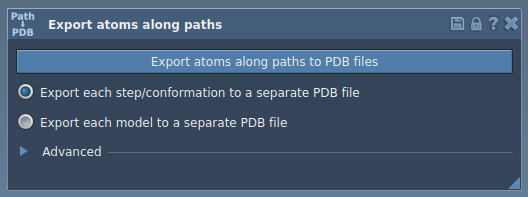
Once open, you’ll see an interface tailored explicitly for defining and exporting atomic trajectories.
Step 3 – Export the Trajectories
You now have two primary options for exporting the data:
Option 1 – Export All Atoms
- In the app, select one or more paths.
- Choose an export mode:
- All frames in a single PDB file
- Each frame as a separate PDB file
- Click Export atoms along paths to PDB files.
You’ll be prompted to specify the output folder and file prefix. Additionally, you can expand the Advanced section to adjust frame export intervals.
Option 2 – Export a Subset of Atoms
If you only need a specific set of atoms—such as the ligand or binding site—this feature allows for precise customization:
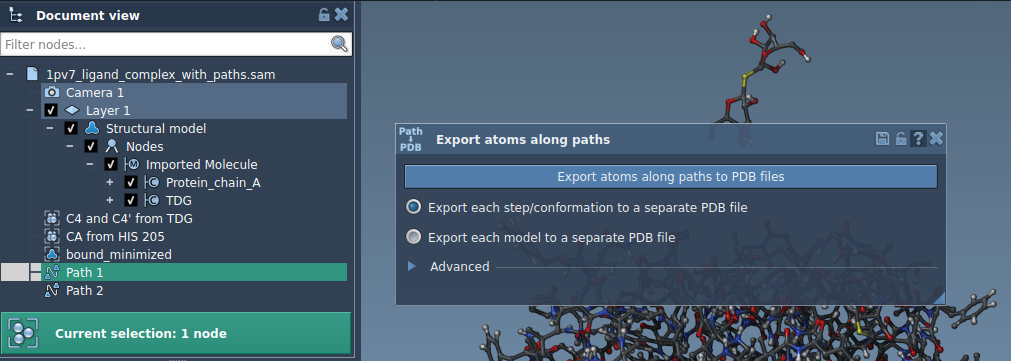
- Expand the Advanced panel.
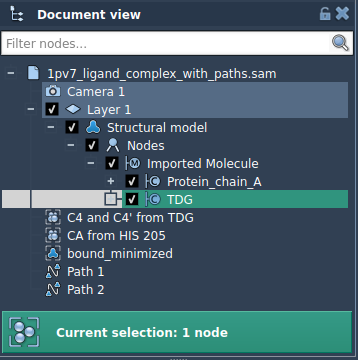
- Select the subset of atoms, e.g.,
TDG. - Add these atoms to the export list by clicking Add.
This will create a named model, which you can further manage, rename, or update. Repeat the process to include multiple atom subsets if needed.
Applications of Atomic Trajectory Exports
With the exported trajectories, you can:
- Generate reaction coordinate files for free energy profiling.
- Export ligand exit/entry trajectories for enhanced sampling studies.
- Visualize intermediate states of molecules.
- Focus on specific atom groups like ligands or protein backbones.
Conclusion
The “Export Along Paths” app in SAMSON enables molecular modelers to seamlessly extract and utilize atomic trajectories. Whether you’re profiling reaction coordinates or analyzing ligand pathways, this tool streamlines the entire process.
Learn more about how to use this feature at the official documentation page: https://documentation.samson-connect.net/tutorials/export-along-path/export-atoms-trajectories-along-paths/.
SAMSON and all SAMSON Extensions are free for non-commercial use. Start designing your molecular systems today by downloading SAMSON at https://www.samson-connect.net.