



Molecular modelers often face challenges when generating complex nanostructures like carbon nanotubes (CNTs)—especially when precision is paramount. Whether you are working in nanotechnology, materials science, or molecular design, building accurate CNT models can be critical to your workflow. With the Nanotube Creator Extension in SAMSON, you can create single-walled and multi-walled CNT models either interactively or through a graphical interface. Here’s how this tool can simplify your modeling process.
The Problem: Creating Accurate Multi-Walled CNTs
When designing nanodevices or simulating nanostructures, researchers often need precise parameters for their models. Choosing the right dimensions, chiral vectors, and positional setups for a CNT can feel overwhelming. Manually creating these structures can lead to inefficiencies and inaccuracies in simulations. That’s where the Nanotube Creator in SAMSON becomes a game-changer, offering both simplicity and flexibility in designing these versatile nanostructures.
Interactive Building in the Viewport
If you prioritize speed and visualization, you’ll find the interactive mode in SAMSON’s Nanotube Creator extremely useful. You can simply use your mouse to intuitively set parameters like axis direction, length, and radius within SAMSON’s 3D viewport. Here’s how it works:
- Set the axis and length:
Press and drag the left mouse button in the viewport to define the axis and length of the nanotube. Live feedback on the orientation and tube length will be shown on the status bar.
- Set the radius:
Release the left mouse button, move the mouse to adjust the nanotube radius, and confirm with another click.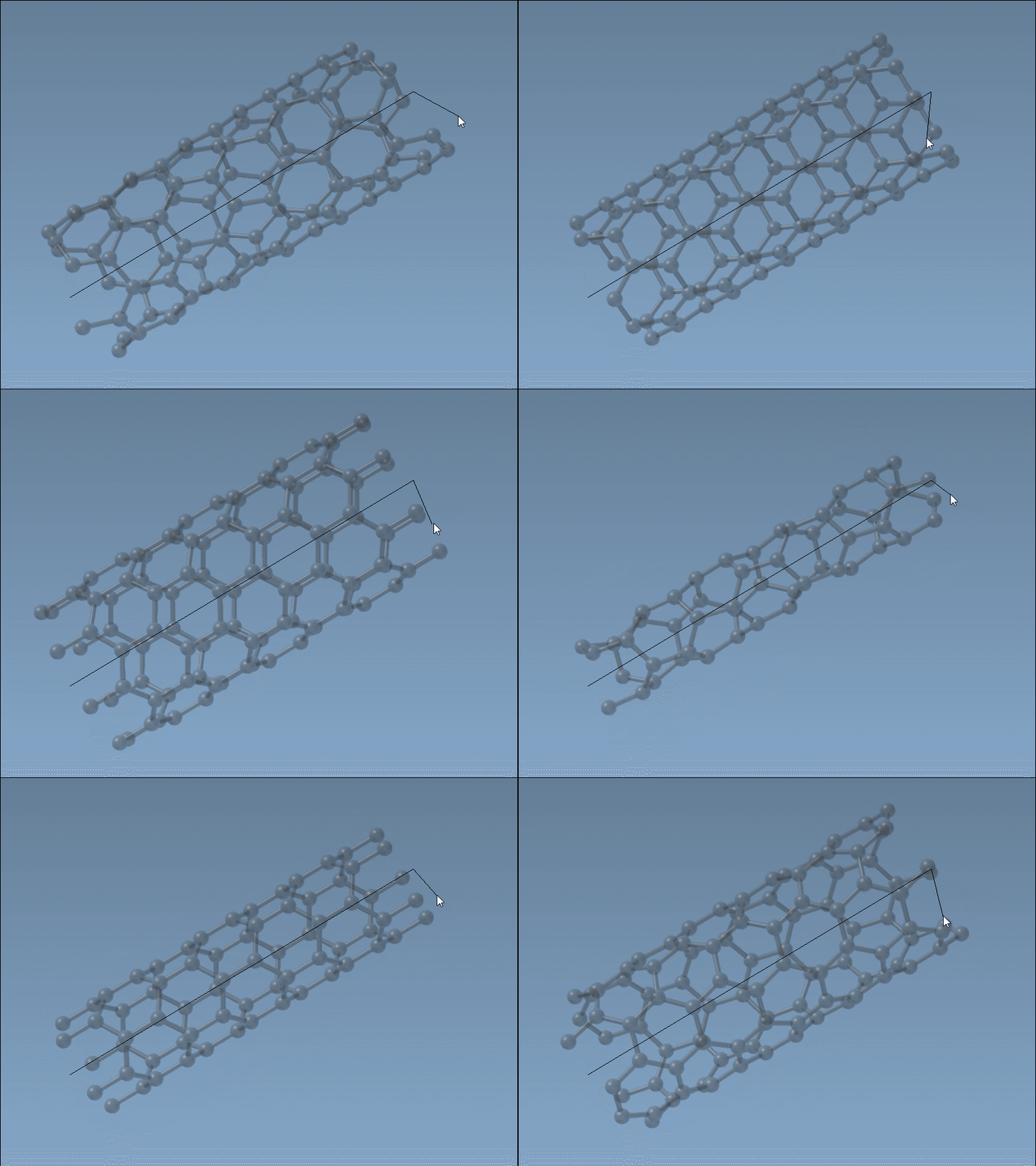
Throughout the process, the status bar provides constant feedback, helping you fine-tune parameters like n and m, which define the nanotube’s chiral vector.
Graphical Interface: Greater Precision at Your Fingertips
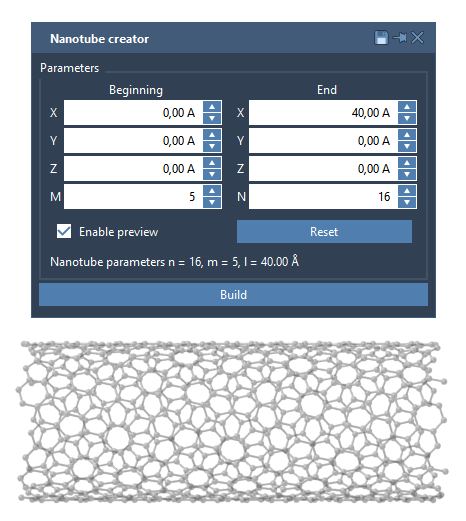
For those who need full control over the nanotube’s parameters, the graphical interface (GUI) mode in the Nanotube Creator offers exceptional flexibility. By activating the editor, you can access an intuitive GUI where you can manually enter precise values for mounting parameters like:
- Start/End positions: Define the tube’s position and axis in 3D space.
- Chiral vector (n/m): Specify the structure and radius of the nanotube.
Once you’ve configured the parameters, simply click Build to create a single- or multi-walled CNT.
Example: Building a Multi-Walled Nanotube
Let’s try constructing three concentric CNTs as an example:
- Define the start and end positions:
(0, 0, 0)and(40, 0, 0), representing a tube of 40 Å along the x-axis. - Create CNT 1: Set
n = 6,m = 6, and click Build. - Create CNT 2: Set
n = 10,m = 10, and click Build. - Create CNT 3: Set
n = 14,m = 14, and click Build.
This creates a beautiful multi-walled CNT with precise chiral characteristics. Check out the result: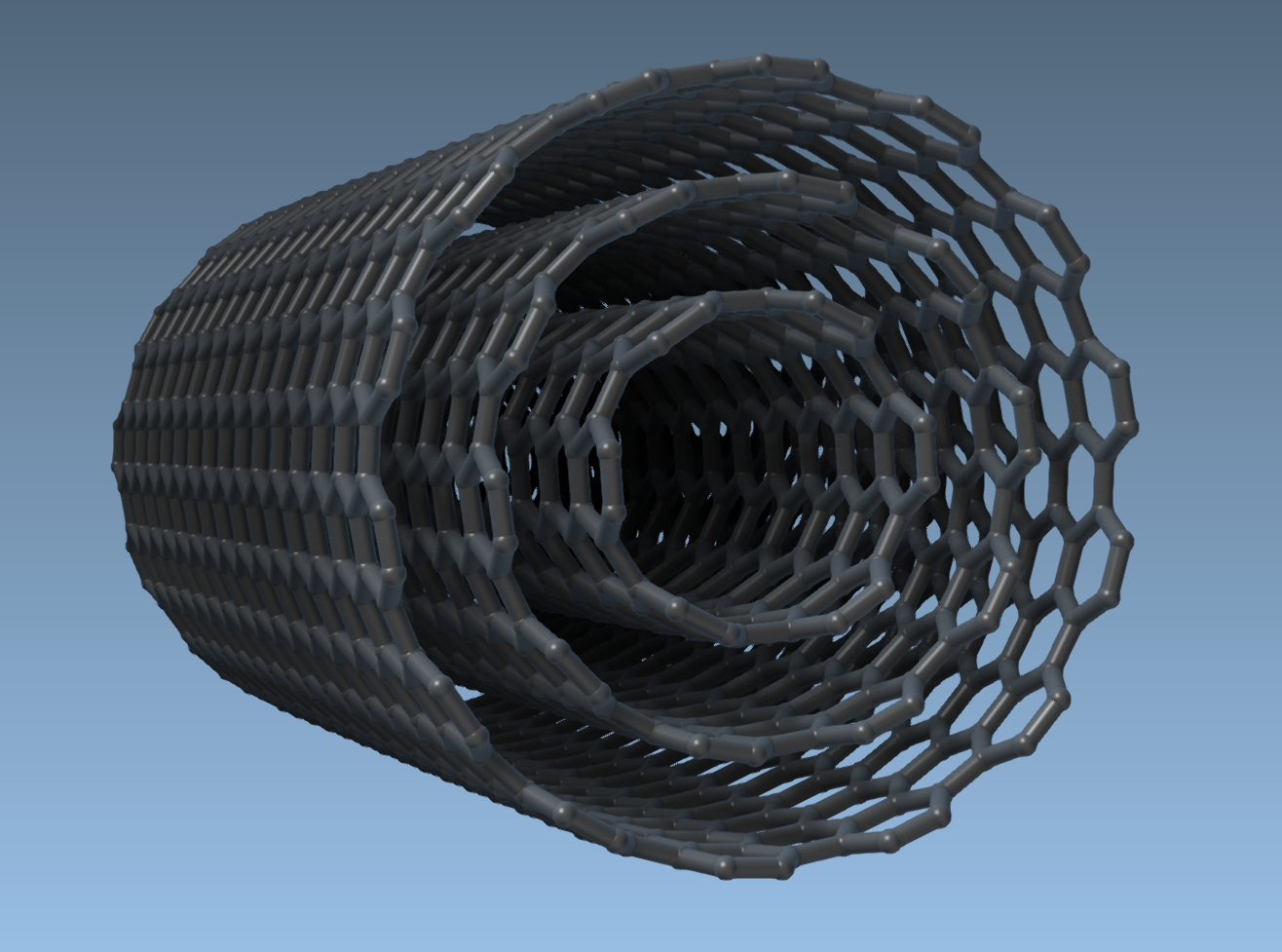
What Else You Can Do
Once your CNT models are ready, you can take advantage of SAMSON’s other powerful capabilities:
- Visualize the nanotubes in 3D and export high-quality images.
- Simulate properties interactively, including mechanics and thermal or electronic behavior.
- Integrate CNTs with other molecules to create hybrid materials.
To dive deeper into carbon nanotube modeling, visit the official documentation page.
Note: SAMSON and all SAMSON Extensions are free for non-commercial use. Get SAMSON at https://www.samson-connect.net.