



One persistent challenge for molecular modelers lies in efficiently generating and analyzing molecular analogues based on a specific starting molecule. Whether you’re working on optimizing a drug candidate, exploring new substitutions, or preparing molecules for docking studies, the process can often feel daunting and time-consuming. Here’s where positional analogue scanning in the SMILES Manager within SAMSON makes a difference.
The Positional Analogue Scanning feature allows users to directly generate analogue series from within SAMSON, defined by a SMARTS pattern in the starting molecule, making it both fast and insightful. Let’s delve into how it works and see why this workflow can transform your everyday modeling tasks.
Why Positional Analogue Scanning Matters
In molecular design, exploring substitution options and visualizing their effects can reveal critical insights about structure-activity relationships. However, traditional methods may require complex scripts, switching between tools, or investing considerable time and effort. Positional analogue scanning simplifies this journey, integrating everything into SAMSON and generating analogues in seconds.
Setting Up the Workflow
To get started, you’ll need the SMILES Manager. Once added to SAMSON, follow these steps:
- Open the SMILES Manager extension and switch to the Positional Analogue Scanning tab.
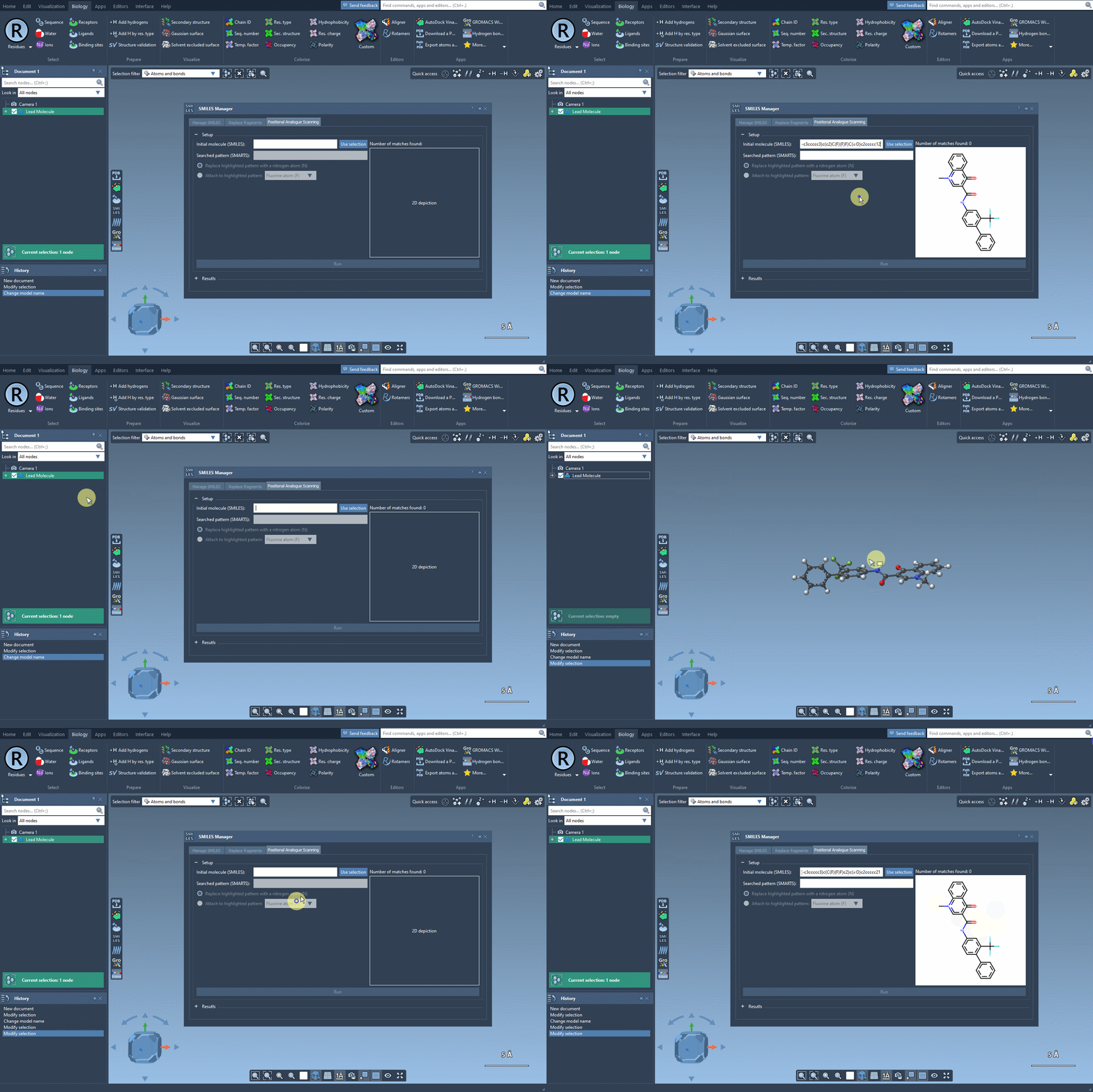
- Define your starting molecule by either entering its SMILES code or selecting the molecule in your SAMSON document and pressing “Use selection.”
For example, consider this molecule: CN1C=C(C(=O)Nc2ccc(-c3ccccc3)c(c2)C(F)(F)F)C(=O)c2ccccc12.
Specifying Your SMARTS Pattern
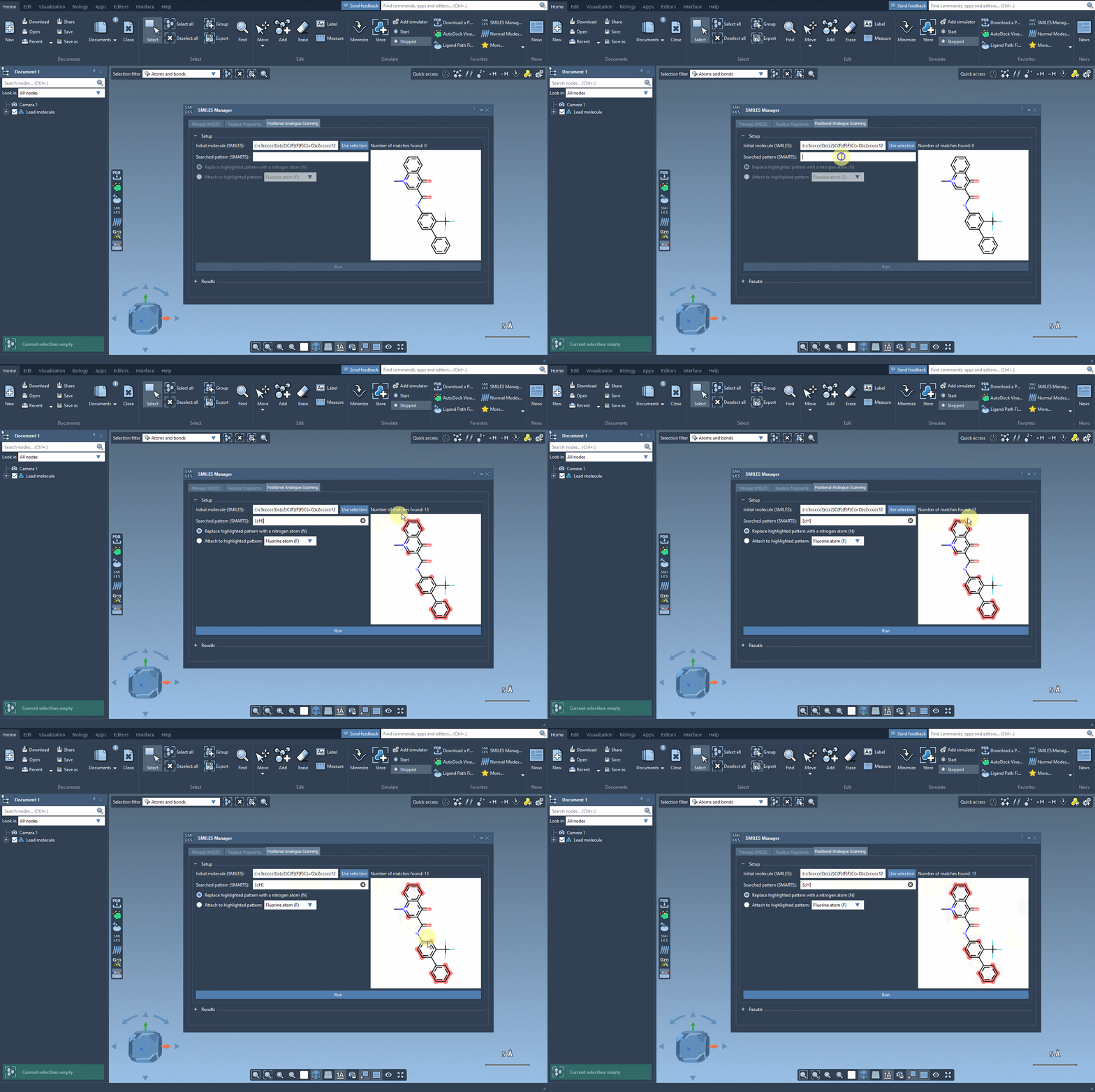
Next, define which part of the molecule to replace or attach groups to by entering a SMARTS code in the relevant field. Say you want to target aromatic carbon atoms in the molecule—you can specify [cH] as your pattern. SAMSON highlights all occurrences of this pattern in your molecule, making it easy to visualize your starting structure.
Generating Your Analogues
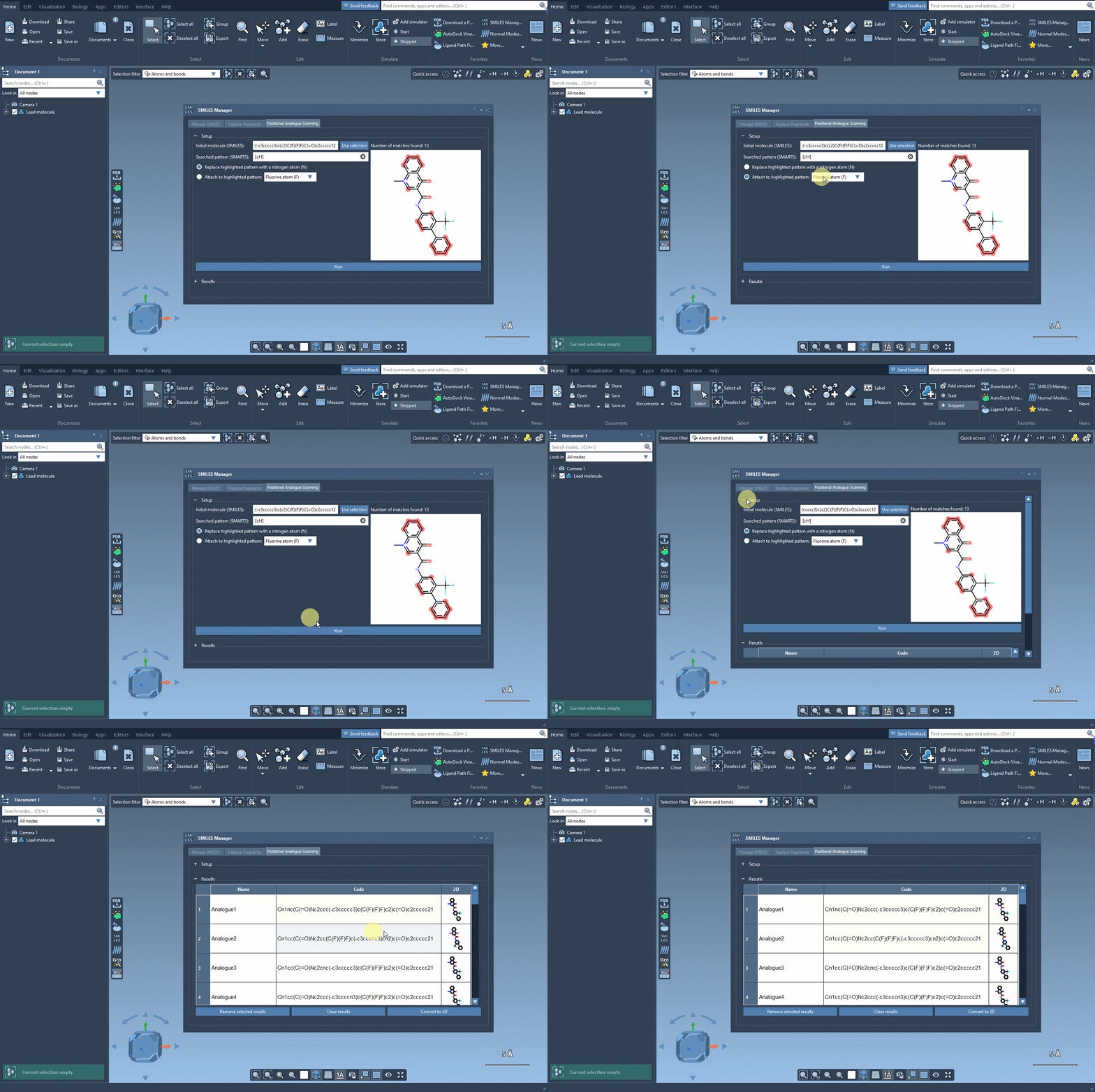
Once the pattern is defined, you can proceed by choosing what to replace it with. For instance:
- Replace the pattern with a nitrogen atom (N).
- Attach a fluorine atom (F) or a methyl group (CH3) to the pattern.
Simply click “Run,” and in moments, the SMILES codes and 2D structures for all potential analogues are generated and displayed in a results table.
Fine-Tuning and 3D Conversion
The results table offers flexibility to modify, visualize, and analyze the analogues:
- Edit the names or SMILES codes.
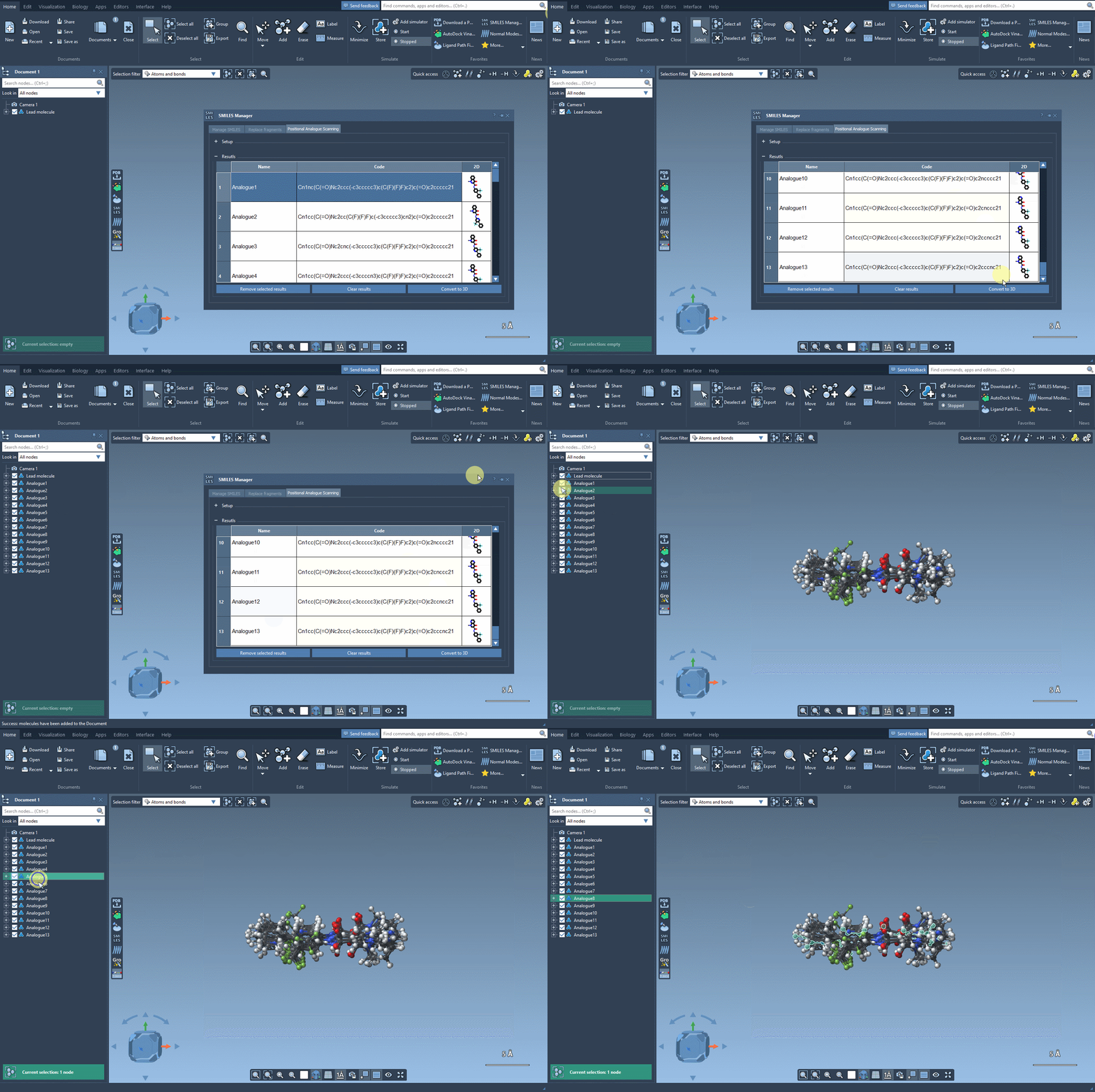
- Double-click images for a larger view, or right-click to generate 3D structures.
- Remove individual or all analogues with dedicated actions.
You can also easily convert selected analogues to 3D structures for further studies, such as docking or interaction analyses.
Next Steps
Once your analogues are in 3D, you can dive deeper into your research. For instance, you might use the AutoDock Vina Extended extension for docking studies to assess which modifications enhance interactions with your target protein.
Learn more about positional analogue scanning here.
Note: SAMSON and all SAMSON Extensions are free for non-commercial use. Download SAMSON at SAMSON Connect.