



Molecular modelers often face the challenge of preparing accurate trajectory data for further analysis or simulations. Whether it’s free energy calculations, reaction coordinate studies, or ligand movement analysis, the need for reliable and manageable atom trajectories is essential. SAMSON’s Export Along Paths app streamlines this process, making it simple to export atomic coordinates along user-defined paths. Here’s how it works and why it’s useful for your molecular modeling projects.
Why Exporting Atom Trajectories Matters
Paths represent the atomic trajectories of one or more groups of atoms in SAMSON. For example, after simulating a ligand’s unbinding or transition with tools like the Ligand Path Finder, you might want to export the ligand’s coordinates along the path. This data could then be used for downstream analysis, such as free energy profiling or enhanced sampling simulations. By exporting specific trajectories, you avoid clutter and focus only on the atoms essential to your investigation.
Step-by-Step Guide to Exporting Trajectories
Follow these steps to easily export atom trajectories along a path:
1. Open the Export Along Paths App
Start the app by navigating to Home > Apps > All > Export Along Paths. Alternatively, use the shortcut (Shift + E) to find it directly.
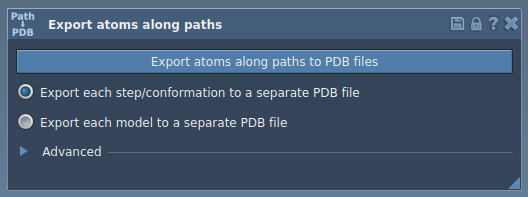
2. Export Options
The app offers two primary export options, allowing you to control the level of detail and focus:
Option 1 – Export All Atoms
- Select one or more paths in the Document view.
- Choose your export mode:
- All frames in a single PDB file
- Each frame as a separate PDB file
- Click Export atoms along paths to PDB files, then select a destination folder and file name prefix.
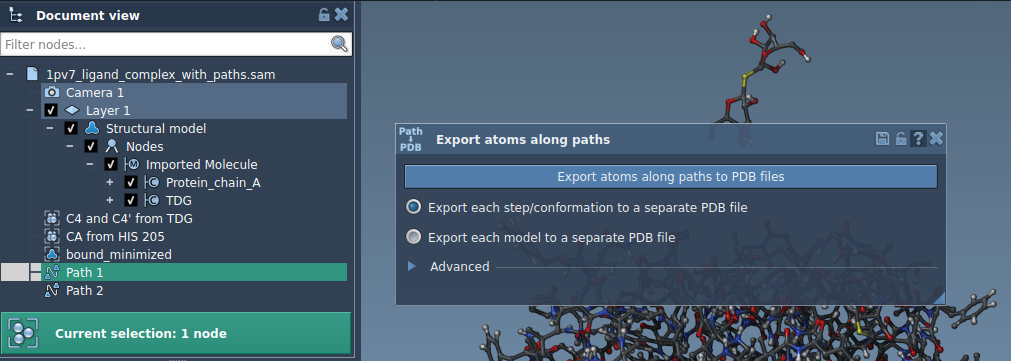
Optional: Use the Advanced section to adjust the frame export interval (e.g., export only every 10th frame).
Option 2 – Export a Subset of Atoms
If you’re working with specific parts of the system, such as a ligand or active site residues, the app lets you export trajectories for just those atoms:
- Expand the Advanced panel in the app.
- Select a subset, for example, the ligand
TDGin the Document view.
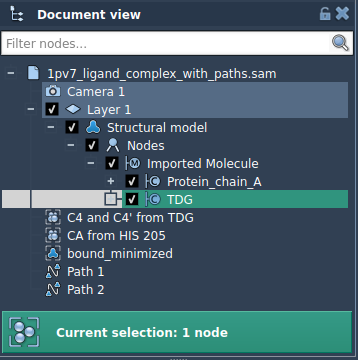
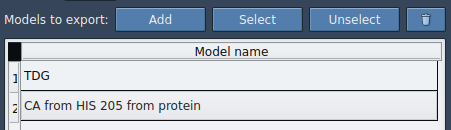
- Click Add to define this group as a custom model. Additional models can also be added using the same method.
After defining models, adjust settings as needed and export the paths. The interface allows intuitive management of models via rename options, model addition, and selective inclusion/exclusion—all optimized to help organize your workflow.
Molecular Modeling Use Cases
Examples of applications for exported trajectories include:
- Generating reaction coordinate files for free energy calculations.
- Exporting ligand exit or entry trajectories for enhanced sampling methods.
- Preparing intermediate states for visualization or publication purposes.
- Tracking atom subsets, such as ligands or protein backbones, over time.
Start Integrating Trajectory Exports into Your Workflows
Exporting targeted trajectories significantly simplifies downstream tasks, enabling molecular modelers to focus on analytical goals. To further explore the Export Along Paths extension and its capabilities, visit the original documentation page: Export Atom Trajectories Along Paths.
Note: SAMSON and all SAMSON Extensions are free for non-commercial use. You can get started today by downloading SAMSON from SAMSON Connect.