



When working on molecular modeling, have you ever felt constrained by tools that lack seamless integration between 2D and 3D editing? Designing and visualizing molecules in a way that keeps these dimensions perfectly synchronized can be a real challenge. That’s where the Interaction Designer in SAMSON comes in to save the day.
The Interaction Designer is an invaluable resource for researchers and modelers who need to design molecules in 2D while maintaining a dynamic connection with 3D representations. Here’s a dive into how you can use it effectively to simplify molecular design.
Building Molecules from Scratch in 2D
Create new molecules in 2D effortlessly using the Edit > Design command in the Interaction Designer. When you’re in the builder mode, select the element (like Carbon) you want to work with from the left panel. Once chosen, you can start adding atoms to the canvas simply by clicking anywhere or connecting to existing atoms by clicking on them.
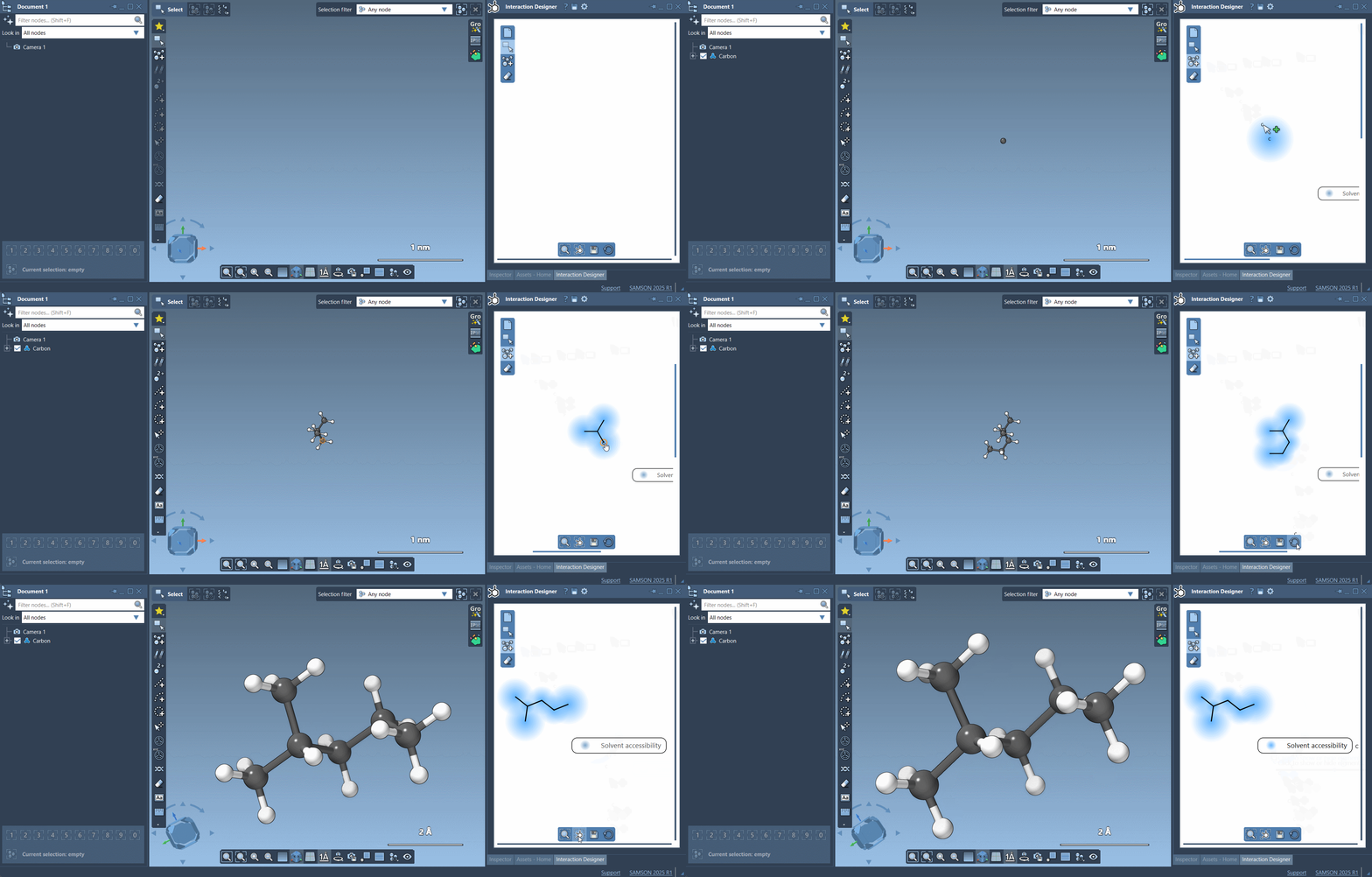
What truly sets the Interaction Designer apart is its ability to keep your 2D design synchronized with the 3D viewport. Any fragment or atom you modify in 2D will instantly reflect in the 3D view, and vice-versa. Navigation and selection also remain perfectly aligned, which dramatically enhances usability.
Customizable Design Elements
Another standout feature is the ability to switch atom types or use fragments directly from the Asset Browser. For quick selections, you can pick H, C, N, or O atoms directly from the bottom of the Asset Browser. For other elements, simply access the Periodic Table view. Selecting an atom type from there allows you to integrate a new element into your structure. This level of flexibility enables detailed molecular designs tailored to your specific research.
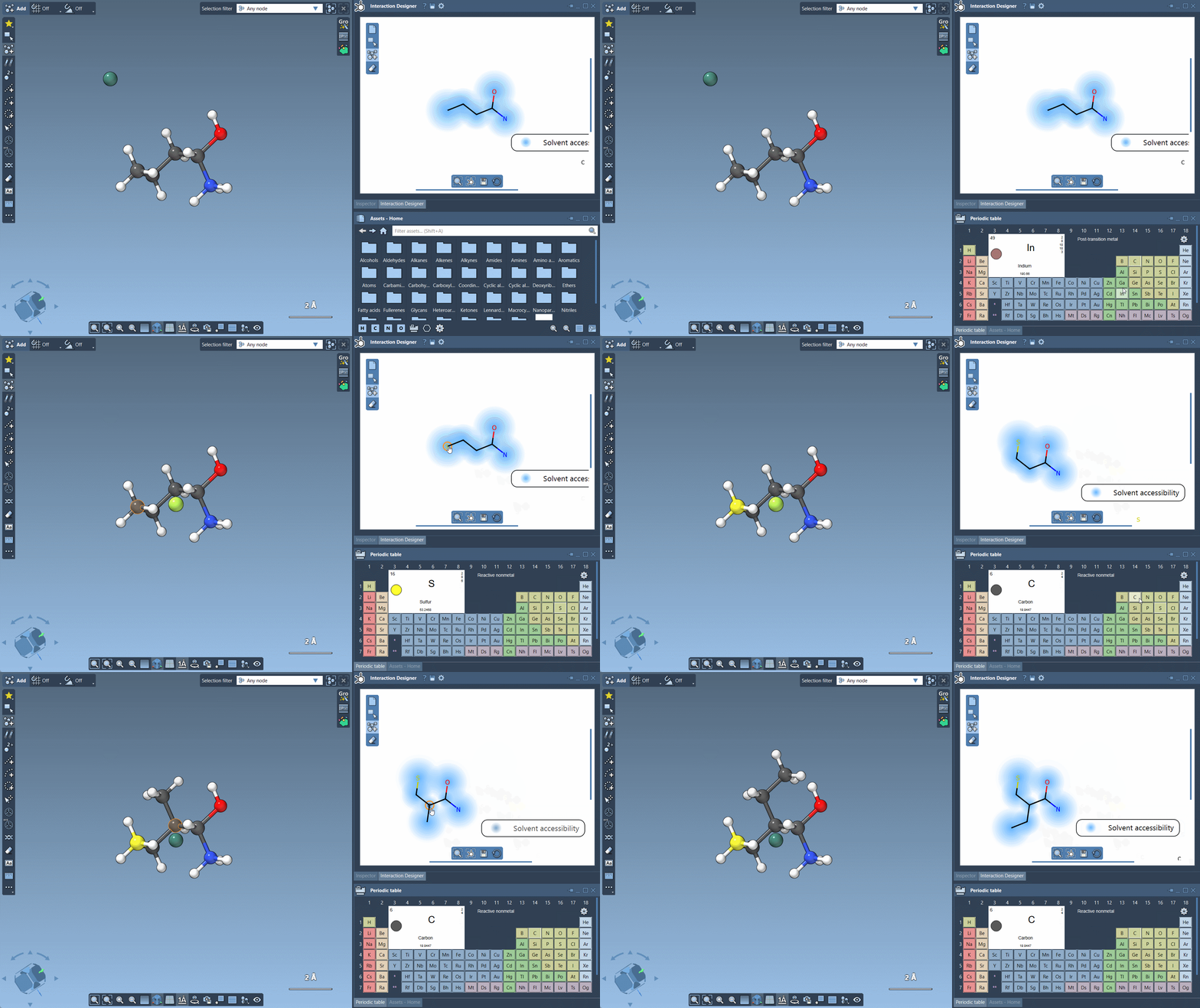
You can modify atom types during your design process as well—just choose a different type while clicking on any existing atom in your diagram.
Fragments and Advanced Navigation
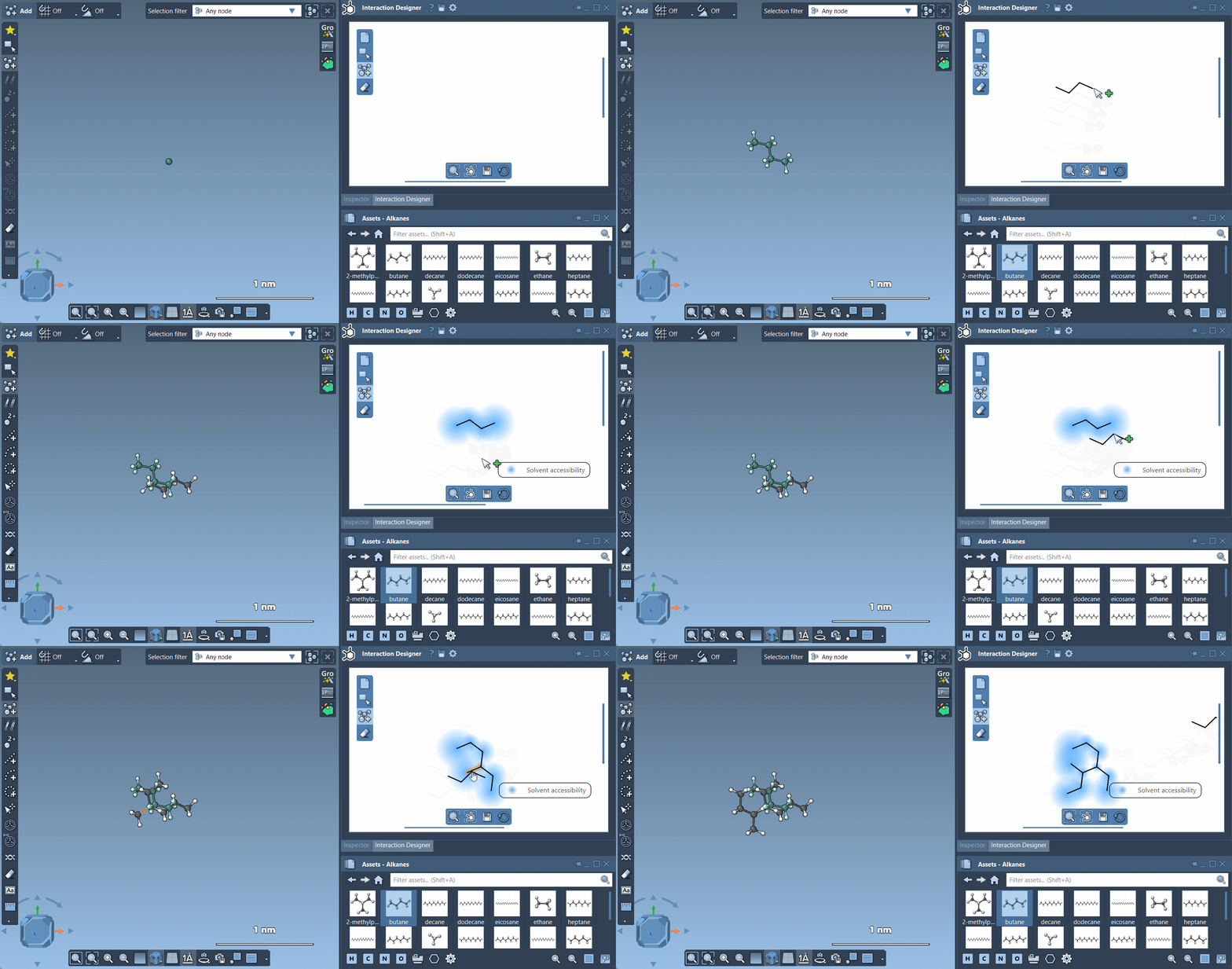
If you’re using pre-defined fragments instead of single atoms, the Interaction Designer allows you to set a specific pivot atom for precise positioning. Simply hold down Ctrl/Cmd and choose your desired pivot atom before connecting fragments. This ensures that your design remains clean and logical.
Easy Atom Erasing
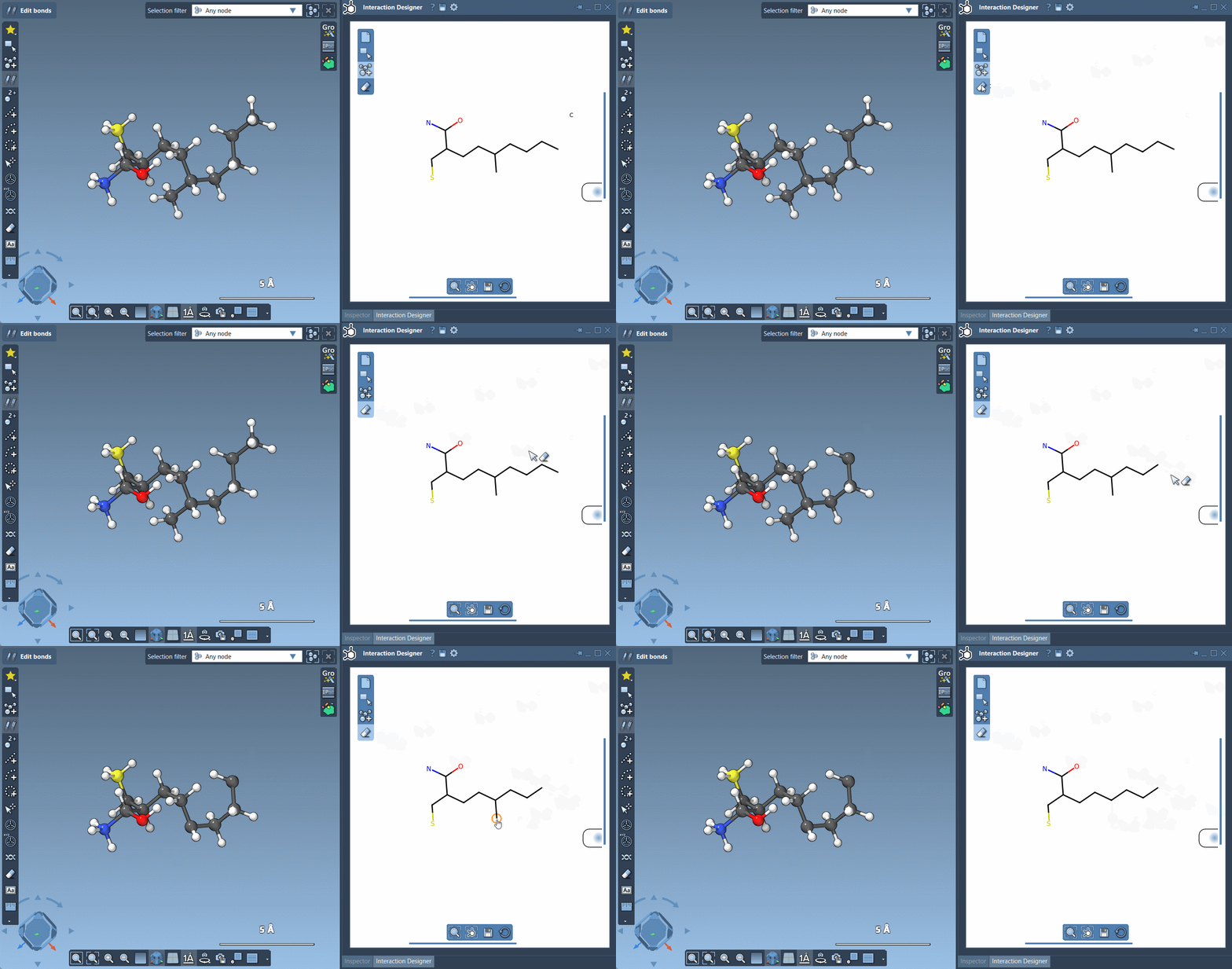
Sometimes, parts of your molecular design need reworking. With the Erase function in the left panel, you can delete unwanted atoms quickly. Just click on the Erase icon and then on the atoms you wish to remove. The tool provides precise editing options, ensuring that you maintain full control of your 2D molecular diagrams.
Why Use the Interaction Designer for Molecule Design?
- Seamless 2D-3D Synchronization: Avoid the headaches of switching between disconnected views by using the tightly linked 2D and 3D editing capabilities.
- Customizability: Switch and combine elements/fragments with great flexibility to represent your desired molecular architectures.
- Enhanced Workflow: Build molecules from scratch or expand existing ones—all while making real-time updates in both 2D and 3D environments.
- Time-Saving: Features like Erasing or switching pivot atoms speed up the design process significantly.
These improvements are especially critical to molecular modelers who often balance the high complexity of structural representation and fast prototyping for their research workflow.
Ready to take your molecular modeling to the next level? Learn more about what the Interaction Designer can do by visiting the official SAMSON documentation.
SAMSON and all SAMSON Extensions are free for non-commercial use. Download SAMSON today at samson-connect.net.