



Molecular modelers tackling complex pathways often seek precise ways to analyze atomic trajectories, such as ligand movements or reaction coordinates. However, preparing this data for downstream tasks like free energy profiling or advanced visualization can be cumbersome. The Export Along Paths extension in SAMSON provides a streamlined solution, allowing you to effortlessly export atomic coordinates along predefined paths. Here’s a step-by-step guide to making the most of this powerful tool.
The Problem: Why Exporting Atomic Trajectories Matters
Imagine you’ve just computed an intricate unbinding pathway for a ligand or generated a reaction coordinate. To conduct simulations or free energy calculations, you often need to extract atomic coordinates at specific points. Without a user-friendly tool, this process might involve tedious scripting or juggling between different software. SAMSON’s Export Along Paths extension simplifies this task, ensuring you can dedicate more time to scientific analysis and less to technical roadblocks.
Getting Started with Export Along Paths
First, ensure you have the Export Along Paths extension installed and ready to use. If you’re new to SAMSON:
- Log into SAMSON Connect.
- Add the extension from its page and restart SAMSON. The tool will now be available in the Home > Apps menu.
Step-by-Step Guide to Exporting Trajectories
Step 1: Load a Sample System
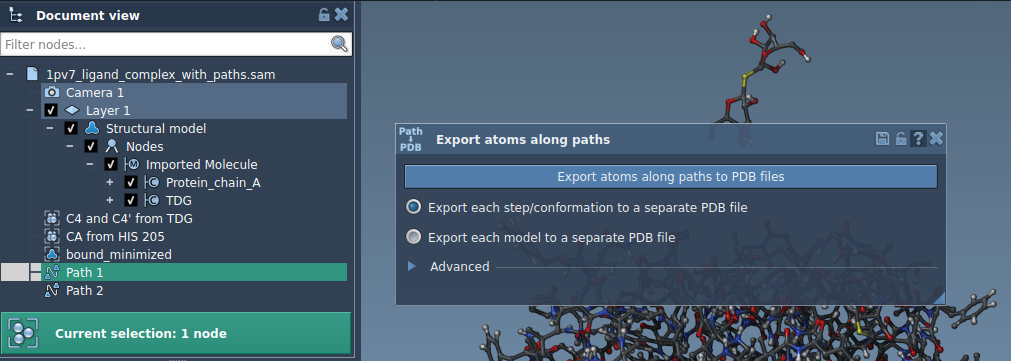
For practice, download the sample system provided in the documentation by pasting this link into the Home > Download section of SAMSON. The tutorial system models lactose permease (1PV7) with its ligand, thiodigalactosid (TDG), and unbinding paths. You can visually explore these components in SAMSON’s Document view. Here’s what you’ll see:

Step 2: Open the Export Along Paths App
Access the app via Home > Apps > All > Export Along Paths. Alternatively, use the shortcut Shift+E. The intuitive interface allows you to select paths, choose export options, and refine your outputs.
Step 3: Choose Your Export Mode
Option 1: Export All Atoms
If you wish to export all atoms along a selected path, follow these steps:
- Select one or more paths in the Document view.
- Choose between exporting all frames in a single PDB file or as separate files for each frame.
- Click Export atoms along paths to PDB files, specify a destination folder, and set a file name prefix.
Optional: Adjust the frame export interval in the Advanced section to tailor your results further.
Option 2: Export a Subset of Atoms
Focus your export on a specific subset of atoms, such as ligands or active site residues:
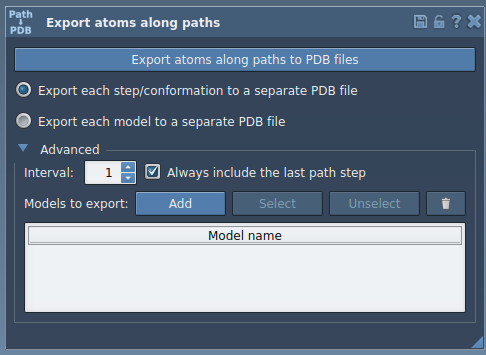
- Expand the Advanced panel in the app.
- Select a subset of atoms (e.g., the ligand
TDG) in the Document view. - Click Add to define this set as a model to export.
- Refine the list by renaming models, adding new sets, or deselecting specific atoms.
Once ready, follow the same process as above: select paths, set export preferences, and produce your coordinate files.
Why This Matters
Whether you’re outputting ligand entry/exit trajectories for visualization or generating reaction coordinate files for simulations, the Export Along Paths extension eliminates common pain points. It allows molecular modelers to hone in on the data they need while maintaining workflow efficiency. To delve deeper into this topic, visit the full documentation page: Export Atom Trajectories Along Paths.
SAMSON and all SAMSON Extensions are free for non-commercial use. Discover SAMSON at SAMSON Connect.