



As molecular modelers, we often find ourselves working on complex systems where saving, toggling, and managing selections can be a real challenge. What if switching between various structural elements of your molecular designs could be done in just a couple of clicks? Say hello to Quick Groups—your new best friend for streamlined molecular modeling workflows in SAMSON.
Why Quick Groups Matter?
When working on complex molecular structures, toggling between different regions (like ligands, receptors, or water molecules) can slow you down. Quick Groups allow you to rapidly save, recall, and switch between multiple selections in your document without losing focus or precision. Whether you’re analyzing large structures, preparing for simulations, or presenting visual models, Quick Groups dramatically simplify your workflow. They are intuitive, fast, and fully integrated into SAMSON.
What are Quick Groups?
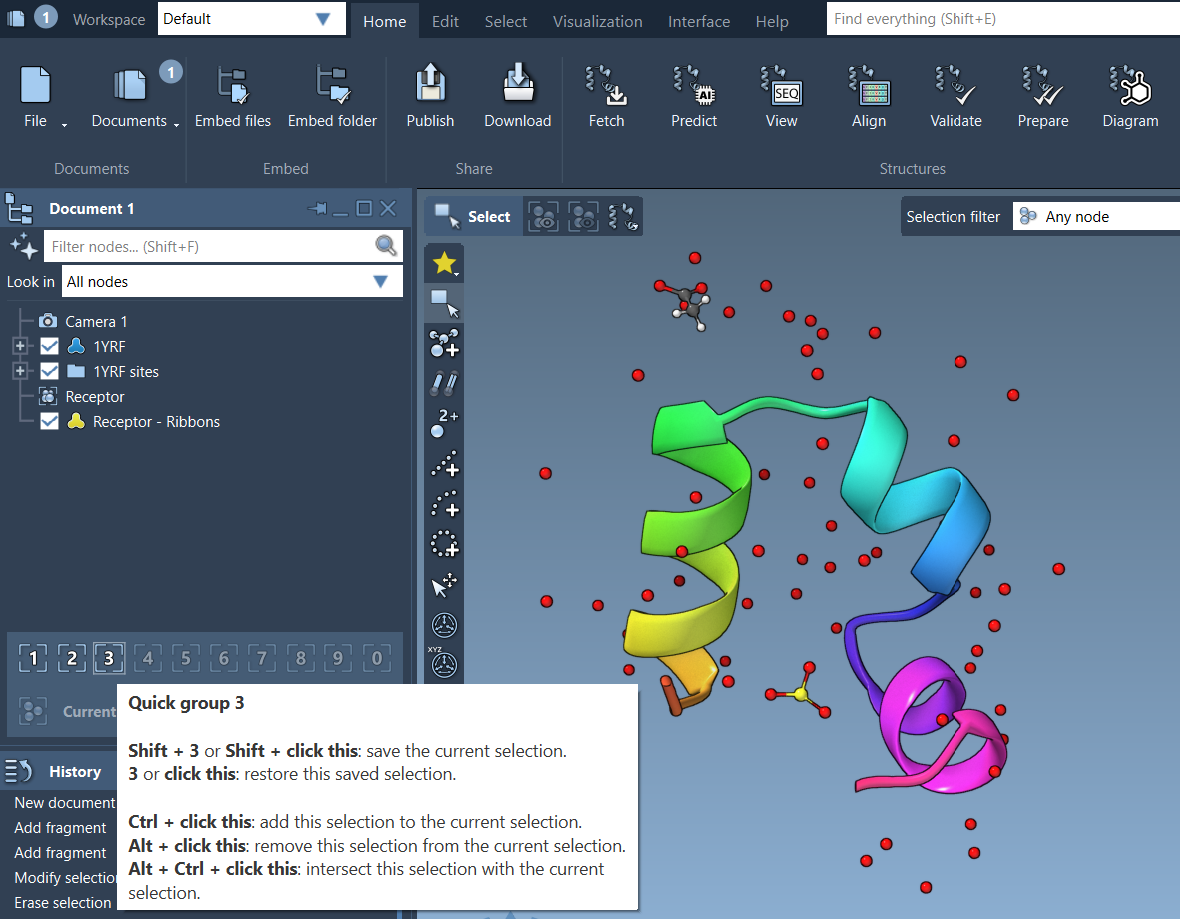
Quick Groups are temporary, unnamed groups that appear in the lower section of the Document view. They are perfect for saving and toggling between important selections during iterative tasks. These groups don’t require naming or permanent setup, making them particularly useful for time-sensitive projects or during exploratory analyses. You can assign up to 10 Quick Groups (easily remembered as slots 1–10).
How to Use Quick Groups?
Assigning Selections to Quick Groups
To assign a selection to a Quick Group, follow these easy steps:
- Select the nodes (e.g., atoms, residues) you want to save.
- Assign the selection to a Quick Group:
- Mouse method: Hover over a Quick Group slot in the Document view and press Shift + click.
- Keyboard method: Press Shift + number (e.g., Shift+2) to assign to Quick Group 2.
Quick Groups are highly flexible. You can reassign or clear groups at any time, making them perfect for evolving workflows.
Toggling and Managing Quick Groups
Once Quick Groups are set up, navigating between them is simple:
- Press the number keys (1, 2, etc.) to switch the selection to the corresponding Quick Group.
- Double-press the same key (e.g., 1 1) to zoom in on that group’s selection directly.
- Alternatively, click directly on the Quick Group icons in the Document view.
Practical Example
Here’s how you might employ Quick Groups in a typical workflow:
- Select the ligand and assign it to Quick Group 1.
- Select the receptor and assign it to Quick Group 2.
- Select water molecules and assign them to Quick Group 3.
- Use 1, 2, and 3 to toggle between these groups instantly. Additionally, apply different visualizations or transformations to each group as needed.
By enabling rapid access to predefined selections, Quick Groups help you focus on the task at hand rather than spending time selecting or filtering repeatedly.
More Ways to Explore Quick Groups
Quick Groups are also useful for saving and comparing multiple configurations, applying actions to specific regions of your molecular system, or visualizing different aspects of your model during educational presentations. Their flexibility fits seamlessly into whatever you need for your project.
Learn More
Excited to streamline your modeling efforts with Quick Groups? Explore the full suite of selection tools in SAMSON by visiting the documentation page: https://documentation.samson-connect.net/users/latest/selecting/.
SAMSON and all SAMSON Extensions are free for non-commercial use. You can get SAMSON at https://www.samson-connect.net.