



Protein-ligand docking can be computationally intensive, especially when broad search domains are involved. For molecular modelers looking to optimize docking workflows and save computation time, defining a targeted search domain is a key solution. In this blog post, we’ll explore how you can efficiently set up and customize search domains using the AutoDock Vina Extended SAMSON Extension.
Why Customize Your Search Domain?
When docking ligands, the software searches for potential binding poses across a defined region of the receptor. By default, the search domain spans the entire receptor, which can be computationally expensive. Narrowing the search domain to the known or suspected binding site:
- Reduces computational load and docking time.
- Improves the accuracy of docking results by focusing on relevant binding regions.
Let’s walk through the steps to effectively set up and adjust the search domain in SAMSON.
Step-by-Step: Setting Up the Search Domain
The process of defining the search domain in AutoDock Vina Extended is simple and flexible. Here’s how you can do it:
- Automatic Setup Based on the Receptor
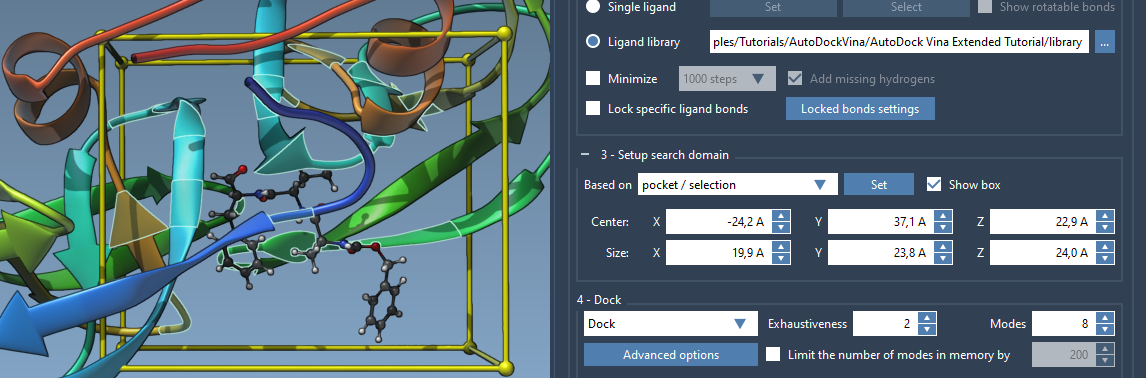
When you set the receptor, AutoDock Vina Extended automatically defines a box encompassing the receptor. This box represents the search domain. If the entire receptor is your area of interest, you can use this default setup without adjustments. - Adjust the Search Box in the Viewport
If you want to manually modify the search domain, use the yellow box’s controllers in the Viewport. Click and drag the spheres at the corners of the box to resize or reposition it as needed. This visual approach makes customization intuitive. - Set the Domain Based on Binding Site or Selection
For projects involving a known binding site, you can set the search domain to surround that region: - Select the bound ligand or specific residues around it using
Select > Biology > Binding sites. - Choose the “Based on pocket/selection” option and click Set. The search domain will be optimized to your selection.
- Edit Center and Size in the Interface
If precision is crucial, modify the box’s center and size parameters directly in the interface.

Example: Setting Up the Search Domain for Binding Site 2AZ8-IA
Let’s consider an example using the 2AZ8-IA ligand from the tutorial:
- Select the ligand in the Document view.
- Go to
Select > Biology > Binding sitesand confirm the selection parameters (e.g., distance around the ligand). - After selecting residues around the ligand, choose “Based on pocket/selection” in the search domain settings and click Set. The search box will adjust to encompass the defined binding site.
Tips for Fine-Tuning
- If needed, rotate or align the receptor in global XYZ coordinates using SAMSON’s Move editors.
- Toggle the “Show box” option to hide or display the search box in the Viewport while working on the receptor or ligand setup.
Save Time, Get Better Results
Defining your search domain is an essential step to maximize the efficiency of docking workflows in SAMSON. By focusing the search on relevant regions, you save both time and computational resources, while ensuring more meaningful docking results.
For further details and advanced customization tips, visit the official documentation page.
*Note: SAMSON and all SAMSON Extensions are free for non-commercial use. You can download SAMSON here.